
A guest access link is a URL that lets someone outside your team open a file or folder without becoming a full member of your workspace. Depending on how the link is set up, the person may open it with no account at all, confirm their email with a one-time code, or sign in with an account you invited. For audio work, the right choice depends on one question: how sensitive is the session, mix or master you are sending?
This guide covers what the link types mean, what the recipient has to do, why guests get stuck on “request access” screens, and how to send audio to clients without turning your inbox into a support desk.
TL;DR
- A guest link opens one shared item. A guest account is a standing identity in your directory with ongoing access.
- “Anyone” links need no sign-in and cannot be audited. “Specific people” links ask the recipient to verify who they are.
- For unreleased or sensitive projects, require sign-in or use a tool with per-project passwords and download controls.
- Guests who see “request access” usually opened the link with a different email than the one you invited, or access is still provisioning.
- For client review, a no-login portal with timestamped comments on the waveform beats any generic file-sharing link.
Table of Contents
- What a guest access link actually is
- The three link types you will run into
- Does the recipient need an account?
- Why guests see “request access” or get asked to sign in
- How to create a guest link for an audio collaborator
- Limiting what a guest can do with your audio
- Seat limits and guest counts
- Guest access in a team workflow
- Perspective
- Try a client link built for audio
- A simple checklist before you hit send
- FAQ
- Sources
What a guest access link actually is
People search this phrase for two different reasons. Some are IT admins running Microsoft 365 who want to know how external sharing behaves. Others are creators who just need a client to hear a mix. The mechanics are the same, so it helps to define the terms once.
A guest access link is a shareable URL pointing at a specific item. Whoever it is meant for can open it from outside your organization. A guest user is something else: an account created in your directory for an outsider. In Microsoft 365, guest accounts are handled through Microsoft Entra B2B collaboration, which lets people with an email address reach specific shared resources, and most features do not require a license for them.
The difference matters in practice:
- Sharing through a link is distinct from inviting external users to sign in as site members, which gives ongoing access to site content and features.
- Inviting someone to a Microsoft Teams team creates a guest account in Microsoft Entra ID, so that person falls under your organization’s compliance, auditing and conditional access policies.
In plain terms: a link is a door to one room. A guest account is a key card for the building.
The three link types you will run into
Most platforms offer some version of the same three choices. Names vary, but the logic does not.
| Link type | Who can open it | Sign-in needed | Good for | Watch out for |
|---|---|---|---|---|
| Anyone / public link | Anybody who has the URL | No | Low-risk files, public reference tracks | Forwarding. You cannot tell who opened it |
| Specific people | Only the named email addresses | Often yes, or a one-time code | Unreleased mixes, contracts, stems | Recipient opens it with a different email |
| People in your organization | Members of your own tenant or team | Yes | Internal review | Useless for outside clients |
The key facts come straight from Microsoft’s documentation. Anyone links give access to any recipient who has the link, require no authentication and cannot be audited. That is convenient and also the reason administrators treat them carefully. In governed environments, Microsoft’s Entra architecture guidance does not recommend enabling Anyone links because they bypass the policies you set elsewhere.
For a freelancer, “cannot be audited” translates to a simple problem. If a client forwards the link to their cousin, their label contact and a random Discord server, you will never know.
Does the recipient need an account?
Usually not, but it depends on the link type. Per Microsoft’s guidance on external and guest sharing, an Anyone link does not require a Microsoft or platform-specific account. With higher-security settings or “Specific people” links, the recipient often has to sign in or verify their identity.

When someone has no Microsoft account, Microsoft 365 can verify them with a one-time passcode sent to their email address. That is a reasonable middle ground: no password to create, but the link only works for the person it was meant for.
For creative clients, every extra step costs you. A singer’s manager on a phone between meetings will not create an account to hear a rough mix. They will reply “can you just send it as an MP3?” and now you have lost the lossless file, the version history and the paper trail. This is why many audio professionals care about no-login access that still has some protection on it.
Why guests see “request access” or get asked to sign in
If you have ever sent a link and heard back “it says I need permission,” one of these is almost always the cause.
- Wrong email. The link was issued to one address and the guest opened it while signed in as another. A client’s personal Gmail versus their studio address is the classic case.
- Link type mismatch. You sent an organization-only link to someone outside the organization.
- Provisioning delay. Guest access in Teams can take up to 12 hours to provision after a team owner adds a guest. If you add someone and send the link ten minutes before the session, expect trouble.
- External sharing is restricted. Administrators can limit sharing by domain or to specific security groups, as described in Microsoft’s Entra guidance. If the guest’s domain is not allowed, the link will not work.
- The link was created for a folder, but the file moved. Re-sharing after reorganizing is a habit worth building.
A quick fix order
Start with the cheapest check and work up:
- Ask the guest which email address they are signed in with, and open the link in a private window.
- Re-send the invitation to the exact address they use.
- Confirm the link type allows people outside your organization.
- If you are the admin, check external sharing and domain restrictions.
- If it is a freshly added Teams guest, wait and retry later rather than re-inviting repeatedly.
How to create a guest link for an audio collaborator
The steps differ by platform, but the sequence is the same everywhere. These are the decisions to make, in order.
- Decide who the link is for. One client, a band, or a whole production team? A named person gets a verified link. A broad audience gets a public one, with limits.
- Pick the link scope. Share the single bounce, the project folder, or the whole client space. Smaller is safer.
- Set a permission level. View and listen only, or comment, or download. For mixes in progress, listen and comment is almost always enough.
- Add a password or verification when the material is unreleased.
- Control downloads. If a client only needs to review, do not hand them the file. If they need a final master, allow it on that file only.
- Send it to the right address, in the right thread, and note what version it points to.
General cloud storage handles steps 1 to 3 reasonably well. It handles the rest less well, because it was built to sync documents, not to circulate audio for approval. A shared document folder has no waveform, no way to comment at 02:14 of a mix, and no sense of which bounce is current. If you want to think through the bigger picture, our file sharing methods for studios guide compares the common approaches.
Limiting what a guest can do with your audio
Sharing is easy. Containing it is the real work. For sensitive project content, Microsoft recommends requiring sign-in rather than anonymous guest links to prevent unauthorized forwarding. Take that as a rule of thumb, and then adapt it to the reality of client work.
Match the control to the risk
| Situation | Sensible setup |
|---|---|
| Rough mix for a client you trust | Private link, listen and comment, downloads off |
| Unreleased single before a release | Password plus verified email, no downloads |
| Final deliverables | Download allowed on final files only, link expires after delivery |
| Podcast episode draft for a host and guest | Link to one episode, comment-only |
| Stems for another engineer | Named access, download on, tracked in the project |
Habits that prevent most problems
- One link per project, not one per file. It is easier to revoke and to explain.
- Never reuse a link across clients. If one leaks, only one project is exposed.
- Name versions clearly. “Mix v3, vocal up 1 dB” tells the client what they are hearing and avoids feedback on the wrong bounce.
- Collect feedback in one place. Email chains, text messages and voice notes split the conversation across three apps, and someone always misses a note.
- Remove access when the job is done. A link that works forever is a liability.
File-level control is where many studios want more than a basic share link. We wrote about this in detail in our post on per-file download permissions, which covers protecting studio files without any coding.
Seat limits and guest counts
A separate pain point shows up once a project involves more than a client and an engineer: a singer, a manager, an A&R contact, a mastering engineer, and a label assistant. If every collaborator needs a paid seat or a directory account, the cost and the admin grow quickly. Guest links solve part of that by letting outsiders in without seats. Our piece on unlimited collaborators for audio studios explains how to stop doing seat math. For the dedicated area where outside contributors work, see what a collaborator space is.
Guest access in a team workflow

A link is only one piece of a collaboration routine. Teams that spread across locations get the most from clear habits: a shared place for files, an agreed way to give feedback, and a rule about who approves what. If you manage a distributed crew, these remote team collaboration ideas are a good companion for the people side of the process. For the audio-specific side, our project collaboration workflow guide and the studio collaboration tips walk through setting up a repeatable process. Podcast teams can start with our collaborative podcast editing guide.
Perspective
We built Audome around a simple observation: audio professionals do not want to manage an identity system, they want a client to hear the mix and say what they think. Generic guest access was designed for office documents. It gives you a choice between an open link you cannot track and a sign-in that clients abandon.
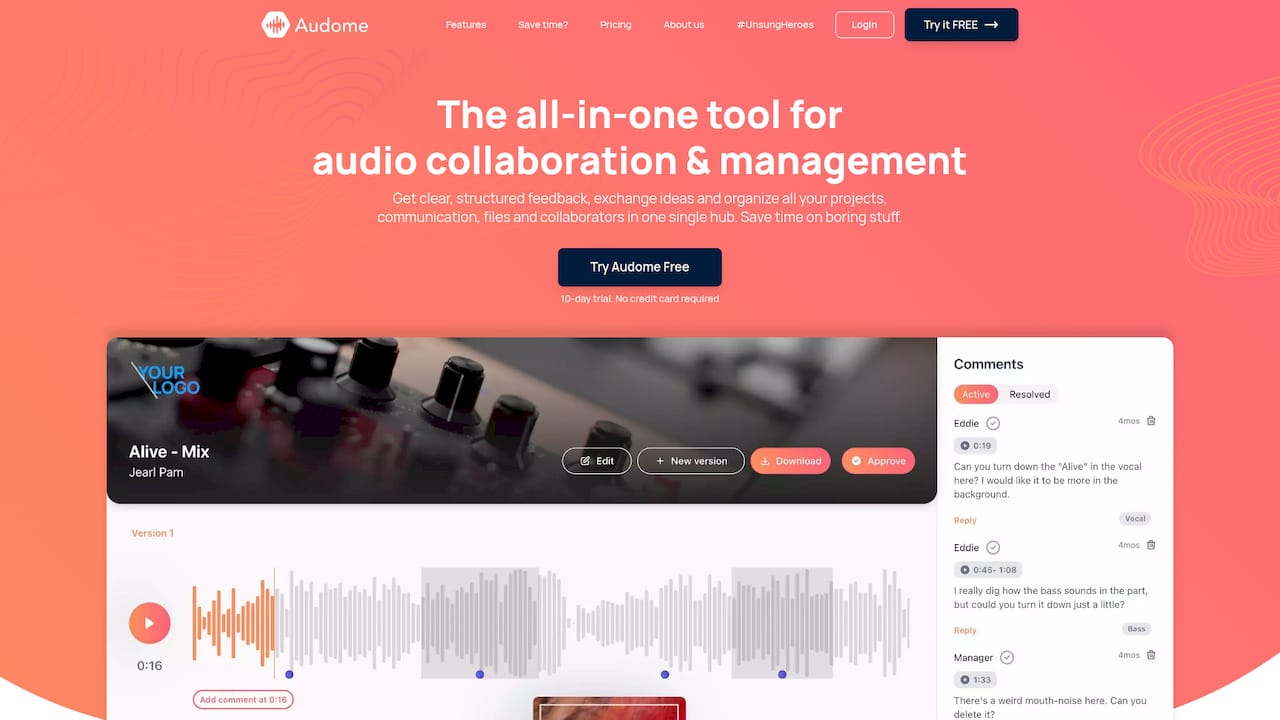
Our approach is different. Clients open a private link and listen to your audio in lossless quality, up to 96kHz/24-bit, without creating an account. They leave comments pinned to exact moments on the waveform, so “the snare is too loud” becomes “the snare at 1:42 is too loud.” Versions are tracked automatically, so nobody reviews the wrong bounce.
Control stays with you. You can password-protect and brand the client portal, decide what can be downloaded, and set revision limits, with billing for paid revisions through Stripe when a client keeps asking for more. We think a guest link should do all of that, because the link is the first thing your client sees of your studio.
Kreg
Try a client link built for audio
If you send mixes, masters or episodes to clients and want the no-login convenience without losing control, Audome is built for that job. You upload your files once, share a branded, password-protected portal, and collect timestamped feedback in the same place. Plans are published on the pricing page: Studio is $12.50 per month or $150 per year, and Pro is $48 per month or $576 per year. A free trial comes before any subscription.
For a look at how it compares with other approval tools by type, see our write-up on client approval software for creatives. If you want the broader view on working with remote collaborators, start with our guide to digital collaboration for better audio results.
A simple checklist before you hit send
- Is this the right version? Check the file name and date.
- Is the link scoped to this project only?
- Does the recipient need to download, or only listen?
- Is the material unreleased? Add a password or verification.
- Did you send it to the address the client actually uses?
- Do you know where feedback should go, and have you told them?
- Do you have a plan to close access after delivery?
Five minutes on this list saves hours of “which mix are you talking about?” later.
FAQ
What is the difference between a guest link and a guest account?
A guest link opens one shared item, and the person may need no account at all. A guest account is an identity added to your directory, such as a Microsoft Entra guest, with ongoing access and subject to your organization’s policies. Use links for one-off reviews and accounts for long-term collaborators.
Do people need to sign in to open a guest access link?
It depends on the link type. Anyone-style links do not require sign-in, while links limited to specific people usually ask the recipient to sign in or confirm their email with a one-time code. If the material is sensitive, choose the stricter option.
Why does my guest see a “request access” message?
The most common cause is opening the link with a different email address than the one you invited. Other causes are an organization-only link, external sharing restrictions, or a Teams guest who was added recently, since provisioning can take up to 12 hours. Re-send the link to the exact address they use.
Are anyone links safe for unreleased music?
They are risky. Anyone links cannot be audited and can be forwarded freely. For unreleased work, use a link tied to a verified person, or a portal with a password and download controls.
Can clients leave feedback without creating an account?
Yes, in tools designed for it. Audome lets clients comment on the waveform at exact timestamps through a private link without logging in, so feedback stays tied to the right moment in the right version.
Sources
- Overview of external collaboration options in Microsoft 365
- Manage sharing with external users in Microsoft 365 Small Business
- Guest access in Microsoft Teams
- External or guest sharing in OneDrive, SharePoint, and Lists
- Secure external access to Microsoft Teams, SharePoint, and OneDrive
- Remote Team Collaboration Ideas That Actually Work