
The two approaches that actually stop unauthorized downloads are simple: turn on your platform’s built-in block-download or view-only setting for that file, or pull the file out of public storage entirely and serve it through an access-checked endpoint like a signed URL or gateway. One is a quick admin toggle; the other is a developer control. Most leaks happen because neither one is in place, and a direct link to the file just sits there, waiting.
TL;DR:
- Simply toggling the platform’s block-download feature or using private storage with access checks effectively prevents unauthorized downloads.
- Baseline security fails when files are publicly accessible via static URLs without application or permission verification, increasing leak risks.
- Native controls in platforms like SharePoint include view-only links with block-download options, enforced site-wide policies, and testing as a non-owner in incognito mode.
- WordPress and Drupal require additional plugins or modules to serve protected files through server-side checks, signed URLs, or restricted endpoints, avoiding direct public links.
- Regularly revoke and rotate signed URLs, set short expiration times, and verify endpoints under restricted access to prevent leaks from cached, logged, or misconfigured files.
Table of Contents
- What Are Per-File Download Permissions and Why Doesn’t Hiding a Link Work?
- How Do You Block Downloads in SharePoint and OneDrive?
- How Do You Restrict Downloads for Individual Files in WordPress?
- How Does Drupal Handle Per-File Access Control?
- How Do Developers Build Signed URLs and Download Gateways?
- What Security Mistakes Leak “Protected” Files Anyway?
- What’s a Fast Checklist for Locking Down File Downloads Today?
- Why Audio Studios Can’t Treat This as an Afterthought
- A Built-In Option for Studios That Don’t Want to Build This Themselves
- Sources
- FAQ
What Are Per-File Download Permissions and Why Doesn’t Hiding a Link Work?
Viewing a file and downloading it are not the same permission, even though most people treat them as one. A system can let someone preview a PDF or stream an audio file in a browser tab while blocking them from saving the actual bytes to their device. SharePoint, Google Workspace, and several media platforms separate these two rights deliberately.
The failure mode almost everyone runs into is this: web servers happily serve static files from public folders before any application-level permission check gets a chance to run. You upload a file to a “hidden” folder, assume the obscure URL keeps it safe, and someone finds or guesses the link. The file downloads instantly, no login required. This is exactly why security guides increasingly push deny-by-default gating instead of relying on obscurity. Deny-by-default means the application validates every single request before releasing a byte, which is precisely what signed URLs and server-side gateways are built to do.
How Do You Block Downloads in SharePoint and OneDrive?
Microsoft’s ecosystem has the most mature native controls for this problem, which is why it shows up first in most admin searches. Here’s the standard workflow:
- Create a view-only sharing link for the file rather than a standard “anyone with the link can edit” link.
- Toggle “Block download” in the link settings before sending it out.
- Confirm the recipient experience: this setting prevents downloading, printing, or copying the file and can also block the file from opening in desktop or mobile apps, restricting access to the browser preview only.
For organization-wide enforcement, admins skip the per-link toggle and push the policy at the site level. Running Set-SPOSite -BlockDownloadPolicy $true in PowerShell enforces a block-download policy across an entire SharePoint site, and users who hit it see a message telling them downloading, printing, and syncing from that site is not allowed.
Test this the way you’d test any access control: log in from an incognito window as a non-owner. Site owners are often exempted from the policy by default, so testing under your own admin account will give you a false sense of security. Desktop sync clients and mobile apps sometimes behave differently than the browser, so check both before you trust the setting.
How Do You Restrict Downloads for Individual Files in WordPress?
WordPress has a specific problem baked into its architecture: every file you drop into the Media Library gets a fully public URL by default, whether or not the post referencing it is private. That single fact is the root of most WordPress download leaks. A page can be password-protected while the PDF, audio file, or image embedded in it remains wide open to anyone who finds the direct link.
Two practical approaches close that gap:
- Plugin-based protection: A tool like Resonanz Secure Downloads lets you toggle protection on a per-file basis, rewrites your site’s
.htaccessfile to block direct access, and routes approved requests through a secure endpoint such as/secure-download/. You choose which user roles are allowed to download each protected file. - Server-side proxy: When you can’t touch
.htaccess, or you’re on managed hosting that blocks rewrites, move the file outside the public web root entirely and serve it through a small PHP script that checks the visitor’s role or a token before streaming the bytes.
Either way, confirm your host allows .htaccess writes before committing to the plugin route, and always test as a logged-out visitor to make sure unauthorized requests get redirected instead of silently served.
How Does Drupal Handle Per-File Access Control?
Drupal’s private file system already separates public and private storage at the filesystem level, which is a step ahead of WordPress out of the box. But core behavior can still leak access depending on which entity references the file, so private storage alone isn’t a guarantee.
That’s where a deny-by-default module like FileGate earns its place. FileGate mints signed download paths and streams files from an API endpoint only after the gate approves the request. Every endpoint fails closed if no signing secret is configured. It supports revocation and grant-listing through an API, and it’s front-end agnostic, so it works whether the request comes from a Drupal theme or an external app.
For performance and accountability, pair FileGate with rate limits on the redemption endpoint and logging on every grant and denial. Caching layers need attention too. A cached response to a signed path can leak a file to someone who was never authorized in the first place.
How Do Developers Build Signed URLs and Download Gateways?
For anyone building custom software rather than configuring a CMS, the pattern is consistent across nearly every implementation worth using:
- A user requests a download.
- The server checks authorization. That could be an active session, a completed purchase, or a verified email token.
- Once authorized, the server either mints a short-lived signed URL pointing at private storage or streams the file bytes directly.
Presigned URLs (the S3-style approach) are simpler to implement but demand careful attention to TTL length and revocation, since anyone who captures the URL before it expires can use it. A gateway pattern, like the one described in the Protected Download Gateway project, validates access server-side and then issues a short-lived signed storage URL, which supports audit logging, rate limiting, and one-time grants that a raw presigned link can’t offer on its own.
Guest access without a full account is common in client-facing tools: an email token or a purchase ID gets validated against a grants table before the signed URL is issued. Send these tokens as headers rather than query parameters when you can, since query strings tend to get logged in plaintext by proxies and analytics tools. Packages like Convex’s files-control component implement this with max-use counts and expiration timestamps baked into each grant.
What Security Mistakes Leak “Protected” Files Anyway?
Most breaches in this category trace back to one of a handful of repeatable mistakes.
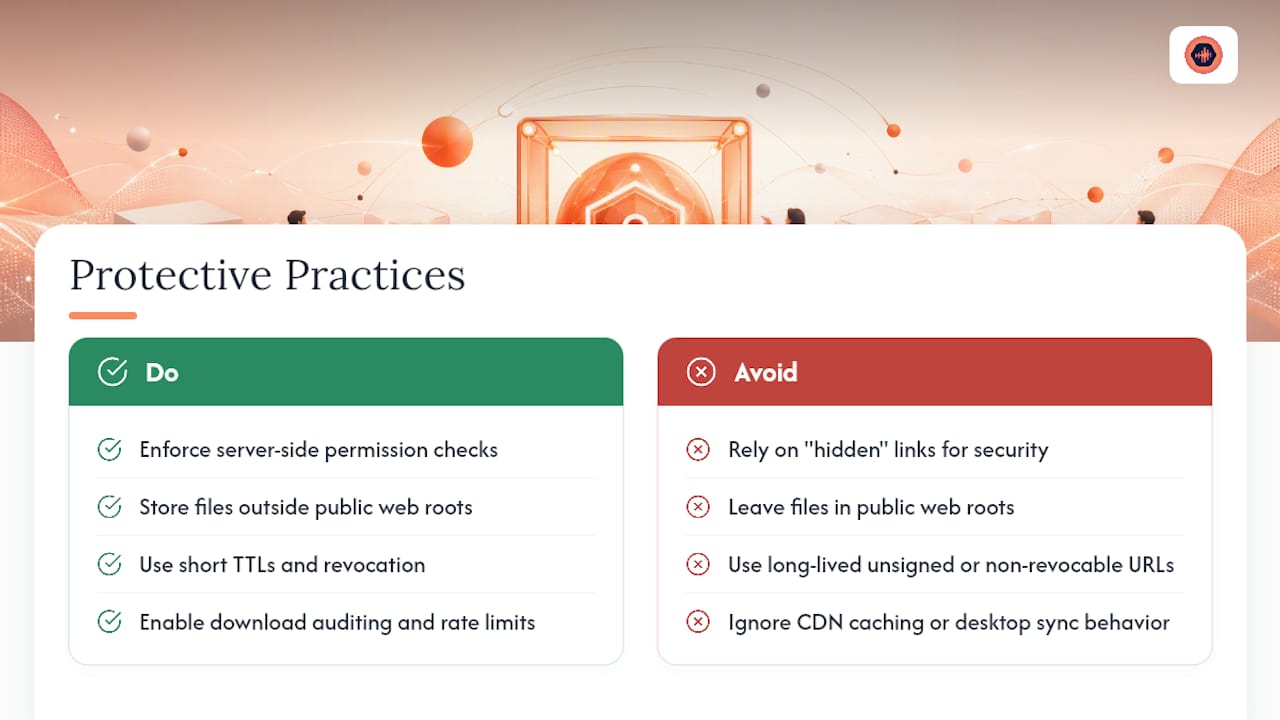
Relying on a hidden link instead of an actual permission check is the most common one, and it fails the moment the link gets shared, indexed, or guessed. Keep protected files out of public web roots entirely. If a file can be reached by a direct static URL with no server-side check in front of it, it isn’t protected, no matter how obscure that URL looks.
Set short TTLs on signed URLs, build in revocation so you can kill a grant instantly, and turn on download auditing so you can see who accessed what and when. Add rate limiting to whatever endpoint redeems tokens or signs URLs, since that endpoint is the new attack surface you just created.
CDN caching and desktop or mobile app behavior deserve separate testing. A signed URL that gets cached at the edge can serve a private file to someone who was never granted access, and desktop sync clients sometimes bypass browser-level restrictions entirely.
Pro Tip: Before you trust any download restriction, deliberately try to break it. Test a revoked token, try the direct object URL after “removing” access, and check whether a desktop app can still pull the file down after you’ve blocked it in the browser.
What’s a Fast Checklist for Locking Down File Downloads Today?
Run through this list before you consider any per-file protection finished:
- Identify every file that currently sits in a public folder or has an unguarded direct link.
- Move sensitive files into private storage or enable the platform’s block-download setting.
- Add an access rule, whether that’s a role check, a signed URL, or a token grant.
- Test the file as an unauthorized user, not as an admin.
- Set a TTL on any signed link and confirm you can revoke it on demand.
- Turn on logging for download attempts and set rate limits on any redemption endpoint.
Three references worth keeping handy: Set-SPOSite -BlockDownloadPolicy $true for SharePoint site-wide enforcement, a basic .htaccess rewrite rule that redirects direct file requests to a PHP handler for WordPress, and a presigned-URL pattern where your server signs a storage URL with a short expiration before handing it to the client.
Revoking access later is just as important as granting it. Invalidate the specific grant in your database, rotate your signing key if you suspect broader exposure, and purge any CDN cache entries tied to that file’s path. For a deeper look at expiring links specifically, Audome’s guide on expiring download links walks through the trade-offs between short TTLs and client convenience.
Why Audio Studios Can’t Treat This as an Afterthought
Recording studios and mixing engineers deal with a version of this problem daily: final masters, stems, and paid revisions all need different download rules attached to the same project. A client should preview a mix before paying, but the final high-resolution file needs a gate in front of it. Built-in download controls and private client portals remove the manual work of building that gate by hand for every single delivery.
— Kreg
A Built-In Option for Studios That Don’t Want to Build This Themselves
If you run a studio, everything covered above is a lot of infrastructure to maintain just to send someone a final mix. Some platforms build per-file download control directly into project delivery, offering password-protected project pages, private client portals with no client login required, and download gating tied to payment processing so final files unlock only after payment clears.
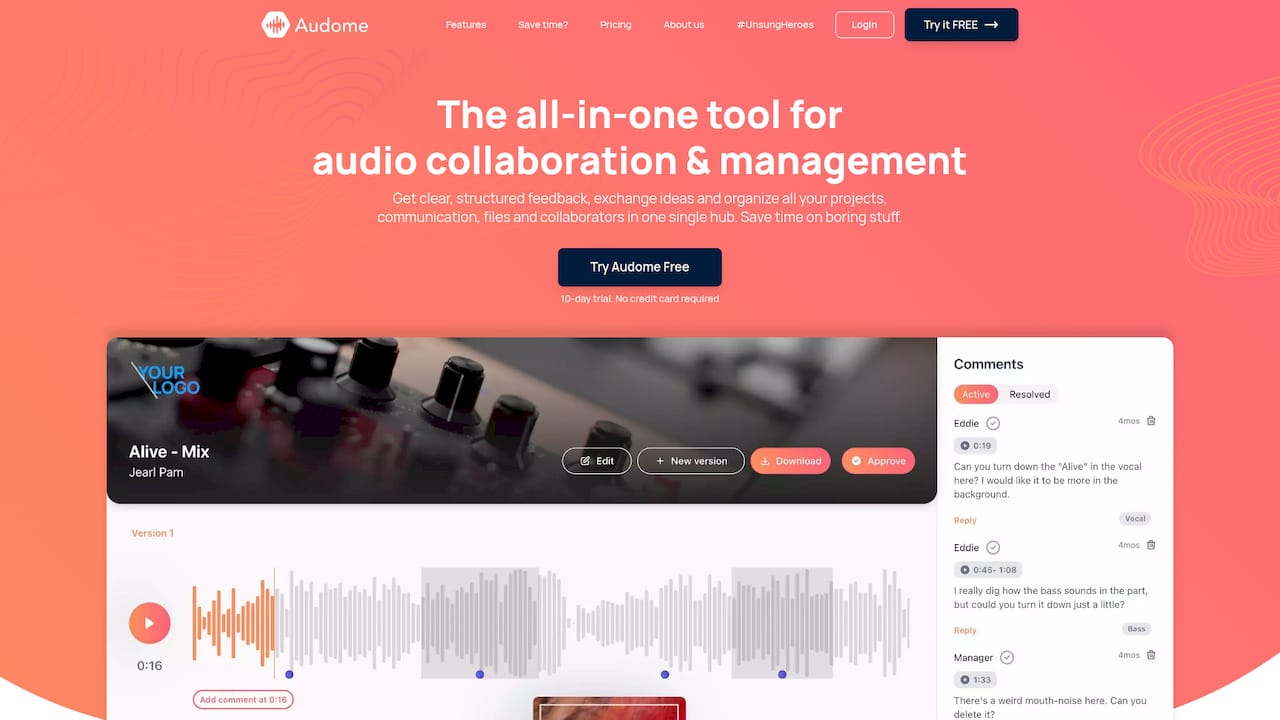
That last piece solves a problem the developer patterns above don’t touch on their own: getting paid before the download happens, not after. Instead of wiring up signed URLs and a payments webhook yourself, some platforms integrate these features so final masters, stem packs, or mastered tracks stay locked until the invoice is settled. They can also include revision limits to help studios manage free changes and protect project margins. If you want to see how the download and payment gating works in practice, start with the Audome platform and walk through setting up your first protected project delivery.
Sources
- Block downloads for view-only files in SharePoint and OneDrive – Microsoft Support
- Block download from sites – Microsoft Learn
- Drupal
- samirx20/protected-download-gateway – GitHub
- Resonanz secure downloads – WordPress plugin repository
FAQ
How Do I Give Someone Permission to Download a File?
Grant it explicitly through your platform’s sharing settings (like enabling download on a SharePoint link) or through a signed URL or token your server issues only after checking that person’s identity or payment status.
What Are 755 and 644 File Permissions?
These are Unix file permission codes that set different levels of access for the file owner and others, with common settings used for directories, scripts, and downloadable documents.
What Are the Three Types of File Permissions?
On Unix-based systems, the three permission types are read, write, and execute, applied separately to the file owner, the group, and everyone else.
Why Do I Need Permission to Download a File?
Because viewing a file in a browser and saving its bytes to a device are different actions with different risks. Permission checks on downloads exist to stop unauthorized copying, redistribution, or access to files that should stay restricted, such as unpaid final deliverables in a platform like Audome.