
Custom client permissions are the rules that decide what each person can do with your project: listen, comment, upload, download or see other versions. For audio work, the safest setup gives every client the least access they need at each stage. That usually means streaming and commenting on drafts, then downloading only the final files once the job is approved and paid. This guide shows how to set that up by role, by project stage and by file type, and how to change access mid-project without confusing anyone.
TL;DR
- Start every client at listen-and-comment access. Add downloads only for the version you want them to keep.
- Set permissions per project and per role (artist, label contact, co-producer, podcast host), not one rule for everyone.
- Tie downloads to approval and payment, and use expiring or revocable links for anything unreleased.
- Change access between stages, not in the middle of a review round, and log what each person received.
- Remove access when a project closes or a collaborator leaves.
Table of Contents
- What custom client permissions mean in audio work
- The five permissions that matter for audio projects
- Match permissions to the role, not the person
- Set permissions by project stage
- How to change or revoke access without disrupting the project
- Classify the audio before you share it
- Common mistakes with client permissions
- A worked example: a three-song EP
- Perspective
- Put the rules into your workflow with Audome
- FAQ
- Sources
What custom client permissions mean in audio work
In most software, a permission is a switch attached to a person or a group. In an audio workflow, the switches map onto a handful of real questions:
- Can this person hear the file at all?
- Can they leave notes, and on which version?
- Can they upload their own material, such as vocal takes, reference tracks or session notes?
- Can they download, and in what format?
- Can they see earlier versions, other songs or other episodes?
- Does the link expire, or need a password?
“Custom” means you decide those answers for each client and project instead of accepting one default. An artist finishing an EP, a label contact who only needs to approve a master, and a podcast host with ten episodes in the queue should not see the same thing.
The idea underneath is called least privilege: according to NIST’s glossary, a system should restrict users to the minimum access needed to accomplish their assigned tasks. It comes from IT security, but it fits a mixing desk just as well. A client who only has to approve a mix does not need the stems, and a client who has not paid does not need a download button.
The five permissions that matter for audio projects
You can run a clean studio with five controls. Everything else is a refinement.
1. View and stream
This is the baseline. The client hears the audio in a browser, ideally at the quality you intended. Streaming without downloading keeps unreleased work under your control, and it keeps the conversation focused on one version rather than a pile of files saved on different phones.
2. Comment
Feedback is where projects drift. Notes that arrive by text, email and voice memo are hard to match to a moment in the song. Comments pinned to a timestamp on the waveform fix that: “the snare is too loud” becomes a note at 1:42 on version 3. Decide who may comment. Often it is the client and one or two named collaborators, not everyone who has the link.
3. Upload
Some clients send you material: stems to mix, a rough vocal, a script for an episode, reference tracks. Give upload access to the people who need it, and keep it separate from access to your deliverables. A client who can drop files into your project should not automatically be able to see everything inside it.
4. Download
Downloading is the permission with the biggest consequences, because once a file is on someone’s drive you cannot take it back. Treat it as a stage-based decision. Offer a download of the approved version and think about format too: a client approving a mix may be fine with a stream, while a final delivery needs the full-resolution master.
5. Access to history
Should the client see earlier versions? Sometimes yes: it helps when they want to compare version 2 and version 4. Sometimes no: an old rough mix with problems you already fixed can start the wrong argument. Decide per project.
Match permissions to the role, not the person
Think about the job each person has, then give the access that job needs. A simple matrix works for most studios.
| Role | Listen | Comment | Upload | Download | Notes |
|---|---|---|---|---|---|
| Artist or main client, drafts | Yes | Yes | Only if sending stems | No, until approval | Keep the review on one version at a time |
| Artist or main client, final | Yes | Yes | No | Yes, after approval and payment | Expiring or revocable link |
| Co-producer or collaborator | Yes | Yes | Yes | Case by case | Use a named identity so you know who did what |
| Label or A&R contact | Yes | Yes | No | Usually no | Time-limited access, no stems unless there is an agreement |
| Podcast host or producer | Yes | Yes | Yes (scripts, raw audio) | Yes, per episode | Separate each episode as its own project |
| Promo or public snippet | Yes | No | No | No | Keep it apart from the master files |
This lines up with the producer-focused guidance in Plugg Supply’s delivery guide. It suggests view-only access for unpaid previews, a download with a restricted or expiring link after payment, editor-level access for co-producers who upload, and time-limited links for label contacts. It also recommends keeping promo material in a separate folder from masters.
On who should hand over to whom across a production, our piece on audio collaborator roles covers the tracking-to-mastering chain.
Set permissions by project stage
Permissions are easier to manage when you tie them to a stage and not to a mood. Here is a workflow that works for mixing, mastering and podcast editing alike.
Stage 1: Intake
The client uploads stems, scripts or references. Give them upload access only. They do not need to see anything else yet, and you avoid a file mix-up on day one.
Stage 2: First draft
Share the first mix or edit with stream-and-comment access. Add a clear note on what you want feedback on. If you set a revision limit, say so now. For more on structuring rounds, see our mix revision management guide.
Stage 3: Revision rounds
Keep access steady during a round. Changing permissions while a client is mid-listen leads to “I can’t open it” messages that cost you a day. Open the new version, keep the old one visible if useful, and close the round when the feedback is in. Our guide to audio version history explains how to track every mix and master so nobody comments on the wrong one.

Stage 4: Approval
The client signs off on a specific version. This is the moment to record which version was approved. A delivery is only complete when the client can get the correct file, knows it is final, and you have a record of what left your hands, which is the point the Plugg Supply guide makes.
Stage 5: Delivery
Now downloads open. For commercial work, hold them until payment clears. Our walkthrough on restricting downloads with signed URLs shows how studios stop unpaid deliveries, and client download tracking shows how to link downloads to paid orders.
Stage 6: Close-out
When the job ends, shut off access you no longer need. Remove collaborators who have left the project, close public links and keep your own archive. A project that stays open forever is a leak waiting to happen.
How to change or revoke access without disrupting the project
People worry that tightening permissions will annoy a client. It rarely does, if you follow a few habits.
Change at stage boundaries. Move from review to delivery, or from delivery to archive. Do not change rules in the middle of a feedback round.
Tell the client what changed and why. One line is enough: “The final is ready. The download opens once the invoice is paid.” Clients accept clear rules. They dislike surprises.
Revoke by role, not by hunting for links. If access is tied to the project and the person, you can remove one collaborator without breaking the link everyone else uses. If access depends on a pile of loose links sent in email, you have to chase each one.
Use expiry for sensitive audio. Time-limited access suits unreleased tracks, label previews and anything under an NDA. A link that dies on its own is one less thing to remember.
Keep a delivery log. Note the date, client, version and permission for every handoff. If a question comes up later about who had which file, you can answer in a minute.
Clean up regularly. The Plugg Supply guide suggests removing public edit links monthly. A short monthly pass through open projects takes minutes and catches old collaborators, stale links and forgotten shares.

Classify the audio before you share it
Not every file deserves the same care. A simple four-level scheme, like the one The Sound describes (public, internal, confidential, restricted), helps you decide quickly. In audio terms:
- Public: promo clips and teasers. Anyone can listen.
- Internal: your working sessions and notes. Only your team.
- Confidential: unreleased mixes and masters for a client. Named people, stream-first, controlled download.
- Restricted: stems, project files and anything covered by an NDA or contract. Smallest possible group, expiring access.
The level then drives the permissions: who can view or comment, whether outside sharing is allowed, and whether a download is possible. Decide the level once at the start of the project, and the rest follows.
Common mistakes with client permissions
- One link for everyone. It is quick and impossible to control. Give each role its own access.
- Download on by default. Start closed and open when the stage calls for it.
- Sending stems when a stream would do. If the client’s job is to approve, they need to hear, not hold.
- No record of what was delivered. When there is a dispute, a log beats memory.
- Forgetting old collaborators. Remove access when someone leaves the project.
- Mixing promo and masters in one place. Keep them in separate folders so a public share cannot expose a master.
A worked example: a three-song EP
Say you are mixing a three-song EP for an indie artist, with a manager and a label contact in the loop.
- The artist uploads stems for all three songs. Upload only.
- You post the first mixes. The artist and manager can stream and comment. The label contact is not invited yet.
- Round one comes back as time-stamped notes. You revise and post version 2. Previous versions stay available so the artist can compare.
- The label contact gets a time-limited, listen-only view of the approved mixes. No stems, no download.
- The artist approves version 3 of each song. You send the invoice for the balance.
- Payment clears. Downloads open for the approved masters only. You log the date, client and version.
- After the release, you close the project and remove the manager’s and label’s access.
Nobody saw files they did not need, the artist never wondered which version was current, and you never gave away a master before it was paid for.
For the full path from first mix to approval, see our guides on sending mixes to clients and the producer client workflow. If you master, the mastering client workflow applies the same stages to that work.
Perspective
Most permission problems in audio are not security problems. They are clarity problems. A client who cannot tell which version is current, or who gets a download before the job is settled, creates work for you whatever the technology.
That is why we built Audome around a few simple controls. Clients can stream your audio, leave time-stamped comments on the waveform, and use password-protected, branded portals. They do not need to create a login to collaborate. You decide when downloads open, you can cap revisions, and you can bill for extra ones through Stripe.
Our view is that a studio should spend its energy on the mix, not on policing links. Put the rules in the workflow once, per project, and let the tool apply them every time.
Kreg
Put the rules into your workflow with Audome
If you are tired of managing access through loose links and email threads, Audome gives you one place for it. You can share high-resolution audio up to 96kHz/24-bit, collect time-stamped feedback, track versions automatically, control downloads and set revision limits, all inside a branded client portal that clients can use without logging in.
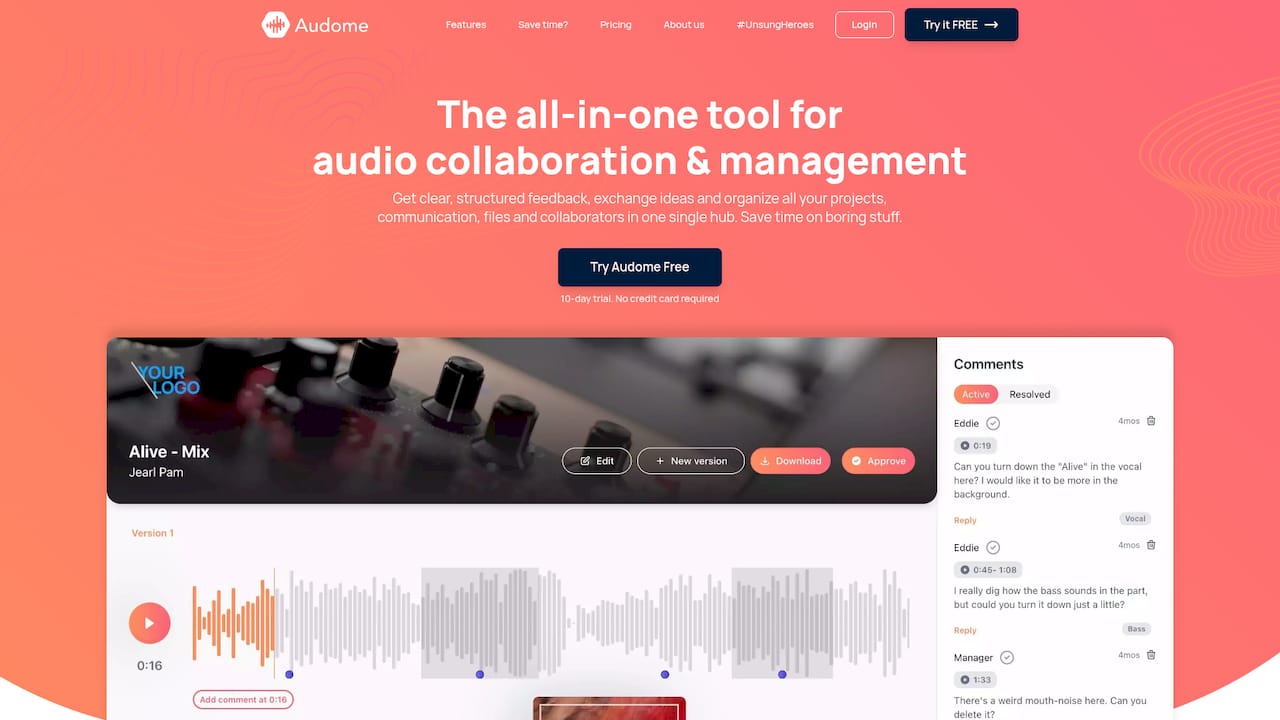
Plans start at $12.50 per month for Studio ($150 per year), and Pro is $48 per month ($576 per year). You can compare them on the Audome pricing page, or see the whole platform on the Audome home page. For a broader look at delivery options, read our guides on how freelance engineers deliver files and the best way to share audio with music clients.
FAQ
What is the difference between a permission and a role?
A permission is a single action, such as comment or download. A role is a bundle of permissions that fits a job, such as artist, label contact or co-producer. Setting roles first is faster, and you only adjust individual permissions for exceptions.
Should clients be able to download drafts?
Usually not. Streaming is enough for approval, and it keeps unreleased audio under your control. Open downloads for the approved final, and for commercial work, after payment clears.
Can I change a client’s access in the middle of a project?
Yes, and it is normal at stage changes, such as moving from review to delivery. Avoid changing rules during an active feedback round, and tell the client in one line what changed so they are not surprised.
Do clients need an account to listen and comment?
That depends on your tool. With Audome, collaboration works without a client login, so your client opens the portal and gets to work. You can still add a password to the portal.
How long should access stay open after a project ends?
Only as long as the client needs to retrieve the files. Once they have confirmed receipt, close the project, expire any links and remove collaborators who no longer need access.
Sources
- NIST Computer Security Resource Center: least privilege
- Plugg Supply: client file delivery links and permissions for producers
- The Sound: secure cloud collaboration for podcast teams