
TL;DR:
- Producer workflow automation leverages scripts and digital pipelines to streamline repetitive audio tasks, saving time for producers. These tools, including Auphonic CLI, LUFSNormalizer, and StemHub, address specific bottlenecks such as normalization, version control, and session processing, especially in team environments. To ensure success, automation should be tested incrementally with proper logging and human oversight to prevent errors and maintain quality.
Producer workflow automation is the practice of using scripted processes, CLI tools, and digital pipelines to handle repetitive audio production tasks without touching them manually every single time. If you’re still exporting sessions one by one, renaming files by hand, or chasing collaborators through email threads for feedback… you’re burning hours you don’t have. Tools like Auphonic CLI, LUFSNormalizer, StemHub, and the postprod-tools suite for Pro Tools exist specifically to pull that weight off your plate. This article breaks down what actually works in 2026, how to set it up, and where most people screw it up.
What tools enable producer workflow automation in 2026?
The short answer: a handful of purpose-built tools that cover batch processing, loudness normalization, version control, and full podcast pipelines. Each one solves a specific bottleneck.

Auphonic CLI is a free single binary you run from the terminal. It handles batch audio processing including loudness normalization, multitrack support, speech recognition, and publishing in one pass. You can script it, schedule it, and walk away. That’s the whole point.
Postprod-tools is a workflow automation suite built for Pro Tools. It covers batch session processing, bounce, export, loudness normalization, and session monitoring with scripted trigger events. If your post-production work lives inside Pro Tools, this suite removes the repetitive clicking that eats your afternoon.
xil-pipeline takes podcast production further than most tools dare. It parses markdown scripts, generates TTS voices, assembles audio, and delivers broadcast-ready MP3s with layered DAW exports for mixing. It even previews API costs before you run a job. For podcast teams running high volume, this is close to a full production line.
LUFSNormalizer handles batch loudness normalization with configurable LUFS targets and true peak ceilings. It defaults to –23.0 LUFS with –1.0 dBTP peak ceiling, which keeps you broadcast-compliant without babysitting every file. It runs in both CLI batch mode and watch folder mode, which we’ll get into shortly.
StemHub brings Git-style version control directly into the DAW environment. Commits, branches, track locking, cross-DAW export. It replaces the “final_mix_v7_REAL_FINAL.wav” naming disaster with actual commit histories.
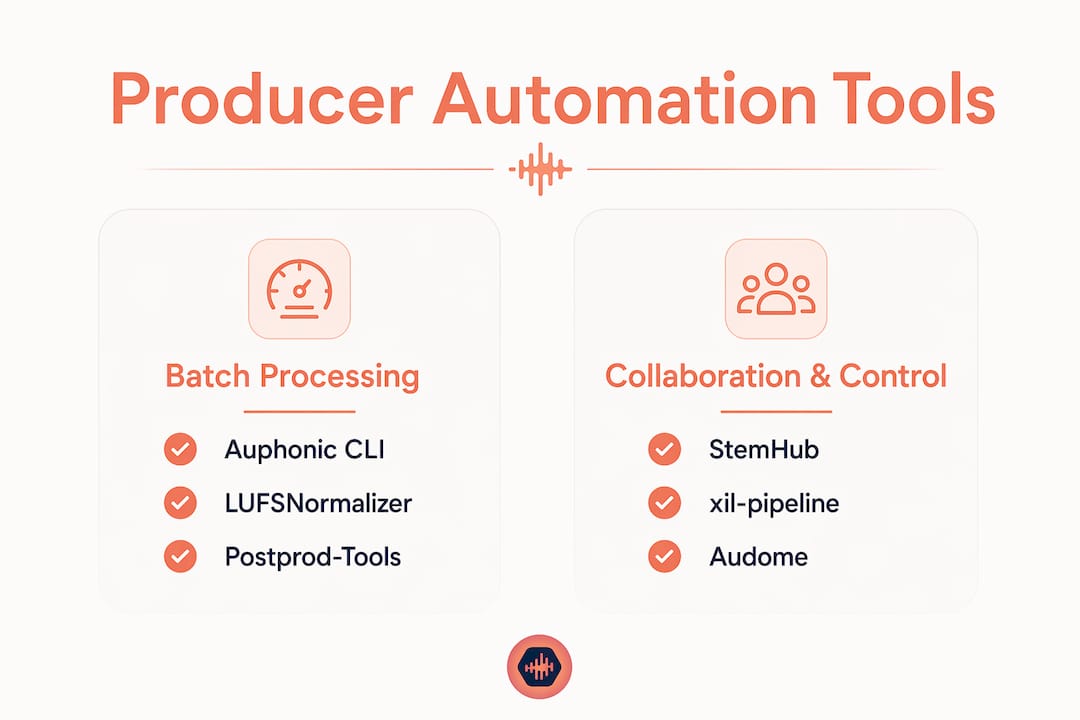
Here’s a quick comparison so you can see where each tool fits:
| Tool | Primary function | Platform | Best for |
|---|---|---|---|
| Auphonic CLI | Batch processing, normalization, publishing | Cross-platform | Music, podcast, post-production |
| postprod-tools | Pro Tools session automation | Pro Tools (Mac/Win) | Audio post-production |
| xil-pipeline | Script-to-broadcast podcast pipeline | Cross-platform | High-volume podcast teams |
| LUFSNormalizer | Loudness normalization, watch folder | Cross-platform CLI | Any audio requiring LUFS compliance |
| StemHub | Version control, collaboration | DAW-integrated, cloud | Music producers, collaborative teams |
Pro Tip: Match the tool to your production scale. A solo podcast producer running 10 episodes a month gets more from LUFSNormalizer and Auphonic CLI than from building a full xil-pipeline setup. Don’t over-engineer before you know where your actual bottlenecks are.
How to set up batch processing and scripting in your audio workflow
Batch processing in audio production means running the same operation across multiple files or sessions without touching each one individually. Think of it like a car wash conveyor belt. You load the cars, set the settings once, and let them run through.
Here’s a practical setup sequence that works for most audio pros:
- Audit your current repetitive tasks. Write down every manual step you repeat more than three times a week. Loudness normalization, file renaming, export routing, session bouncing. These are your automation targets.
- Install and configure your tools. For Auphonic CLI, download the binary and test a single file from terminal before touching any batch. For postprod-tools, follow the Pro Tools integration docs and verify session monitoring works on a dummy session first.
- Write your first shell script. Start simple. A bash script that loops through a folder of WAV files and runs LUFSNormalizer on each one is maybe 10 lines. Don’t start with a 200-line monster.
- Schedule with cron jobs for unattended processing. Once your script runs clean manually, schedule it. A cron job at 2am means your overnight renders are done before you wake up.
- Set up watch folder automation with LUFSNormalizer. Drop files into a watched folder and the tool detects file write completion before processing starts. This prevents the nightmare of processing a file that’s still being written to disk.
- Layer your pipeline in execution order. Ingest first, normalize second, export third, notify last. Execution order matters. Running normalization before a file is fully rendered is how you get corrupted outputs.
- Test in dry-run mode before going live. Most serious automation tools support a rehearsal or dry-run mode. Execution history and dry-run modes let you verify what the script will do without actually touching your files.
Common pitfalls at this stage: duplicate processing when a watch folder picks up the same file twice, file locking conflicts when Pro Tools still has a session open, and scripts that silently fail with no log output. Build logging into every script from day one. If it doesn’t log, you won’t know when it breaks.
Pro Tip: Always test new automation scripts on a copy of your project folder, not the original. One bad export path in a script can overwrite files you can’t get back.
Best practices for collaboration and version control automation
Manual version control in audio production looks like this: a shared Dropbox folder with 14 versions of the same session, nobody knows which is current, and someone just overwrote the mix the client approved. Sound familiar?
StemHub solves this with commit-based version control built for DAW workflows. Every save is a commit with a message. You can branch for alternate mixes, lock tracks so collaborators can’t overwrite your stems, and roll back to any previous state in seconds. The cross-DAW export feature means a Logic Pro user and a Pro Tools user can collaborate on the same project without the usual format chaos.
For teams, the real gain is replacing informal file naming conventions with structured commit histories. Instead of “v3_final_KregsNotes.wav,” you get a commit that says “Applied client feedback from 04/12 call, adjusted low-end on kick.” That’s searchable, replayable, and trustworthy. You can read more about the full picture of audio version control including tools, pitfalls, and best practices.
Here’s what collaboration workflow automation actually buys you in practice:
- No more “which version is current” conversations. Commit history answers that question instantly.
- Track locking prevents accidental overwrites during simultaneous editing sessions.
- Branching lets you explore alternate mixes without polluting the main project.
- Automated audit logs create a record of every change, which matters when a client disputes what was approved.
- Rollback on demand means a bad session or corrupted export doesn’t cost you the whole project.
- Timestamped comments tied to specific versions keep feedback organized and contextual instead of buried in Slack threads.
Reusable pipeline templates with explicit dependency models improve reliability across repeated project types. If you mix podcasts for five different clients using the same signal chain, a template-based pipeline means you set it up once and replicate it cleanly every time.
How to troubleshoot common mistakes in producer workflow automation
The biggest mistake in workflow automation is trusting it blindly. Automation without visibility is just a faster way to make the same mistake at scale.
The most common problems audio pros run into:
- Duplicate processing. A watch folder picks up a file twice because the write detection wasn’t configured correctly. LUFSNormalizer handles this with file-write completion detection, but not every tool does. Check your tool’s documentation before assuming it’s idempotent.
- Corrupted outputs from interrupted renders. If a script crashes mid-export, you can end up with a file that looks complete but isn’t. Always write to a temp file and rename on completion.
- Silent script failures. Scripts that fail without logging anything are the worst. Add error handling and output logs to every automated process.
- Version conflicts in collaborative sessions. Two people editing the same session simultaneously without track locking is a collision waiting to happen.
- Over-automation at decision points. Some steps need a human. Loudness normalization can be fully automated. Creative mix decisions cannot. Know the difference.
Stateful pipelines with human approval gates are the right model for production automation. Automate the mechanical steps. Keep humans in the loop at the creative and quality-check stages. Separating the operational control layer from the worker execution layer, as described in scalable audio automation platforms, gives you task queues, approval checkpoints, and audit trails without losing control of the process.
Pro Tip: Roll out automation incrementally. Automate one task, run it for two weeks, fix what breaks, then add the next task. Trying to automate everything at once is how you end up with a broken pipeline and no idea where it failed.
Key takeaways
Producer workflow automation works when you combine the right tools with clear execution order, human checkpoints, and proper logging from the start.
| Point | Details |
|---|---|
| Match tools to your scale | Use Auphonic CLI and LUFSNormalizer for solo work; add StemHub and postprod-tools for team projects. |
| Batch processing saves real hours | Automating loudness normalization and export across sessions removes the most repetitive daily tasks. |
| Version control is non-negotiable | StemHub’s commit-based system replaces file naming chaos with searchable, rollback-ready project history. |
| Automation needs visibility | Build logging, dry-run modes, and audit trails into every pipeline before going live. |
| Roll out incrementally | Automate one task at a time, verify it works, then expand. Rushing the rollout breaks everything at once. |
What I’ve actually learned from automating my own studio workflow
Here’s the honest version: the first time I set up batch normalization, I ran it on the wrong folder and processed a client’s raw stems instead of the exports. No backup. That was a fun conversation.
Automation is not a set-it-and-forget-it situation, at least not at first. It’s more like training a new assistant who’s extremely fast and completely literal. You have to be precise about what you tell it to do, because it will do exactly that… including the dumb stuff you didn’t mean to include.
What actually changed for me was treating the pipeline as a series of stages where I still show up at the important moments. The mechanical stuff, normalizing, exporting, renaming, routing, that runs without me. But the listen-through before delivery? That’s still mine. Automation handles the labor. Judgment stays human.
The resistance I see from other engineers usually comes from one bad experience where something broke and they lost work. That’s real. But the answer isn’t to avoid automation. It’s to build it with logging, backups, and dry-run testing from day one. The feedback collection workflow side of production benefits just as much from structure as the processing side does.
Don’t over-engineer it either. I’ve seen producers spend two weeks building a pipeline for a problem that a 15-line bash script would have solved in an afternoon. Start small. Get one thing working. Then build from there.
— Kreg
How Audome fits into your production automation setup
If the processing side of your workflow is covered by tools like Auphonic CLI and LUFSNormalizer, the collaboration and project management side is where things still fall apart for most teams. Files get lost, feedback arrives in the wrong place, and nobody knows what version the client actually approved.
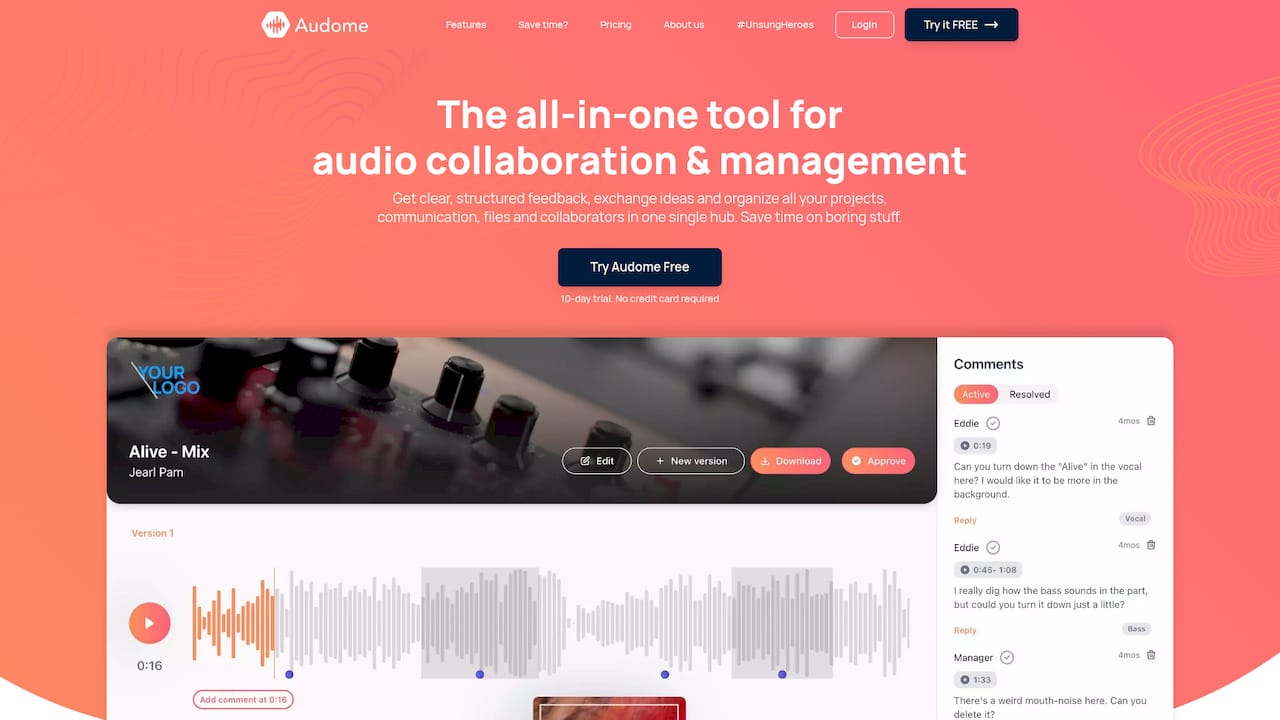
Audome consolidates file sharing, version control, timestamped feedback, and project tracking into one platform built specifically for audio professionals. It supports lossless audio up to 96kHz/24-bit, so nothing gets compressed in transit. Collaborators can leave comments at exact timestamps, you control who downloads what, and the whole project history stays in one place. No client login required. If you’re serious about audio production collaboration, Audome is worth a look.
FAQ
What is producer workflow automation?
Producer workflow automation is the use of scripted tools, CLI programs, and digital pipelines to handle repetitive audio production tasks like normalization, exporting, and file management without manual intervention each time.
Which tools are best for automating audio production in 2026?
Auphonic CLI, LUFSNormalizer, postprod-tools for Pro Tools, xil-pipeline for podcast production, and StemHub for version control are the leading tools for audio workflow automation in 2026.
How does watch folder automation work in audio production?
Watch folder automation monitors a designated folder and processes new files automatically when they appear. LUFSNormalizer waits until file writes are fully complete before processing, which prevents corrupted outputs from partially written files.
What is the correct LUFS target for broadcast-compliant audio?
LUFSNormalizer defaults to a target of –23.0 LUFS with a –1.0 dBTP true peak ceiling, which meets broadcast compliance standards for most platforms and delivery specs.
How do I avoid mistakes when setting up audio workflow automation?
Test every script in dry-run mode on a copy of your project before running it live, build error logging into every automated process, and roll out automation one task at a time to isolate failures before they compound.