
You can restore a previous mix by opening an earlier version, backup or snapshot from inside your DAW, then saving it under a new name before you touch anything. Most DAWs keep more history than people realize. The trick is knowing where each one hides it, and opening the old state in a way that does not overwrite the session you have now.
This guide walks through the exact menu paths for Logic Pro, LUNA, Studio One, Ableton Live, Serato Studio, MultitrackStudio, Soundtrap and Ardour, then covers what to do when the file is missing or corrupted, and how to set up your workflow so you never have to hunt for an old mix again.
TL;DR
- Check your DAW’s built-in history first: Logic Pro uses File > Revert To, LUNA uses File > Open Version, Studio One uses its Restore Version window.
- Before restoring anything, save a copy of your current state under a new name so the restore cannot destroy it.
- If a Pro Tools session is corrupted, create a new session and import the material with File > Import > Session Data.
- Prevent the problem: save named versions at every major change, and keep delivered mixes outside the session in a version history your client can see.
Table of Contents
- Before you restore anything: protect what you have
- Where each DAW keeps its earlier mixes
- Restoring an old mix without overwriting the current one
- When the previous mix or session file is missing or corrupted
- How to stop losing mix revisions
- Our perspective: the DAW remembers the session, not the conversation
- Keep every delivered mix one click away
- FAQ
- Sources
Before you restore anything: protect what you have
The most common way to make a bad day worse is restoring an old state on top of a current one. Some DAWs overwrite on save, and a restore that feels like a quick undo can erase the work you wanted to keep.
So, before you do anything else:
- Close or save the current session. Do not keep working in a session you are about to roll back.
- Save a copy under a new, different name. PreSonus is explicit that in Studio One, Save As only works as a backup if you give the file a different name; otherwise the current song can be overwritten.
- Open the old version and immediately save it as a new file. Serato’s support procedure says the same thing: open the backup, then use Save Project As with a new filename.
Two minutes of caution here is the difference between having two mixes to compare and having none.
Where each DAW keeps its earlier mixes
Every major DAW has some form of history. The names differ (versions, alternatives, snapshots, backups), but the idea is the same: a saved state of the session that you can reopen. Here is where to look.
| DAW | Where to find earlier states | What it holds |
|---|---|---|
| Logic Pro | File > Revert To, File > Project Alternatives | Backups and named alternatives |
| LUNA | File > Open Version | Versions, bookmarks, automatic backups |
| Studio One | Restore Version window | Saved versions with title, description, age and date |
| Ableton Live | Project’s Backup folder | Earlier saved Set versions |
| Serato Studio | Project Backups folder inside each project | Date-stamped .ssp backups |
| MultitrackStudio | Song Versions | Manual versions and autosave safety versions |
| Soundtrap | Version history in the project | Earlier versions opened as new projects |
| Ardour | Snapshots | Separately named session states |
Logic Pro
Logic gives you two separate tools, and people often mix them up.
Project Alternatives store differently named project states, such as different cuts or mixes, while sharing the same assets. That makes them ideal for “the radio edit” or “the version with the louder vocal” without duplicating gigabytes of audio. To switch, choose File > Project Alternatives.
Backups are the safety net. To return to an earlier state, choose File > Revert To and pick a backup. Logic saves up to ten backups per project alternative each time you save with File > Save or Command-S, according to the same Apple page. That means your restore points are tied to how often you save. If you saved once an hour, your history is hourly.
LUNA
Universal Audio’s LUNA separates three levels of history. Versions save major session states, bookmarks save alternate mixes or smaller changes beneath a version, and automatic backups are saved when a session closes. To get any of them back, choose File > Open Version and select the one you want. If you used bookmarks for mix A, mix B and the “client wants it brighter” pass, they are all in that same window.
Studio One
Studio One’s Restore Version window lists the available versions and identifies each one by title, description, age and date, per PreSonus’s save options documentation. Good descriptions pay off here. “Mix v3, client notes round 2” is findable at 2 a.m.; “Untitled 14” is not.
Save New Version stores the song in the song folder’s History folder, next to the AutoSave files, without overwriting the song file itself. If the restore window does not show what you expect, that folder is the next place to look.
Ableton Live
Ableton says Live 10 and later automatically create a Backup folder after a Live Set has been saved for the second time. Open your project folder, find Backup, and you will see earlier saved versions of the Set. Open one, then use Save As to give it a fresh name so it does not collide with your current Set.
Note the condition: the folder appears only after the second save. A Set you saved once and then kept working on has no backup trail yet.
Serato Studio
Serato Studio creates project backups automatically. Unless you chose a custom location, they sit in each project’s Project Backups folder, and the filenames carry a date and time stamp, which makes picking the right one easy. Serato’s procedure is to close the Serato applications, open the .ssp backup you want, and immediately use Save Project As with a new filename.
MultitrackStudio
MultitrackStudio’s documentation describes versions that can preserve mixes before major changes. It also creates an autosave safety version every 15 minutes when the transport stops, as long as the song has been saved at least once. If you never saved a manual version, the safety versions are your fallback.
Restoring an old mix without overwriting the current one
This is the question behind most searches for this topic: you want to hear or use the old mix, but you do not want to lose the new one. Three approaches work, depending on your DAW.
Open it as a separate project. Soundtrap does this by design: restoring an earlier version opens it as a new unique project that you can work on separately. Your current project stays as it was.
Use snapshots. The Ardour manual defines a snapshot as a separately named backup of the session state that shares the session’s data. If you choose “Snapshot and switch to new version,” the original session stays unchanged and the snapshot becomes active, so later saves affect only the snapshot. That is the safest pattern: branch, then experiment.
Use alternatives or bookmarks. In Logic, a project alternative holds the older mix next to the current one. In LUNA, a bookmark does the same. You switch between them and compare, with no file juggling.
If your DAW offers none of these, do it by hand: open the backup, Save As with a new name, bounce the old mix to audio, and import that bounce into your current session as a reference track. You can then A/B the two without risking either.
A quick worked example
Say a client emails on Thursday: “I liked the Monday mix better.” You are in Logic and have saved about thirty times since Monday.
- Save the current state as a new project alternative called “Thu current.”
- Choose File > Revert To and scroll the backups to find the Monday-era state.
- Open it and save it under a new alternative name, like “Mon restored.”
- Bounce “Mon restored” and “Thu current” at matching loudness, and send both so the client picks.
Now nothing is lost whichever they choose. For how to name those files so they stay clear, see our guide to mix version naming.
When the previous mix or session file is missing or corrupted
A session that will not open is not necessarily a lost session. Avid’s guidance for a corrupted Pro Tools session is to create a new session and use File > Import > Session Data to bring in what you need from the damaged one. The recorded audio and many session components can often be pulled across even when the session file itself is damaged.
A practical order of attack for any DAW:
- Do not save over anything. Work on copies.
- Look for automatic backups and autosaves. Each DAW above has a place for them. Check the time stamps and pick the newest one that predates the problem.
- Check the audio folder. If the audio files are intact, you can rebuild a session around them, even if the arrangement and plugin settings need redoing.
- Import selectively. Where the DAW supports it, bring tracks and settings from the damaged session into a clean one.
- Look outside the DAW. Your computer’s own backup, an external drive, or a bounce you sent to a client may hold the mix you need. A delivered mix is a restore point, too.
That last point matters more than most engineers admit. If you sent the client a stereo file on a given day, you can always get back to the sound of that day, even if you cannot get back to the session. Keeping those deliveries organized is covered in our piece on audio version history.
How to stop losing mix revisions
Restoring is a rescue. A workflow that makes rescues unnecessary is better. These habits come straight from how the tools above are built to be used.
- Save a version at every major change. LUNA’s guidance is to create versions for significant session changes and bookmarks for separate mixes or minor changes.
- Snapshot before risky moves. Ardour’s model fits any DAW: make a snapshot before a big arrangement or processing change, then continue on a separate active version.
- Use shared-asset alternatives. Logic’s alternatives keep distinct states without copying every audio file, so history costs very little disk space.
- Never rely on plain Save As with the same name. It looks like a backup and acts like an overwrite.
- Write descriptions. A version titled with the date, the revision round and what changed is worth ten untitled ones.
- Keep a copy outside the session. Our walkthrough on backing up client projects covers a simple working copy plus archive routine.
If client revisions are the reason your history keeps getting messy, the underlying problem is process rather than software. These guides go deeper: managing mix revisions without losing your mind, how audio engineers handle revisions, and a broader mix revision management guide.
Our perspective: the DAW remembers the session, not the conversation
Every DAW feature above answers one question: what did the session look like at a given moment? It cannot answer the questions engineers actually get stuck on: which version did the client approve, what did they say about it, and was that before or after the second round of notes?
We see the same pattern in studios of every size. The mix is not lost. The context is. Files sit in a folder called “final_v2_REAL,” feedback lives in a text thread, and the one email with the approval is three months old. When a client says “go back to the earlier one,” the engineer is hunting through a DAW’s backups, a download folder and a messaging app at once.

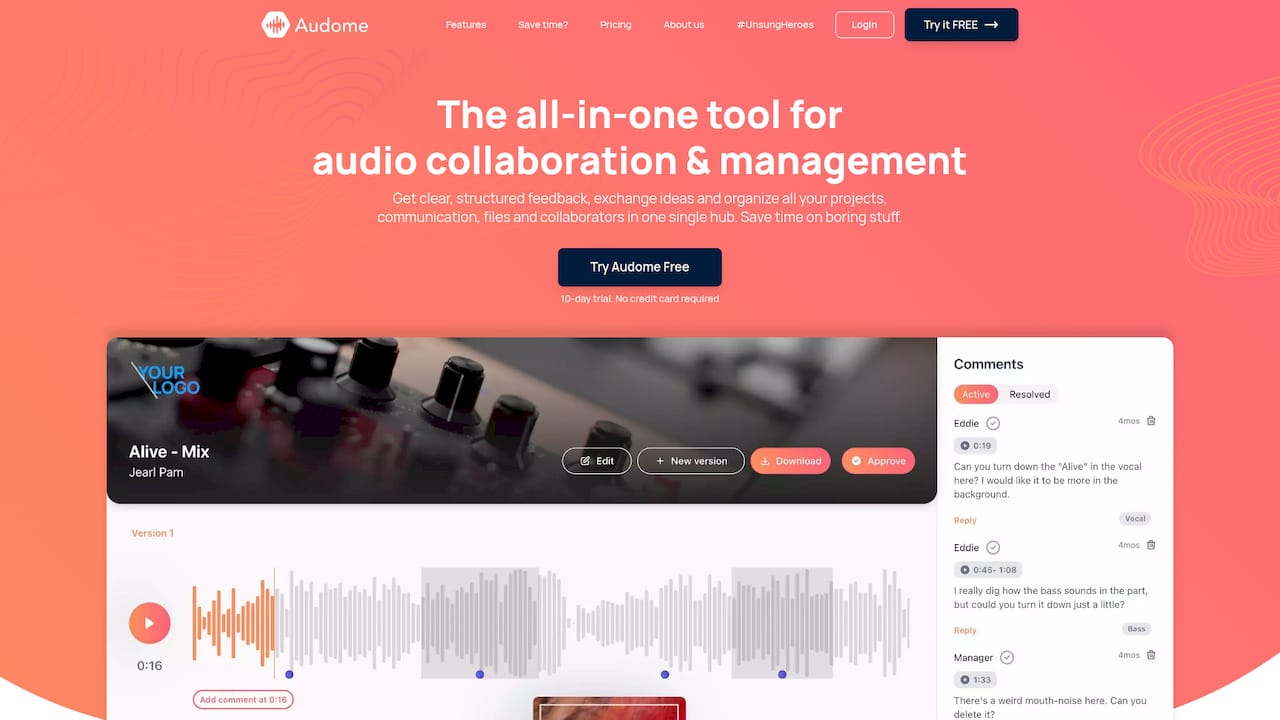
So we build around the delivery, not the session. Each mix you send becomes a numbered version in a project. Feedback is pinned to the exact timestamp on the waveform, so a note like “vocal too hot here” stays attached to the version it was about. Clients listen and comment without creating an account, and you can see the whole history in one place. Your DAW’s backups remain your insurance for the session itself; the project page is your record of what the client heard and said.
The boundaries matter, too. Unlimited revisions are how mixes drift away from the version everyone liked. Setting a number of included revisions, and charging for extras, makes clients decide before they ask you to rewind.
— Kreg
Keep every delivered mix one click away
If you want the client-facing side of this handled, Audome gives you unlimited uploads of high-resolution audio (up to 96kHz/24-bit), automatic version tracking, timestamped feedback on the waveform, and no-login access for your clients. You can also set a limit on included revisions, bill for additional ones, and require payment before final downloads unlock, using Stripe Connect.
The Studio plan is $12.50 per month or $150 per year, and the Pro plan is $48 per month or $576 per year. Details are on the Audome pricing page, or you can look at the platform overview first. To see how delivery fits into the process, read our guide to sending mixes to clients.
FAQ
How do I restore a previous version of a mix?
Open your DAW’s version history: File > Revert To in Logic Pro, File > Open Version in LUNA, or the Restore Version window in Studio One. Pick the state you want, open it, and save it under a new name right away. That keeps your current session intact.
Can I restore an old mix without losing my current one?
Yes. Save the current session as a separate file or alternative first, then open the earlier state. Soundtrap opens earlier versions as new projects, and Ardour’s snapshot option keeps the original session unchanged. In any other DAW, Save As with a new name achieves the same thing.
What if my session file is corrupted?
Don’t save over it. In Pro Tools, create a new session and use File > Import > Session Data to pull in the material you need. In other DAWs, look for autosaves or backups and check that the audio folder is still intact.
How often do DAWs create backups?
It depends on the DAW. Logic Pro saves a backup each time you save, up to ten per alternative. MultitrackStudio creates an autosave safety version every 15 minutes when the transport stops. Ableton starts its Backup folder after the second save. Check your DAW’s documentation for the exact behavior.
Sources
- Use project alternatives and backups in Logic Pro for Mac, Apple Support
- Working with Sessions, Universal Audio Support
- Exploring the Save Options of Studio One, PreSonus Knowledge Base
- Backup Sets, Ableton Help Center
- How to restore your Serato Studio projects and library database from a backup, Serato Support
- Song Versions, MultitrackStudio
- How to Restore Previous Project Versions in Soundtrap, Soundtrap Support
- The Ardour Manual: Snapshots
- My Pro Tools Session is corrupted, Avid Knowledge Base