
Export the masters, stems, and consolidated multitracks first, then make a milestone archive of the whole session folder. Keep one working copy and two independent archives (one local, one offsite), name every file with a consistent pattern, generate checksums, and lock down delivery access. That’s the entire job. Everything else is detail on how to do it well.
TL;DR:
- Export all key assets, including masters, stems, multitracks, MIDI files, and metadata, at session resolution to prevent quality loss.
- Use a consistent file naming pattern and build a folder structure with clear labels to ensure long-term project retrieval.
- Verify backups with checksum comparison before transfer and keep detailed version logs with notes explaining changes to avoid confusion.
- Maintain a three-tier storage system with local, nearline, and offsite backups, testing restores regularly to prevent data loss.
- Pair exported assets with timestamped feedback and detailed change logs, not relying solely on DAW snapshots, to ensure accurate version control.
Table of Contents
- Quick Backup Checklist to Secure a Session Right Now
- What to Export and How: Masters, Stems, Multitracks, and Metadata
- Folder Structure and File Naming for Long-Term Retrieval
- Versioning, Context, and Verification: Avoiding “Final_v7” Chaos
- Storage Strategy: Working Copies, Redundant Archives, and Offsite Backups
- Recovery and Audit Procedure After Data Loss
- Why Most Studios Get Backups Wrong Until Something Breaks
- How Audome Turns This Checklist Into a Daily Habit
- Sources
- FAQ
Quick Backup Checklist to Secure a Session Right Now
The moment a client approves a mix, or a session wraps for the day, run this sequence before you touch anything else:
- Export the right assets. Pull the final master, full stems, consolidated multitracks, any MIDI files, and a metadata sheet.
- Zip the session folder. Create a milestone archive of the entire project directory before starting new revisions.
- Generate and check hashes. Run a checksum on the archive before it leaves your machine and again after it lands on the destination drive.
- Lock the delivery link. Set a password and turn off public download access once the client has what they need.
- Log the plugin versions. Note which plugin versions and DAW build you used, plus one line describing what changed.
That last step sounds minor until a client comes back in eight months asking for “the same reverb, but less.” Without a version log, you’re guessing.
Pro Tip: Do the checksum step immediately after export, not after upload. Corruption during a local copy is rare but real, and catching it before you transfer saves you from archiving a broken file twice.
What to Export and How: Masters, Stems, Multitracks, and Metadata
Fidelity gets lost in the export settings more often than in the storage method. Export the master at the session’s native sample rate and bit depth, WAV or AIFF, 24-bit minimum. Never upsample a 44.1kHz session to 96kHz just because it looks more impressive in a folder listing; it adds nothing and misleads whoever opens it next.
- Print stems from bar 1 with group processing intact, but hold off on final master bus limiting so the stems stay usable for remixing or mastering.
- Export consolidated multitracks, or OMF/AAF files when the project is heading to a different DAW or a post house.
- Include raw MIDI files alongside audio, especially for anything built around virtual instruments.
- Build a metadata sheet: credits, tempo, key, ISRC if assigned, and a full file list.
- Add a reference MP3 so anyone opening the archive can confirm what they’re looking at without loading a DAW.
Violet Recording’s guidance on mix delivery for clients backs this up: an uncompressed file at session resolution plus a clearly labeled reference track is the standard, not a bonus. Padding each stem with a bar or two of silence at head and tail also keeps everything aligned if someone re-imports the files into a blank session later, a detail MusicTech’s project archiving guide flags as a common failure point.
Folder Structure and File Naming for Long-Term Retrieval
A session you can’t find in eighteen months is functionally the same as a session you never backed up. The fix is a folder template you reuse on every project, not a system you invent fresh each time.
A workable layout looks like this:
01_Raw(original recordings, untouched)02_Session(DAW project files)03_Exports(masters, references)04_Stems(printed stems and multitracks)05_Docs(metadata sheet, change log, contracts)06_Archives(zipped milestone snapshots)
Name files with a fixed pattern: ProjectName_Type_v##_Engineer_YYYYMMDD. So SummerTour_Master_v03_JR_20260214. Mark milestone archives clearly (_APPROVED beats _final_final), and keep a plain text or CSV change log with one line per version explaining what actually changed.
Pro Tip: Ban the word “final” from your naming convention entirely. It’s never final until the client says so, and “final_v2” is a confession that the last “final” wasn’t.
Versioning, Context, and Verification: Avoiding “Final_v7” Chaos
DAW snapshots feel like backups, but they’re not built for handoffs. They’re proprietary to your session file, they don’t travel well between collaborators, and they carry zero context about why a version exists. A snapshot named “Mix 4” tells you nothing about what changed or who asked for it.
The fix is pairing exported assets with tracked version history and timestamped notes, not relying on your DAW’s internal undo stack. Audome’s breakdown of audio version control makes the case plainly: dedicated platforms attach playback context and feedback directly to a version, something a folder full of WAVs on Dropbox simply can’t do.
Practical steps that close the gap:
- Attach a short note to every exported version explaining what changed and why.
- Run a SHA256 checksum after any transfer and verify it matches on both ends.
- Keep metadata and change logs in a lightweight system, even a spreadsheet, while the actual audio lives in your archival storage.
Checksum verification catches corruption before a client ever hears it, and Audome’s file-sharing guide for audio pros notes that this single habit prevents most of the “the file won’t open” emergencies engineers deal with.
Storage Strategy: Working Copies, Redundant Archives, and Offsite Backups
One drive is not a backup plan. It’s a countdown. A three-tier setup covers speed, cost, and disaster recovery without forcing you to overspend on any single tier.
- Tier A, working storage: a fast local drive, NVMe SSD or a RAID array, for whatever project is actively open.
- Tier B, nearline archive: a NAS running ZFS or RAID with checksum support, holding recently finished projects for months, not years.
- Tier C, offsite archive: cold cloud storage or a dedicated audio collaboration platform with built-in versioning, kept physically separate from your studio.
Projects move through all three as they age: active on Tier A, archived on Tier B once delivered, then pushed to Tier C once the client relationship closes out or a quarter passes with no revision requests.
Test restores from Tier B and Tier C every quarter. A backup you’ve never restored is a theory, not a plan. When you migrate hardware or software, refresh file formats at the same time so a 2020 session isn’t stranded on a codec nobody supports anymore. Optio Station’s research on future-proofing workflows found adaptive, regularly-tested systems produce measurably better long-term productivity than static “set it and forget it” storage.
Recovery and Audit Procedure After Data Loss
When a file goes missing or won’t open, panic wastes the first ten minutes you actually need for triage.
- Identify what’s actually missing. Check the change log and version history to confirm exactly which asset is gone.
- Run a checksum comparison against your last known-good archive to confirm whether the issue is corruption or a simple missing file.
- Restore from Tier B first, then Tier C if the nearline copy is also compromised. Log every file you restore and where it came from.
- Import the restored stems or multitracks into a blank DAW session and confirm the mix actually reconstructs correctly, not just that the files open.
- Tell the client what happened, in one short message: what was affected, what’s been restored, and when they’ll have it.
That last step matters more than engineers give it credit for. A client who hears “we caught it, here’s the fix” trusts you more than one who never knew anything was at risk.
Why Most Studios Get Backups Wrong Until Something Breaks
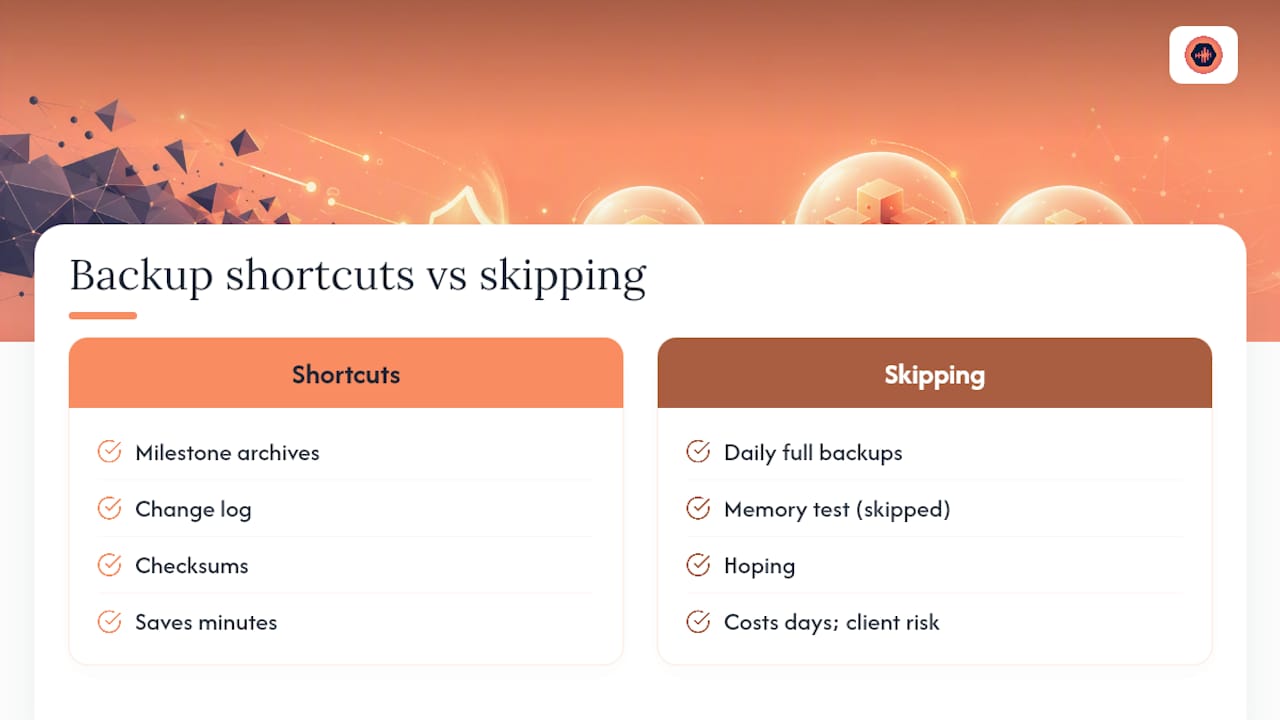
Most engineers treat backups as an insurance policy they’ll deal with later. The problem is that “later” usually means after a drive fails during a mastering pass, not before. The gap between a recoverable loss and an unrecoverable one is almost never about how much storage you own. It’s about whether you exported the right assets and verified them before you needed to.
The shortcuts that actually save time, milestone archives instead of daily full backups, a change log instead of a memory test, checksums instead of hoping, cost minutes. Skipping them costs days, and sometimes a client relationship. AES built AESTD1002 specifically because studios kept losing recoverable work to sloppy naming and missing metadata, not hardware failure. That’s the real lesson here: most data loss in this industry is a process failure wearing a technology costume.
— Kreg
How Audome Turns This Checklist Into a Daily Habit
Running this workflow manually across five spreadsheets, a NAS, and three cloud folders works until it doesn’t. Audome exists because most of this checklist is exactly what audio professionals already need built into one workspace, not something to reconstruct project by project.
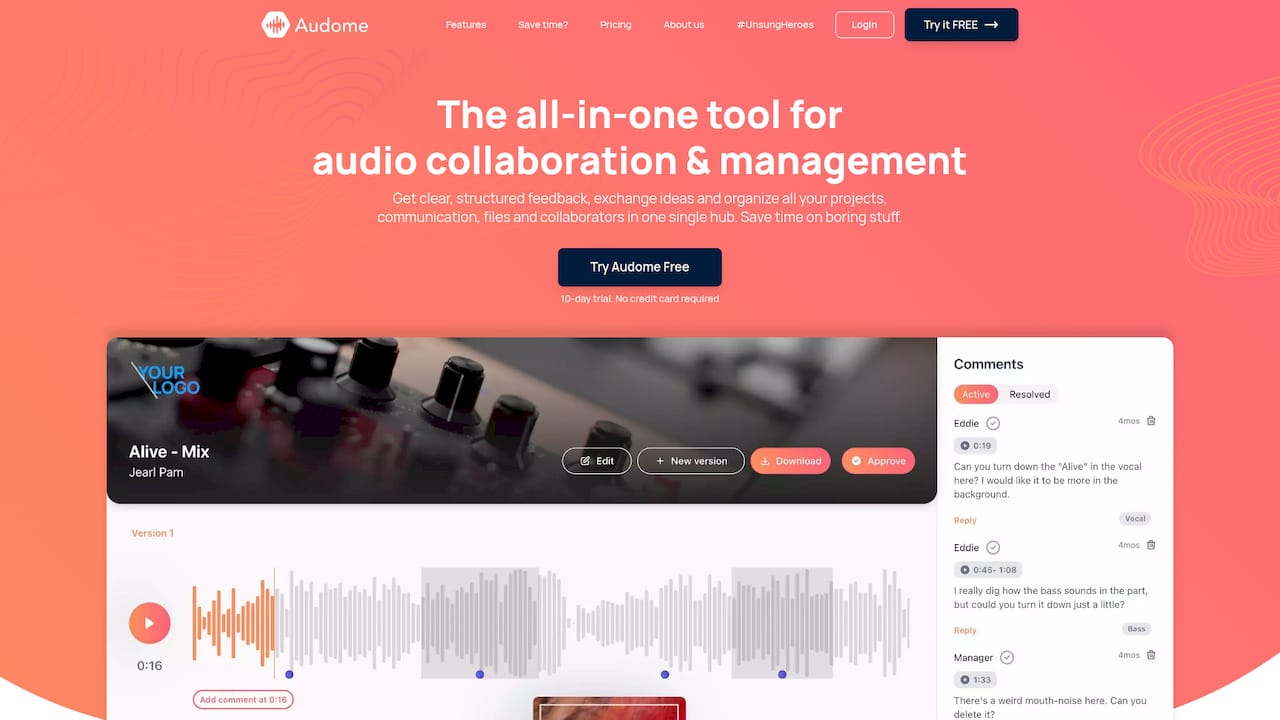
Every upload keeps full lossless quality up to 96kHz/24-bit, so the master and stems you export never lose fidelity in transit. Version history tracks every revision automatically, and timestamped feedback lands directly on the waveform, replacing the change-log spreadsheet with something a client can actually see and respond to. Password-protected project pages and download controls handle the access-lock step from the checklist without a separate settings menu, and Stripe Connect revision billing means you’re not chasing unpaid downloads or unlimited free revisions. Centralizing exports, versions, and feedback in one workspace cuts the chances of grabbing the wrong file at 11pm before a delivery deadline. If you’re ready to stop rebuilding this system on your own, try Audome and see how a real project runs inside it.
Sources
- AESTD1002 — Recommendation for delivery of recorded music projects (AES)
- Future-proofing your DAW project (MusicTech)
- How to deliver mixes to clients: files & stems (Violet Recording)
FAQ
How Often Should I Back Up Client Projects?
Archive at every milestone (rough mix approval, final master, delivery) rather than on a fixed schedule, then push completed projects to offsite storage within a week of client sign-off.
Do I Need to Back Up Stems if the Client Only Bought a Master?
Yes. Stems let you handle future remix or remaster requests without reopening the full session, and they take up far less space than the raw session file.
What’s the Difference Between a Working Copy and an Archive?
A working copy is the live session you’re still editing; an archive is a locked, checksummed snapshot of a completed milestone that should never change once created.
How Do I Verify a Backup Actually Works?
Import the exported stems or multitracks into a blank DAW session and confirm the mix reconstructs correctly, not just that the files open without errors.
Can Cloud Storage Alone Replace a Full Backup Strategy?
No. Cloud drives store files but don’t track version context or feedback, which is why dedicated audio platforms pair storage with version history and timestamped notes instead of leaving that context to memory.