
The cleanest way to get a guest’s audio is to have them record their own side locally, then upload that file to a single link you control, one that needs no account, no app and no instructions longer than five lines. Everything else in this guide is about making that routine hold up when the guest is a busy executive, a first-timer on a laptop mic, or someone who sends a 40-minute voice memo from a phone at midnight. We built Audome for audio professionals who run this exact process every week, with unlimited uploads at up to 96kHz/24-bit and a client experience that needs no login.
TL;DR
- Ask every guest to record locally, one mono track, 24-bit if their tool allows it, and to upload the file after the call rather than relying on the call recording.
- Give guests one upload link and one set of settings. Fewer choices means fewer broken files.
- Do not let email or a chat app carry the file. A single hour of 24-bit mono WAV is roughly half a gigabyte.
- Name and archive files the moment they land, then check the start, middle and end of each track before you tell the guest they are done.
- Keep a pristine copy of the raw guest file untouched, and work on duplicates.
Table of Contents
- Why guest uploads go wrong
- What to ask guests to record
- The guest instruction message
- How guests should send you the file
- Naming and organizing guest files
- Check the file before the guest leaves
- Back up before you edit
- Special cases
- Promo: put the guest upload in the project
- FAQ
- Sources
Why guest uploads go wrong
A remote interview has two audio sources: the call and the guest’s own machine. The call is compressed by the internet connection in real time, and nothing you do later removes that damage. A local recording goes straight from the guest’s microphone to disk, which is why producers ask for it. I Edit Podcasts, for example, advises recording your own audio separately on your own computer for every interview so the track comes from the mic and not through internet compression, and asks guests to do the same.
That solves the quality problem and creates a delivery problem. Now a non-technical person has to:
- Start a recording on their own device before the call begins.
- Keep it running without stopping or pausing.
- Find the file afterward.
- Get a file of several hundred megabytes to you.
Each step is a place where a guest stalls. Most of the failures producers complain about, such as a missing file, the wrong format, a file that stops at minute 12, or a reply with a link that has expired, come from steps 2 to 4. A good guest upload process removes decisions from those steps.
What to ask guests to record
Keep the instructions to a handful of lines. Guests who get a page of technical specifications either ignore it or send nothing. The settings below are what published production guides converge on, and you can pick one set and stay with it.
Format and sample rate
Tufts University’s podcast guide tells recorders to set quality to the highest available option, record in 24-bit where possible, and keep settings identical every session. It also says to record one voice in mono, and to put two voices on separate mono channels. For a guest on their own computer, that means one mono track containing only their voice.
When the guest is using a phone or a basic app that offers little control, take what you get. A built-in voice memo recorded close to the mouth beats a perfect-settings call recording that was compressed in transit.
On sample rate, 44.1 kHz is the practical standard for audio-only shows and it is what we recommend you set and forget. Our own guide to the podcast sample rate explains why mismatched rates between host and guest files create more trouble than any difference between 44.1 and 48 kHz ever would.
Levels
Guests rarely know what a good level is. Two public broadcasters give you numbers you can hand them, though in different ranges:
- CapRadio’s sound practices guide puts the sweet spot for recording levels between -6 dB and -9 dB. It also asks for 30 to 60 seconds of room tone at the same level, which gives your editor clean material for patching gaps.
- The Commons Library podcasting handbook keeps spoken-word levels between a -6 dB maximum and -12 dB minimum so the signal neither peaks nor gets too weak.
For a guest, simplify: speak at normal volume, peaks should not touch the top of the meter, and stay about a fist away from the mic. Put “stop before you clip” in your instructions in those words, not in decibels.
Raw means raw
Tell guests to turn off noise suppression, auto-leveling and any effects in their recording app. Processing applied at the source cannot be reversed in the edit. If the app has no such switch, move on; you will clean the file yourself.
The guest instruction message
Here is a template short enough that guests read it. Adjust the names.
Hi [Name], looking forward to Thursday. Two quick things so your audio sounds as good as possible:
- Before we start, open your recording app (Voice Memos on iPhone, QuickTime on a Mac, or the recorder on your computer) and press record. Keep it running until I say we are done. Wear headphones, and keep the mic about a fist from your mouth.
- When we finish, open this link, drop your file in, and wait for the green “upload complete” message before you close the page: [link]
That is all. You do not need to create an account.
The message does three things deliberately. It names the app the guest probably already owns. It asks for recording to begin before the call, so nothing is missed at the start. And it ties the guest’s last action to a visible confirmation. One production guide, Get Up Productions, makes the related point that guests should stay in the recording room until the platform confirms the upload has finished.
A sync clap helps your editor line up a guest’s local file with yours. Studio D and others describe it as a count and a clap at the start, so both files share a sharp transient in the waveform. Add it to the call script rather than to the guest’s homework.

How guests should send you the file
The file size shapes every decision here. A mono 24-bit WAV at 48 kHz runs about 144 KB per second, which is roughly 8.6 MB per minute and a little over 500 MB for an hour. At 44.1 kHz it is about 476 MB per hour. That is far beyond what email attachments carry, and it is why guides tell guests to use a link-based transfer.

The usual options and where they break
Producers commonly ask guests to send a link from a general cloud-storage service or a one-off transfer site. Jordan Harbinger’s recording instructions, for instance, ask guests who record locally to email a link to the file so the producer can retrieve it. This works for people who already use these services and fails for people who do not. What goes wrong in practice:
- The guest shares a folder without opening permissions, and you spend a day asking for access.
- The link expires before you open it.
- The guest sends a compressed version, an MP3 or a phone-voice-note export, because it was the easier file to find.
- The file arrives in a chat thread, separated from the episode it belongs to.
- Two guests send files with identical names like “Recording.m4a”.
None of these are catastrophic alone. Together they are why “where is the guest’s file?” fills so many producer inboxes.
A dedicated upload link
What we recommend, and what Audome is built around, is a client upload page attached to the project. The guest follows a link, drops the file, and it lands inside the episode project, not in your inbox. They do not sign up, and they do not see anyone else’s files. Audome supports unlimited uploads, lossless audio up to 96kHz/24-bit, and collaboration with no client login, so the guest’s file arrives as recorded and the guest never has to learn a tool.
Three practical benefits follow for you:
- Everything is in one place. The guest file, your host track, the rough edit and every revision sit in the same project.
- You can protect the page. A password-protected, branded portal makes the upload page look like part of your show and keeps it private.
- You know it worked. The guest sees a clear finish, and you see the file in the project, with no “did you get it?” email.
For teams that send guests the edited episode later for approval, the same link style works in reverse. Our podcast delivery and revision workflow guide covers that stage.
Naming and organizing guest files
The moment a file arrives, rename it. A guest’s file called “New Recording 14.wav” is useless in a month. Use a pattern that sorts alphabetically and tells you everything at a glance:
ShowCode_EP042_Guest-Lastname_RAW_2026-11-19.wav
A workable convention has these parts:
| Part | Example | Why it is there |
|---|---|---|
| Show code | ShowCode | Keeps files apart if you produce more than one show |
| Episode number | EP042 | Sorts episodes in order |
| Speaker | Guest-Lastname | Tells you whose track it is without opening it |
| Stage | RAW | Separates untouched files from edits |
| Date | 2026-11-19 | Records the session date in a sortable format |
Two habits matter more than the exact pattern. First, never overwrite a raw file: edits get a new name with a stage like EDIT-v2. Second, keep one folder per episode with the same internal structure every time: raw, session, exports. Our producer file management guide lays out one such structure for audio professionals.
When the platform handles revisions, you can leave version tracking to it. Audome’s automated version tracking keeps each upload in sequence, so you are not relying on a file name to tell you which one is current.
Check the file before the guest leaves
This is where most producers lose a week. They find the problem during the edit, after the guest has gone and the moment has passed. A short intake check, done within an hour of the upload, avoids that.
The five-minute intake check
- Size and length. Does the file duration match the length of the conversation? A 25-minute file from a 60-minute interview means the guest stopped recording.
- Scrub three points. Listen to a few seconds at the start, the middle and the end. Get Up Productions suggests the same approach: check that each speaker has a complete track and scrub the beginning, middle and end of each file.
- Look for clipping and silence. A waveform that is flat at the top is clipped. A waveform that is almost a line is a muted mic or a bad input.
- Find the sync clap. Confirm it is in both your file and the guest’s.
- Check the format. Confirm it is a WAV or another lossless file, not an MP3 someone converted.
If something is wrong, ask while the interview is fresh. Chaser’s podcast production checklist describes what to do if a guest track is unusable: find the exact timecodes, check whether a backup track can replace them, and schedule a pickup recording. Running a backup recording on your side of every call is what makes that option available.
Release and permissions
The same checklist includes getting the guest’s signed recording and distribution release. Collect it at upload time, while you already have the guest’s attention, not after the episode is edited. If you operate in the US and have questions about how a particular release should be worded, that is a question for a media lawyer.
Back up before you edit
Once the file passes the check, make two copies before you open it in your editor: a working copy you will edit and an archive copy you will not touch. We cover the logic in our backup guide for client projects, which describes one working copy and two archives.
The original guest file matters beyond the first release. Episodes get repurposed long after publication, for example in companion material of the kind described in this guide to podcasts for kindergarteners, and every reuse starts from the best source you kept. Keeping the full-resolution original means any future export is a single encode from a clean file, not a re-encode of a re-encode.
AudioUtils makes the same case for retention: keep the 24-bit WAV master so any later redelivery involves one lossy step, not two.
Special cases
Two guests on one episode
When there are two or more speakers, ask each one for a separate file, and keep each person on a separate track in your session. Combining them early removes your ability to fix one voice without touching the other. Name each file by speaker.
Guests with only a phone
A phone voice memo is a legitimate source. Ask the guest to hold it close to the mouth, to the side, not directly in front, and to use headphones so the host does not bleed into the recording. Ask them to send the original file, not a version shared through a messaging app that may compress it.
A guest who will not record locally
Some guests will not do anything beyond joining the call. In that case, record the call as cleanly as you can, still ask for nothing complicated, and plan on a repair pass. A shorter list of requirements beats a long list the guest ignores.
Live events and clips
When the guest’s audio comes from a venue or a third party, ask for the original recording rather than a published stream, and ask what format it is in before the event so you can plan the handoff.
Promo: put the guest upload in the project
If your guests currently send files through a mix of email links, chat messages and shared folders, Audome gives you one place for the upload page, the project and the revisions. Guests upload without logging in, files stay at up to 96kHz/24-bit, and you can brand and password-protect the portal. Plans start at $12.50 per month for Studio, or $150 per year, and Pro is $48 per month or $576 per year. You can see what each includes on the Audome pricing page.
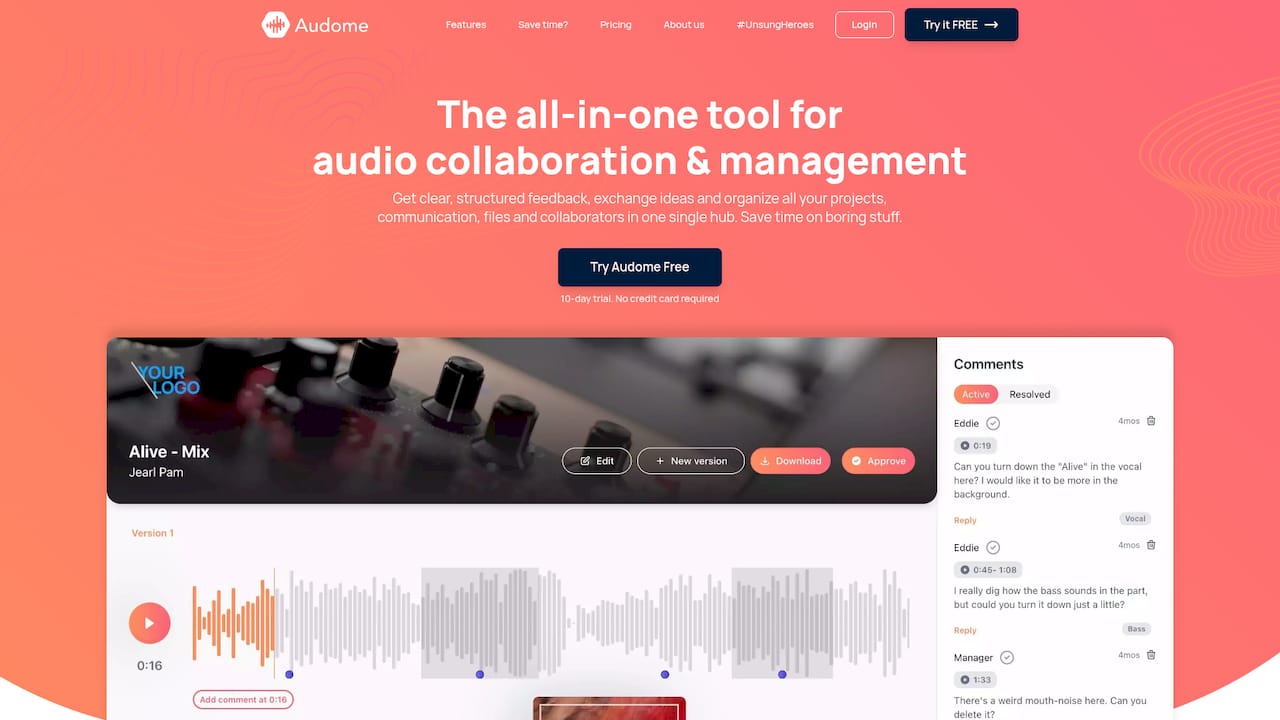
If you also send episodes back to guests for review, time-stamped comments on the waveform keep feedback tied to the exact moment, not to a paragraph in an email.
Perspective
We built Audome because audio professionals were spending their days chasing files and decoding feedback. Guest uploads are the clearest example. The producer knows exactly what they need, the guest does not, and the gap is filled with emails, expired links and apologies.
Our view is that the producer should own the process, not the guest. That means one link, no account, no installation, and a project that already knows which episode the file belongs to. It also means the file arrives as recorded: lossless, at up to 96kHz/24-bit, with no quiet compression step you did not choose.
The same project then carries the rest of the work: version tracking as the edit evolves, time-stamped comments when the guest or host wants a change, and a branded portal for the delivery. When guest upload, revision and delivery live in one place, producers stop managing tools and go back to managing sound.
Kreg
FAQ
What format should a podcast guest upload?
A lossless WAV, mono, at the highest quality their app allows, is the best result. AudioUtils recommends 24-bit, 44.1 kHz for audio-only podcasts, and never recording straight to MP3 or AAC. If the guest can only produce another format, take it rather than ask for a second take.
How big will a guest’s file be?
About 475 to 520 MB per hour for mono 24-bit WAV at 44.1 or 48 kHz, by our arithmetic from the bit depth and sample rate. A one-hour interview recorded in stereo is roughly double that. That is why files of this size need a link-based upload, not email.
Should guests record locally or just join the call?
Local recording gives you the better track, because the audio never passes through the call’s compression. Ask for it when the guest is able, and always record the call yourself as a backup and sync reference.
What if the guest’s upload fails or the file is incomplete?
Check length and scrub the start, middle and end as soon as the file lands. If a section is missing, see whether your backup recording covers the gap, and if not, schedule a short pickup session with the guest. Asking within a day or two, while the topic is fresh, gets a better result.
Do I need a signed release from the guest?
Many production checklists include a signed recording and distribution release, and it is easiest to collect at the time of upload. For the exact wording that fits your show and your state, speak to a media lawyer.
Sources
- Recording audio, Podcast guide, Tufts University Libraries
- Sound Practices: CapRadio’s guide to getting the best out of your audio
- Podcasting Handbook, The Commons Library
- Ad-Trade Recording Instructions, Jordan Harbinger
- The Right Way To Record Remote Interviews, I Edit Podcasts
- The Ultimate Guide: How to Record Podcast Remotely, Get Up Productions
- Podcast production checklist for podcast teams, Chaser
- Audio for Podcasters: Recording, Mix & RSS Specs, AudioUtils
- Podcasts for Kindergarteners: How to Pick One