
The fastest way to fix a broken spotting notes workflow is to run every session through four stages: Capture, Organize, Retrieve, Refine. The output is a single, canonical cue list with cue ID, IN and OUT timecode, duration, a one-line direction, and a cue type for each moment that needs music. This applies to spotting sessions, editorial review passes, and the moment you hand cues to a composer, and it works whether you’re scoring a five-minute short or tracking two hundred cues across an eight-episode season.
TL;DR:
- Using consistent frame rates and noting them at the top of the cue list prevents off-by-one-frame errors during duration calculations.
- Organizing raw notes within hours into a structured cue table with cue ID, timecodes, and cue type ensures quick retrieval and usability for composers.
- Exporting only essential data such as timecodes, durations, and directions in CSV or CueDB format streamlines handoff, while version control avoids confusion.
- Capturing live cue timing, tags, and directions during sessions boosts accuracy, reduces fragmented feedback, and minimizes errors from memory reliance.
- Centralized platforms like Audome support the entire workflow with timestamped waveform comments, automatic versioning, and secure sharing, eliminating scattered notes.
Table of Contents
- What Does a Spotting Notes Workflow Actually Involve?
- How Do You Format Timecodes and Calculate Cue Durations?
- What Should a Spotting Notes Template Include?
- Which Tools Fit Your Spotting Notes Workflow?
- How Do You Hand Off Cue Lists to Composers and Editors?
- What Should You Check Before, During, and After a Spotting Session?
- How Audome’s Workflow Matches These Steps in Practice
- What Music Editors Wish Every Spotting Session Produced
- Run Your Next Spotting Session Inside Audome
- Sources
- FAQ
What Does a Spotting Notes Workflow Actually Involve?
Spotting itself is a specific, well-defined event. Editors and composers watch the picture together with the director to identify which moments need music and mark the timing and emotional intent before a single note gets written, a practice Wikipedia’s film score overview describes as core to how scores get built. The workflow you build around that session is what determines whether the resulting notes are usable or just a pile of timestamped guesses.
Here’s how the four stages break down in practice.
- Capture. During the session, insert live timecode the moment a cue moment is identified, not five seconds later from memory. Tag who said what (director notes read differently than an editor’s gut call), and write a one-line directive instead of a paragraph. “Needs tension building into the reveal” beats three sentences of description every time.
- Organize. Within hours, not days, convert the raw capture into a structured cue table. Every entry gets a cue ID (M1, M1a, M2), a working title, IN and OUT timecodes, calculated duration, and a cue type (source, underscore, sting, transition). This is the step Howtothink points to directly: a brief processing pass, done soon after capture, is what separates a usable note from a dead one.
- Retrieve. Every cue needs to tie back to an exact frame, an exact media file, and an exact project version. If your editor recuts a scene after the spot session, cues without a locked reference become guesswork. Keep one canonical cue list, not three versions floating across email threads.
- Refine. Director language rarely translates directly into composer instructions. “Make it feel lonelier” becomes a cue type, a suggested instrumentation note, and maybe a temp-track link. This final pass is where note-making research from A Pragmatic Mind applies almost word for word: writing your own one-sentence interpretation of a note, rather than just archiving the raw quote, is what makes it retrievable and actionable months later.
The stages overlap in real projects, and tools like Sona help you turn captured notes into processed, linked thinking that support this workflow. A composer might ask a clarifying question during Refine that sends you back to Retrieve to confirm a timecode. That’s normal. What matters is that Organize never gets skipped. Skip it, and you’re stuck emailing screenshots of a notepad at 11 PM the night before a scoring session.
Pro Tip: Set a hard rule that no cue moves from Capture to the shared list until it has a duration calculated. An IN and OUT without a duration is half a cue, and composers will ask for it anyway.
How Do You Format Timecodes and Calculate Cue Durations?
Use HH:MM:SS:FF for every timecode entry. That’s hours, minutes, seconds, and frames, and it’s the format every composer, editor, and DAW expects without translation.
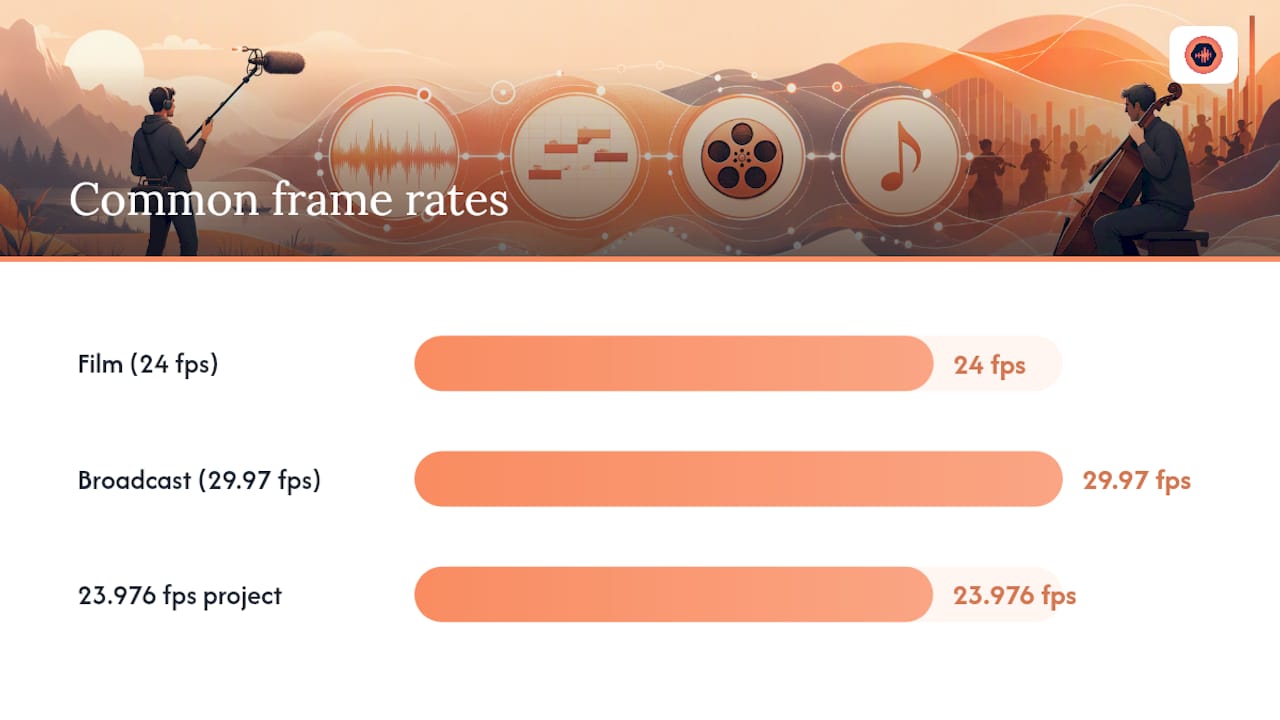
Frame rate matters more than most spotting notes account for. A film at 24 fps, a broadcast project at 29.97 fps, and a project shot at 23.976 fps all calculate duration slightly differently, and mixing them in one cue list is how off-by-one-frame errors creep into the final mix.
- Always note the project’s frame rate at the top of the cue list, not buried in a footnote.
- Use your NLE’s insert-timecode shortcut rather than typing timecodes by hand. Manual entry is where transposed digits sneak in.
- Duration is simple subtraction: OUT minus IN, in the same timecode format. A cue running from 00:14:22:10 to 00:15:47:02 is one minute, twenty-four seconds, and sixteen frames long.
- Double check any cue that crosses a minute or hour boundary by hand once. Timecode math wraps oddly and a quick sanity check catches most errors before they reach the composer.
If there’s any ambiguity, whether it’s a scene still in retakes, a sequence shot at a variable frame rate, or a picture with intermittent cuts still pending from editorial, flag it explicitly in the notes. Write “LOCKED PENDING” or “VFR, confirm before scoring” directly in the cue’s direction field. A composer who scores against an unlocked cut wastes hours re-timing music later.
Concise, standardized cue language isn’t just neater. Scoring The Screen’s breakdown of film music’s shared vocabulary makes the case that cues, motives, and phrases function as a common language between director, composer, and editor, and sloppy or inconsistent timecode formatting undermines that shared language before the composer even opens a template.
What Should a Spotting Notes Template Include?
Most productions need two documents, not one: a minimal cue table for the composer, and an expanded session note for internal use. Trying to cram both into a single format is how cue lists turn into unreadable walls of text.
The minimal cue table needs exactly these fields, no more:
- Cue ID (M1, M2, M2a for a variant)
- Title (working name, can be a placeholder)
- IN timecode
- OUT timecode
- Duration
- Type (underscore, source, sting, transition)
- Short direction (one line, actionable)
- Reference URL or filename (temp track, stem, or reference clip)
The expanded session note captures everything the minimal table strips out: who said what, the director’s exact quote if it matters, a temp track reference, the emotional direction in more detail, and any open follow-up questions. Keep this as a working document, not something you hand to the composer directly.
Naming and versioning conventions matter as much as the fields themselves. Use a consistent pattern like ProjectName_CueList_v03.csv or ProjectName_SpottingNotes_2026-03-14.pdf so nobody grabs a stale file two weeks into scoring. Converting expanded notes into the minimal table is mostly deletion: strip the commentary, keep the one-line direction, confirm the timecodes, and move on.
Which Tools Fit Your Spotting Notes Workflow?
Various types of tools fit different production scales, and choosing an unsuitable one generally reflects a mismatch between project size and tool complexity rather than the tool itself.
On-timeline note apps and video review platforms let you drop frame-accurate comments directly onto the picture during the spotting session itself, and some, like the review platform category PlayPause represents, push those comments straight into an editor’s NLE for immediate action. These excel at speed and frame accuracy but often lack strong export options for composer handoff.
DAW-marker workflows work well when the composer is also doing rough cut sync themselves. Markers live inside the session, timecodes stay accurate to the sample, but sharing that data outside the DAW usually means manual re-entry.
Shared spreadsheets remain the workhorse for small and mid-size projects. Google Sheets or a shared Excel file costs nothing, exports cleanly, and everyone already knows how to use it. The trade-off is no built-in versioning and no frame-accurate timestamp validation.
Collaboration platforms built for audio production centralize timestamped feedback, file versions, and secure client access in one place, which matters once a project has more than two or three stakeholders exchanging notes.
For a quick short or trailer, a shared spreadsheet is often enough. Episodic TV with a rotating composer roster needs something with real versioning and export discipline. A feature film with a large post team needs a platform that handles secure sharing and access control, not just a note format.
- Frame-accurate timestamp support
- Export to CSV or PDF without reformatting
- Version history so nobody scores against a stale cue list
- Secure sharing that doesn’t require every collaborator to create a new account
Weigh speed against structure. A tool that captures notes fast during a live session but has no organized export just moves the bottleneck downstream to whoever has to retype everything into a usable format.
How Do You Hand Off Cue Lists to Composers and Editors?
Export format depends on who’s receiving the file and what they’ll do with it. Send a CSV or CueDB export when the composer’s own software can import structured data directly. Send a Google Sheet when the project is still moving and multiple people need live edit access. Send a printable PDF only for a final locked version meant for signatures or archival, since PDFs are painful to edit collaboratively.
- Build the first-pass export with the essentials only: timecode, duration, cue ID, short direction, and type. Leave detailed emotional notes and temp track links as optional columns so the composer isn’t wading through commentary to find the numbers.
- Run an approval pass. Mark each cue as accepted, pending, or cut directly in the shared file, and lock the version once the director and editor sign off. A simple color code or status column works fine.
- Log who approved what and when. This matters more than it sounds. When a cue changes three weeks later, you need to know whether it was ever locked in the first place.
- Attach references securely. Temp tracks and stems should travel with the cue list, not get separately emailed as an afterthought. Use a shared link with access control rather than a public drop folder, especially for unreleased material.
Once cues are marked approved and locked, resist the urge to keep tweaking the same file. Structured project tracking practices exist specifically to stop the “which version is final” problem that kills momentum on tight scoring schedules.
What Should You Check Before, During, and After a Spotting Session?
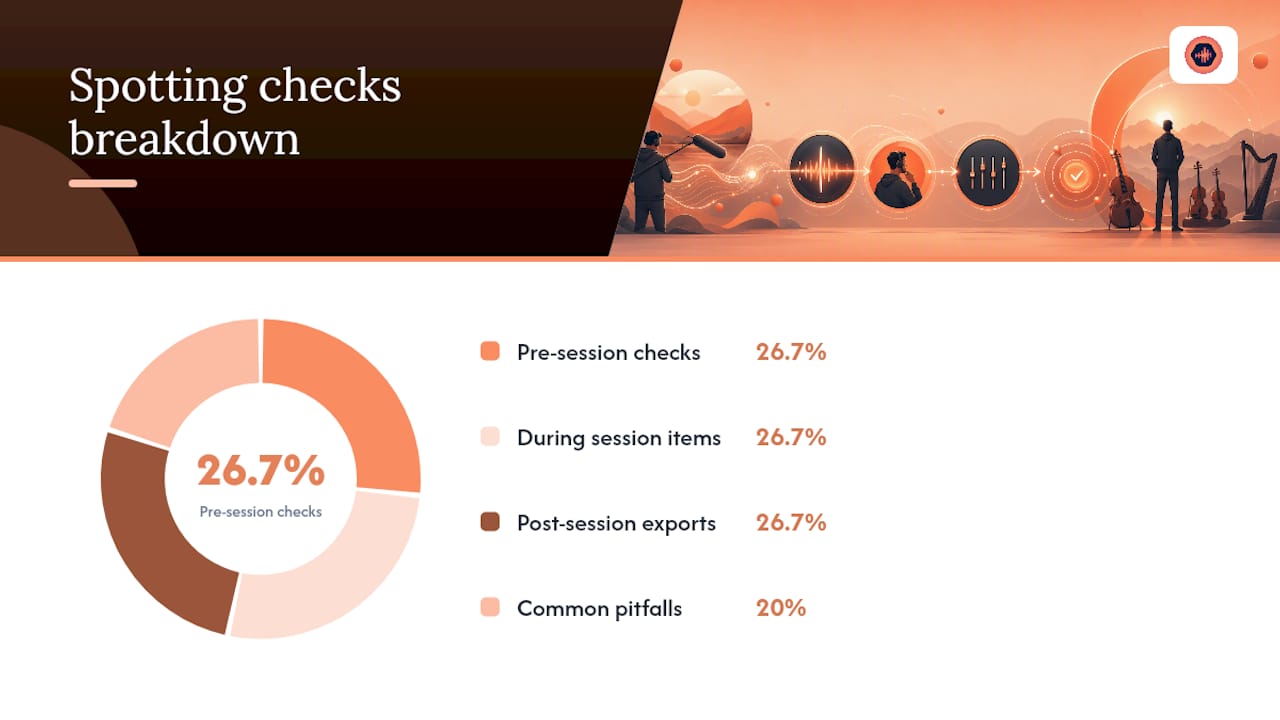
A short pre-session check saves more time than any template redesign. Confirm the frame rate, confirm the cut is actually locked (not “locked pending one more trim”), confirm the exact playback file path everyone will reference, and confirm who has final sign-off authority on cue decisions.
During the session, four things need to happen every single time: insert timecode the instant a cue moment is flagged, tag who’s speaking, capture any temp reference track mentioned out loud, and note the intended duration even if it’s rough. Waiting until after the session to reconstruct any of these from memory is where accuracy dies.
- Export the canonical cue list immediately after the session, while context is still fresh
- Version the file the moment it’s exported, don’t wait until “later today”
- Send it for approval before moving on to the next scene or episode
- Attach temp references and stems in the same handoff, not as a follow-up email
The most common pitfall is fragmented feedback: one note in a text message, another scrawled on a printed script page, a third buried in a Slack thread from two weeks ago. The fix is boring but effective: designate one place notes live, and make it a rule that anything outside that place doesn’t count until it’s transferred in.
Missing frames and ambiguous directions are the other two repeat offenders. A cue direction like “make it bigger” means nothing without context six weeks later. Write directions that would still make sense to a stranger.
Pro Tip: If a director gives a note verbally and you can’t write it down in the moment, repeat it back out loud before moving on. It forces a one-sentence summary immediately, and that summary is usually more useful than the original rambling comment anyway.
How Audome’s Workflow Matches These Steps in Practice
The gap between a good spotting notes process on paper and one that survives contact with a real production usually comes down to where the notes actually live. A platform built around timestamped waveform feedback, automatic version history, CSV and PDF exports, and secure client portals maps directly onto the Capture, Organize, Retrieve, and Refine stages described above.
- Timestamped feedback pinned to the waveform replaces the “which minute was that note about” guesswork entirely
- Version history means nobody scores against a stale cue list by accident
- CSV and PDF export options match the CueDB and spreadsheet handoff formats composers already expect
- Password-protected client portals keep temp tracks and stems secure without a separate file-sharing tool
- Revision limits cut down on the endless “one more small change” cycle that stretches scoring schedules
A typical session involves a live spotting period producing multiple flagged moments, which are then organized into a structured cue table, refined into composer-ready directions, exported in a clean format, and locked as the official version. This process prevents confusion from multiple scattered files.
The difference between a cue list a composer can act on immediately and one that generates ten clarifying emails usually isn’t talent or effort. It’s whether the notes were processed once, cleanly, before they were sent.
What Music Editors Wish Every Spotting Session Produced
One-line directions with accurate timecodes beat paragraphs of commentary almost every time. A composer scoring against “tension building into the reveal, IN 00:14:22:10” moves faster than one parsing three sentences of narrative description searching for the actual instruction buried inside.
Teams that hold to a single canonical cue list, with enforced versioning, spend far less time arguing about which file is current. That discipline matters more than any template choice.
Notes are living documents until the moment they are locked. Capture fast, refine later, lock once, and never let “just one more update” reopen a version that’s already gone to picture.
— Kreg
Run Your Next Spotting Session Inside Audome
A collaboration platform built for audio production supports this workflow by capturing feedback where the audio actually lives, organizing it into a trusted version, and handing off a clean export without needing multiple apps. Timestamped comments on the waveform, automatic version history, and support for high-resolution audio uploads help keep temp tracks and stems usable.
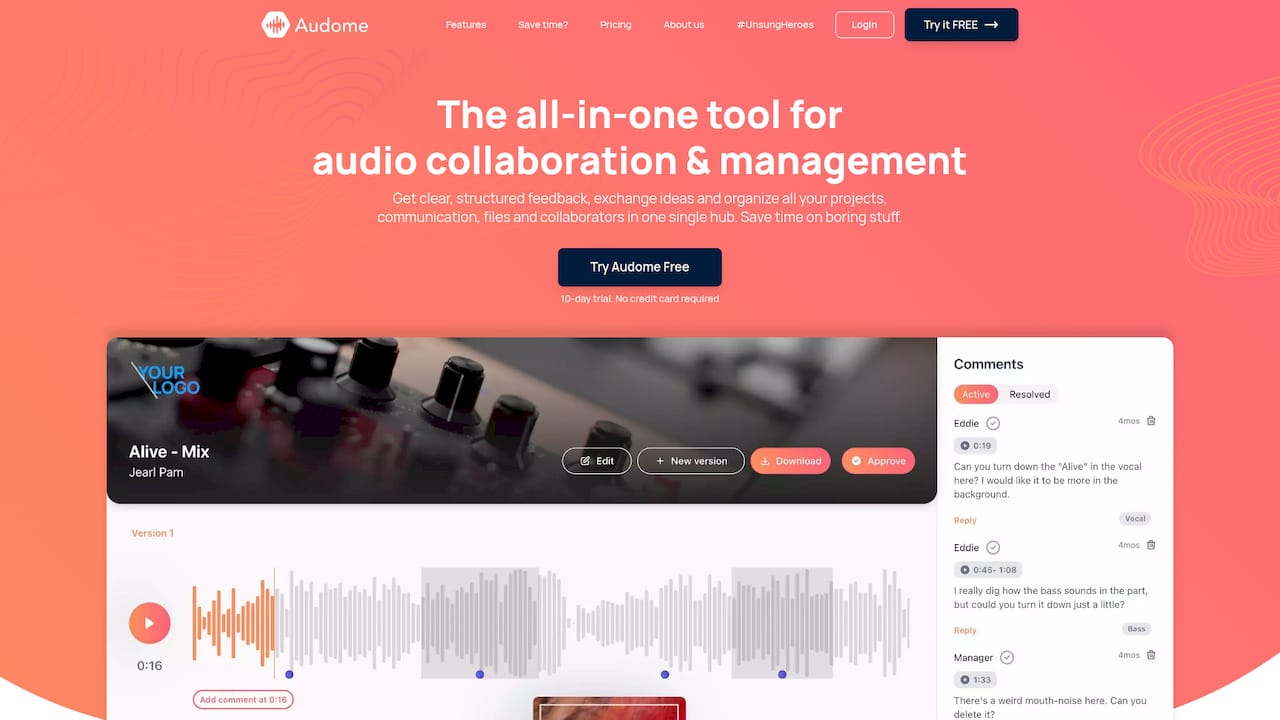
Composers and editors can access projects through secure, password-protected pages without needing to create an account, and revision controls help set boundaries on how many rounds of notes a project includes before additional fees apply. If your current process still runs through a mix of email, texts, and a spreadsheet nobody updates consistently, see how Audome’s collaboration platform handles the whole cycle in one workspace, and start a trial to move your next spotting session’s cue list through Capture, Organize, Retrieve, and Refine without losing a single note along the way.
Sources
- Scoring The Screen: The Secret Language of Film Music
- Note-taking as information processing | How to Think AI
- Note-taking vs. Note-making: The Shift That Makes Your Notes Useful — A PRAGMATIC MIND
- Film score — Wikipedia
FAQ
What Is a Spotting Notes Workflow?
It’s the four-stage process, Capture, Organize, Retrieve, Refine, that turns raw notes from a spotting session into a structured cue list with timecodes, durations, and directions a composer can act on directly.
What Fields Belong in a Minimal Cue List?
Cue ID, title, IN timecode, OUT timecode, duration, cue type, a one-line direction, and a reference URL or filename cover everything a composer needs in the first pass.
Which Timecode Format Should I Use?
Use HH:MM:SS:FF, and always note the project’s frame rate, since 24 fps, 23.976 fps, and 29.97 fps projects calculate duration differently.
What’s the Best Export Format for Handing Off Cues?
CSV or CueDB works best when the composer’s software imports structured data directly; use a Google Sheet for live collaboration and a PDF only for a final locked version.
How Do I Keep Spotting Notes From Getting Lost Across Different Apps?
Designate one canonical location for notes and enforce it strictly. A platform like Audome that centralizes timestamped feedback and version history in a single project space removes the scattered-thread problem entirely.