
TL;DR:
- Sending large audio files via email or consumer apps often results in corruption, data loss, or security issues.
- Professional transfer methods like dedicated services or real-time cloud collaboration ensure file integrity, security, and efficient workflow.
Sending large audio files the wrong way is how projects get ruined. A single 3-minute track recorded at 24-bit/96kHz hits around 100MB in size, which already blows past every standard email limit on the planet. For podcasters, sound engineers, and producers, that’s not a minor inconvenience. That’s a workflow problem that costs time, trust, and sometimes the project itself. The good news is there are professional methods built specifically for this. This guide covers what actually works, what to avoid, and how to prep your files so nothing gets lost in transit.
Why audio files get so large and why that matters
File size is directly tied to audio quality. A WAV file at 24-bit/96kHz captures more data per second than your ears can consciously detect, but that data matters enormously when you’re mixing or mastering. A 3-minute stereo WAV at those specs lands around 100MB. A full multitrack session with 40 stems? You’re looking at several gigabytes before you’ve even added reverb tails.
The difference between WAV or AIFF and MP3 is not just a format preference. MP3 uses lossy compression, which permanently throws away audio data to shrink the file. Compression artifacts that are invisible to casual listeners become glaring problems during mixing and mastering. That smeared high end and pumping low mid you can’t quite explain? Sometimes it’s the MP3 someone sent you three revisions ago.
| Format | Bit Depth | Sample Rate | Approx. Size (3 min stereo) | Use Case |
|---|---|---|---|---|
| MP3 | Lossy | 44.1kHz | ~7MB | Consumer playback |
| WAV | 16-bit | 44.1kHz | ~30MB | CD quality, basic delivery |
| WAV | 24-bit | 48kHz | ~50MB | Broadcast standard |
| WAV | 24-bit | 96kHz | ~100MB | Studio, mastering, post-production |
| AIFF | 24-bit | 96kHz | ~100MB | Mac-native studio work |
Zero re-encoding is the standard for professional transfers. The moment a platform converts your file, even slightly, you’ve lost something you can’t get back.
Pro Tip: Before you send anything, confirm the sample rate and bit depth with your collaborator. Mismatched specs cause more wasted hours than bad plugins.
Why email and consumer apps fail for professional audio

Email is not a file transfer tool. It’s a messaging tool with a file attachment feature bolted on as an afterthought. Standard email providers cap attachments at 20–25MB, which means you can’t even send a single high-resolution WAV track, let alone a session folder. Gmail will automatically convert large attachments into Google Drive links, but that hand-off strips you of access controls, download tracking, and any real sense of who has what version.
Consumer messaging apps are worse. Encrypted apps like Signal or Telegram allow some large file transfers, but they offer zero file management features. No folder structure. No version control. No confirmation the file arrived intact. Sending a 2GB session folder through a chat app is like mailing a hard drive in a paper envelope and hoping for the best.
Here’s what actually goes wrong when you use the wrong tool:
- File corruption. Large files sent through platforms not designed for them often arrive incomplete or broken, especially on slow connections.
- Metadata loss. Embedded metadata like sample rate, bit depth, and track names can get stripped during transfer.
- Accidental compression. Some platforms silently re-encode audio to save bandwidth. You won’t know until you open it.
- No access control. A shared link with no password protection means anyone with the URL can download your unreleased session.
- No delivery confirmation. You have no idea if your collaborator actually got the file, or which version they’re working from.
“I sent a full mix through a consumer file host once. Client opened it, said it sounded ‘different.’ Turned out the platform had re-encoded the WAV to a lower bit rate on upload. No warning. No notification. Just gone.” That kind of thing happens more than people admit.
Pro Tip: Never share unreleased or sensitive audio through unsecured or untracked links. If you can’t see who downloaded it and when, it’s not a professional transfer.
The best ways to transfer big audio files securely
Professional audio transfer comes down to three methods, and which one you use depends on project size, timeline, and how paranoid you are about security.
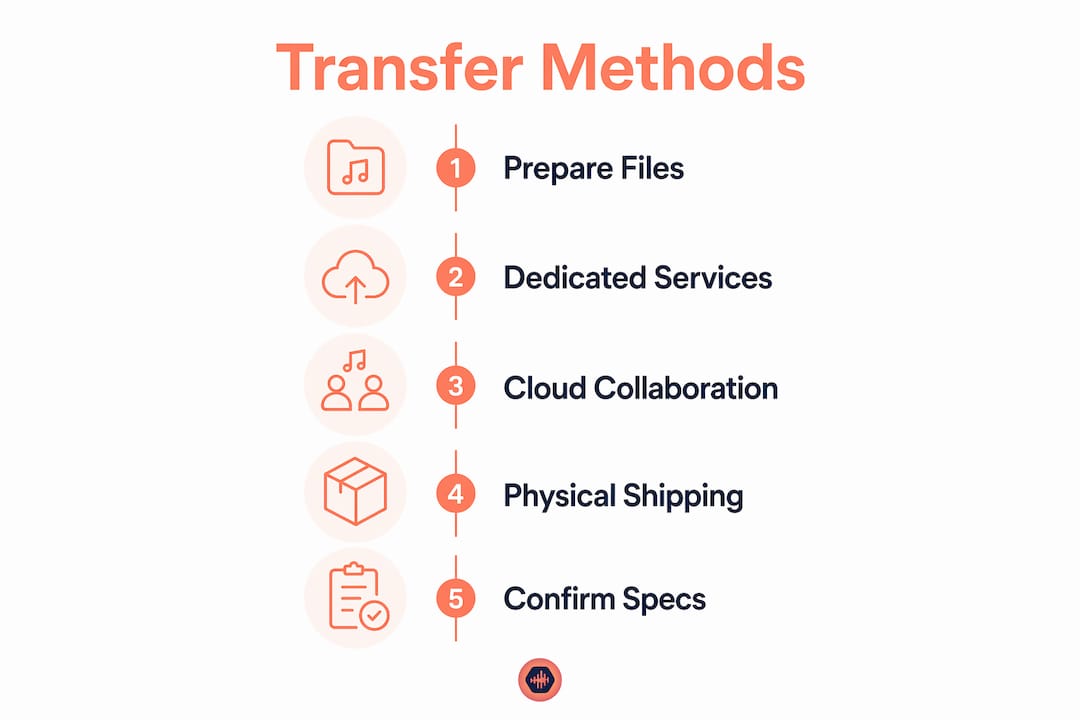
Dedicated file transfer services
These are purpose-built platforms that handle large uploads without touching your audio data. The key features to look for are password protection, download tracking, folder structure preservation, and a guarantee of zero re-encoding. Free tiers on most dedicated services cap at 3–25GB. Paid plans typically offer unlimited storage, which is what you need for anything beyond a single song delivery.
Audome is built specifically for audio professionals and handles lossless files up to 96kHz/24-bit without compression. It adds timestamped comments, version control, and private collaborator spaces on top of the transfer itself, so you’re not just sending files, you’re managing the whole project in one place.
Real-time cloud storage collaboration
The shift toward real-time cloud collaboration is the biggest change in professional audio workflows right now. Instead of uploading a session, sending a link, waiting for a download, and hoping nothing corrupted, teams work directly inside shared cloud storage. Changes appear instantly. No manual uploads. No version confusion. This is now standard practice for remote post-production teams and podcast networks handling multiple shows simultaneously. Check out this cloud storage guide for audio professionals if you want to go deeper on platform options.
Physical hard drive shipping
For projects over 100GB, physically shipping a hard drive overnight is often faster and more reliable than any internet transfer. Bandwidth physics are brutal at that scale. A 500GB session upload on a standard broadband connection can take 12+ hours, with no guarantee it completes without interruption. An overnight courier gets there in the morning, intact, with no upload anxiety. It sounds old-school because it is. It also works.
Here’s a quick comparison to help you pick the right method:
| Method | Best For | Speed | Security | File Size Limit |
|---|---|---|---|---|
| Dedicated transfer service | Single project delivery | Fast | High | Up to unlimited (paid) |
| Real-time cloud collaboration | Ongoing team projects | Instant | High | Varies by platform |
| Consumer cloud (unmanaged) | Casual sharing only | Moderate | Low | Varies |
| Physical hard drive | 100GB+ archives | Overnight | Very High | No limit |
Pro Tip: Consolidate your project files before any transfer. Run a “Save Copy In” or equivalent in your DAW to gather all audio, fades, and session data into one folder. Then zip it. Sending a scattered session folder is a great way to guarantee something gets left behind.
How to organize your audio files before you hit send
Good file organization is not optional. It is the difference between a collaborator opening your session in five minutes and them spending two hours hunting for missing audio. Poor organization creates delays and confusion for everyone on the project.
Here’s the standard prep checklist before any professional handoff:
- Consolidate your DAW session. Use “Save Copy In” (Pro Tools) or the equivalent in your DAW to pull all referenced audio into one folder. Missing files are the number one session-opening nightmare.
- Start all audio at bar 1 or timecode 0. Every stem, every track, every reference file. This is non-negotiable. If your stems don’t line up on import, your collaborator will spend an hour fixing your mistake.
- Use clear, consistent file names. “Kick_Final_v3.wav” beats “audio_track_001.wav” every single time. Include the instrument, version, and any relevant descriptor.
- Include a reference mix. Always. Your collaborator needs to hear what you heard. Without it, they’re guessing.
- Write a README file. A plain text file with BPM, key, sample rate, bit depth, and plugin notes prevents hours of wasted back-and-forth. List every third-party plugin used in the session so the receiving engineer knows what they’re walking into.
Proper documentation is a professional mandate, not a courtesy. The engineers who skip it are the ones who get the angry 11pm messages. For a deeper look at building a clean handoff workflow, the project collaboration guide for audio pros covers this in detail.
Pro Tip: Zip your folder before uploading. It reduces transfer errors and keeps the folder structure intact. Just don’t zip audio files individually with any compression setting that re-encodes them. Zip the folder, not the audio.
Key takeaways
The best way to send large audio files is through a dedicated transfer service or real-time cloud collaboration that guarantees zero re-encoding, password protection, and download tracking.
| Point | Details |
|---|---|
| Email is not a transfer tool | Standard email caps at 20–25MB, which won’t fit a single 24-bit/96kHz WAV file. |
| Zero re-encoding is non-negotiable | Any platform that converts your audio on upload destroys data you cannot recover. |
| Organize before you send | Consolidate sessions, name files clearly, and always include a README and reference mix. |
| Match the method to the project size | Use cloud services for most deliveries and physical drives for archives over 100GB. |
| Real-time collaboration is the new standard | Shared cloud storage eliminates upload/download cycles and reduces version confusion. |
What I’ve learned from transfers gone wrong
I’ve been on both ends of a bad file transfer. I’ve sent sessions that arrived corrupted. I’ve received sessions where half the audio was missing because someone forgot to consolidate. I once got a “final mix” delivered as a 192kbps MP3 because the client’s email provider auto-converted it. Nobody told me. I spent 20 minutes trying to figure out why the top end sounded like it was wrapped in a blanket.
The thing nobody talks about is how much time bad transfers actually cost. It’s not just the re-upload. It’s the back-and-forth messages, the version confusion, the “wait, which file are we working from?” conversations at 1am before a deadline. That stuff adds up fast.
The shift toward real-time cloud collaboration has genuinely changed how I work with remote clients. No more “did you get it?” texts. No more wondering if the file that arrived is the same one I sent. The file sharing guide for audio pros covers a lot of this if you want the full picture.
My honest advice: adopt professional-grade sharing methods before you need them. Not after you’ve already lost a file or burned a client relationship. The tools exist. The workflows are documented. There’s no excuse for sending a 24-bit session through a chat app in 2026.
— Kreg
Audome handles what email and chat apps can’t
Audio professionals who are tired of duct-taping together file sharing, feedback, and version control across five different apps should take a look at Audome.
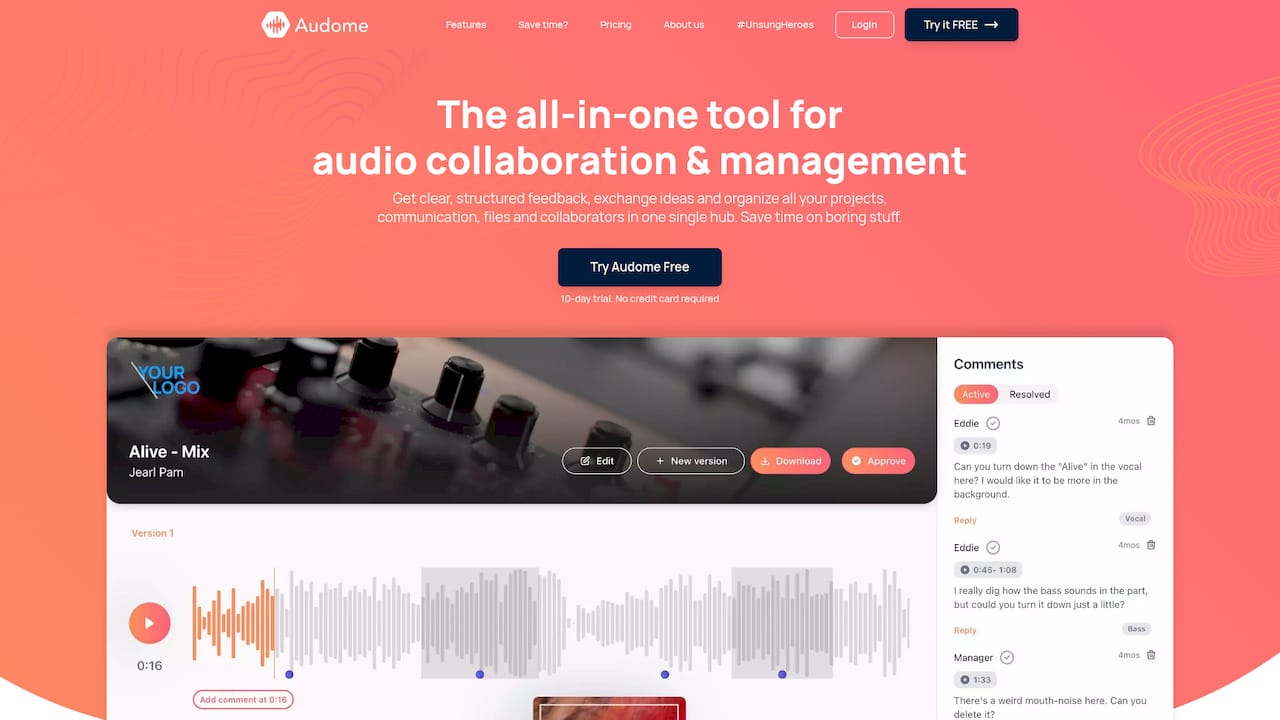
Audome is built specifically for audio work. It handles lossless files up to 96kHz/24-bit with no compression, no re-encoding, and no quality loss. You get password protection, download tracking, timestamped comments, version control, and private collaborator spaces, all in one place. Collaborators don’t need to create an account to access files, which cuts out the friction that slows down every other platform. If you’re serious about secure audio collaboration, Audome is where professional audio sharing actually lives.
FAQ
What is the best way to send large audio files?
Dedicated file transfer services designed for audio professionals are the best option. They preserve file integrity, offer password protection, and support files well beyond the 25MB email limit.
Can I send large audio files by email?
No. Standard email providers cap attachments at 20–25MB, which is not enough for a single uncompressed 24-bit/96kHz WAV file. Use a dedicated transfer service instead.
Does sending audio files reduce quality?
It can. Platforms that re-encode files on upload permanently degrade audio quality. Always use a service that guarantees zero re-encoding to preserve your original audio data.
How do I share large audio recordings for a multitrack session?
Consolidate your DAW session into a single folder using your DAW’s “Save Copy In” function, then upload to a dedicated transfer service or shared cloud storage. Include a README file with session details to avoid confusion.
When should I physically mail a hard drive instead of uploading?
For projects over 100GB, shipping a hard drive overnight is often faster and more reliable than an internet upload. Bandwidth limits make very large uploads slow and prone to failure.