
Most clients will never hear your Atmos mix on a 7.1.4 speaker system, so the online review has to work on headphones. The workable setup is simple. Send a binaural stereo render that plays losslessly in a browser, collect notes pinned to exact moments in the waveform, and keep every revision in one place. Then run the speaker check yourself before you call the mix final. This guide covers each step, plus what the client can and cannot judge from a headphone preview.
TL;DR
- A remote Atmos review is almost always a headphone review. A binaural render lets clients judge balance, placement, and whether the immersive version serves the song. It does not replace a speaker check.
- Send the binaural preview as a lossless stereo file, so you hear the same thing the client hears. Audome streams audio up to 96 kHz/24-bit with no client login.
- Ask for feedback as timestamped comments tied to the waveform, not as email paragraphs or voice memos.
- Before final approval, check the mix on headphones and in a 7.1.4 reference room, and confirm delivery specs with your distributor.
- Track each revision as its own version so “which mix are you talking about?” never comes up.
Table of Contents
- What a client is actually reviewing
- What a binaural preview can and cannot tell the client
- Prepare the preview before you send it
- Run the review round, step by step
- An example of useful Atmos feedback
- The final check before you approve
- Why a purpose-built review link beats a general file share
- Run your next Atmos review in Audome
- Our perspective
- FAQ
- Sources
What a client is actually reviewing
An Atmos review is not a stereo review with extra speakers. The questions change. A listening guide for immersive music says a good mix should serve the song and the artist’s intent. It should use placement and movement with purpose, go beyond an expanded stereo mix, and keep its punch and cohesion.
The same guide lists the warning signs worth listening for:
- Surround channels that carry only ambience.
- Everything placed everywhere, so no element has a position.
- Motion for its own sake.
- Low end and punch that got lost in the move to immersive.
- Artifacts from upmixing.
These make a useful note-taking frame for clients. Most artists and label contacts will not use words like beds and objects. Give them plain prompts instead:
- Does the song still hit as hard as the stereo version?
- Is there a moment where an element moves and you wonder why?
- Can you place the vocal, the drums, and the main instrument in space?
- Does the chorus open up compared to the verse, the way you wanted?
- Does anything sound smeared, phasey, or hollow?
If you mix for podcasts, film, or post-production, the prompts shift. Dialogue intelligibility, ambience bed level, and whether effects pull attention from the voice matter more. The process below stays the same.
What a binaural preview can and cannot tell the client
A binaural preview is a headphone render of the Atmos mix. It folds the immersive scene into two channels, using processing that gives the impression of sound around the head.
The New York Times R&D team, which mixed spatial audio in Atmos, explains that Apple’s headphone presentation builds its 3D space from a limited number of virtual speakers. It re-encodes the mix with head tracking, so what a listener hears can differ from what you hear in Pro Tools with the Dolby Renderer. The same project notes that a static binaural preview without head tracking is possible with AC-4, and that an Apple-compatible MP4 can preview the DD+ presentation on a compatible Apple device.
In practice, split what you ask of the client like this:
| Client can judge on a binaural preview | Needs a proper Atmos playback check |
|---|---|
| Overall balance and tone | Exact speaker-level placement and height content |
| Vocal level and clarity | Translation across the full 7.1.4 layout |
| Whether the low end and punch survive | Whether bed and object behavior matches your intent |
| Whether movement feels musical or distracting | Final technical conformity of the delivery file |
| Which sections feel too busy or too empty | Comparison of binaural render modes against the speaker mix |
A mix engineer interviewed by Immersive Audio Album describes remote client reviews as commonly done on headphone mixes, while noting that headphones cannot give the full 7.1.4 speaker experience. Treat that as the working rule. The client approves the creative decisions on headphones. You own the speaker verification.
Binaural render modes
Binaural metadata sets how each element sits in the headphone render. Universal Music Group’s Dolby Atmos best practices say this metadata affects only the headphone render, not speaker processing. They describe Near, Mid, and Far as virtual distance from the listener’s head, and Off as removing binauralization. UMG also warns against applying Off to everything, because that can fail technical QC.
Why this matters for a client review: if you changed render modes between versions, say so in the revision note. A client who hears the vocal “move back” in version three should know it was a deliberate Far setting and not a mistake.
Prepare the preview before you send it
A clean review starts before the client opens a link.
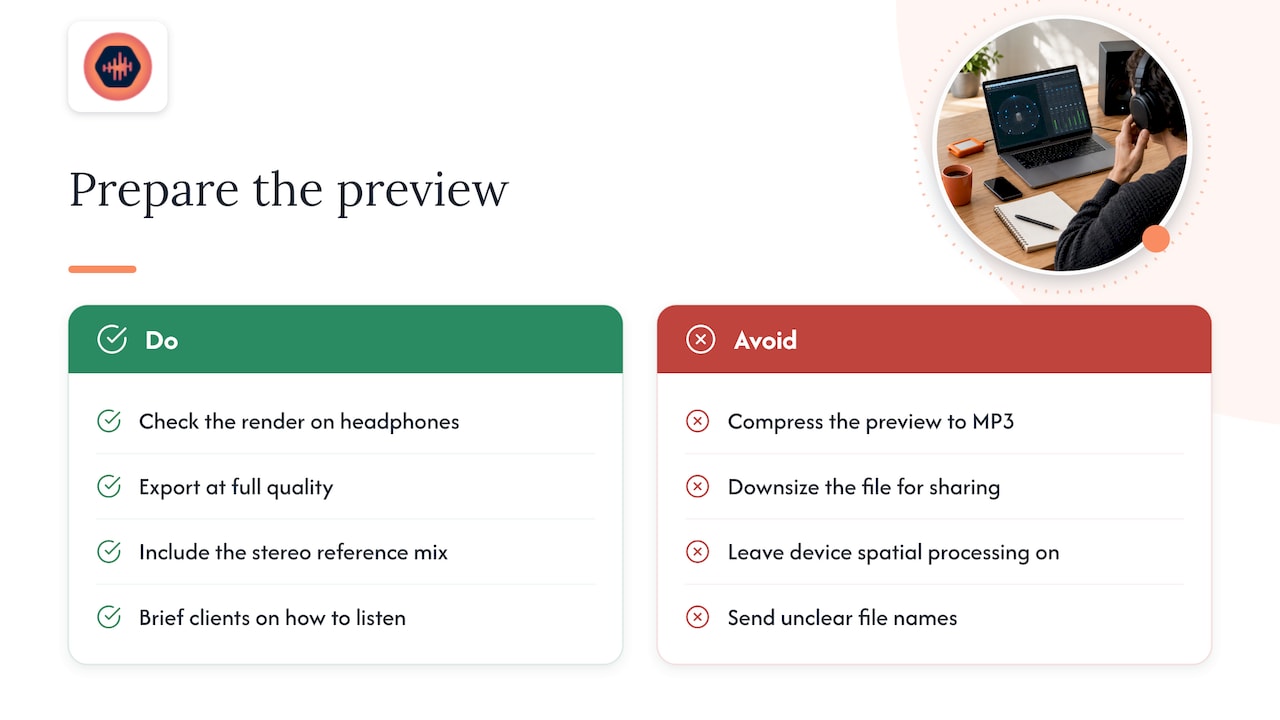
Monitor the way the client will. UMG’s guide recommends headphone monitoring throughout mixing, so check your binaural render on headphones before you export it. If the vocal sounds distant or the kick loses weight there, the client will hear the same thing and write a note you could have prevented.
Export a stereo file at full quality. Bounce the binaural render at the resolution you work in. Compressing it to an MP3 for convenience adds artifacts that clients may blame on the mix. Audome supports 96 kHz/24-bit streaming for client reviews, so you do not need to downsize the file to make sharing easy.
Name the file for what it is. Something like “Song_Atmos_Binaural_v3” tells the client what they are hearing and which round it belongs to. Include the stereo reference mix in the same project so they can A/B the formats.
Brief the client on how to listen. One short paragraph is enough: use good wired or Bluetooth headphones, turn off any extra spatial processing on the device, and listen at a fixed volume. Say plainly that this is a headphone preview of an immersive mix and that final speaker checks happen on your side.
If you collect stems from the artist’s team, ask for them in a way that helps the Atmos mix. One Atmos engineer says he asks for stems with bus processing printed and, where possible, separated snare, overheads, percussion, and distinct guitar parts. Clear stems give you more objects to place and fewer revision rounds spent fixing a blob in the center.
Run the review round, step by step
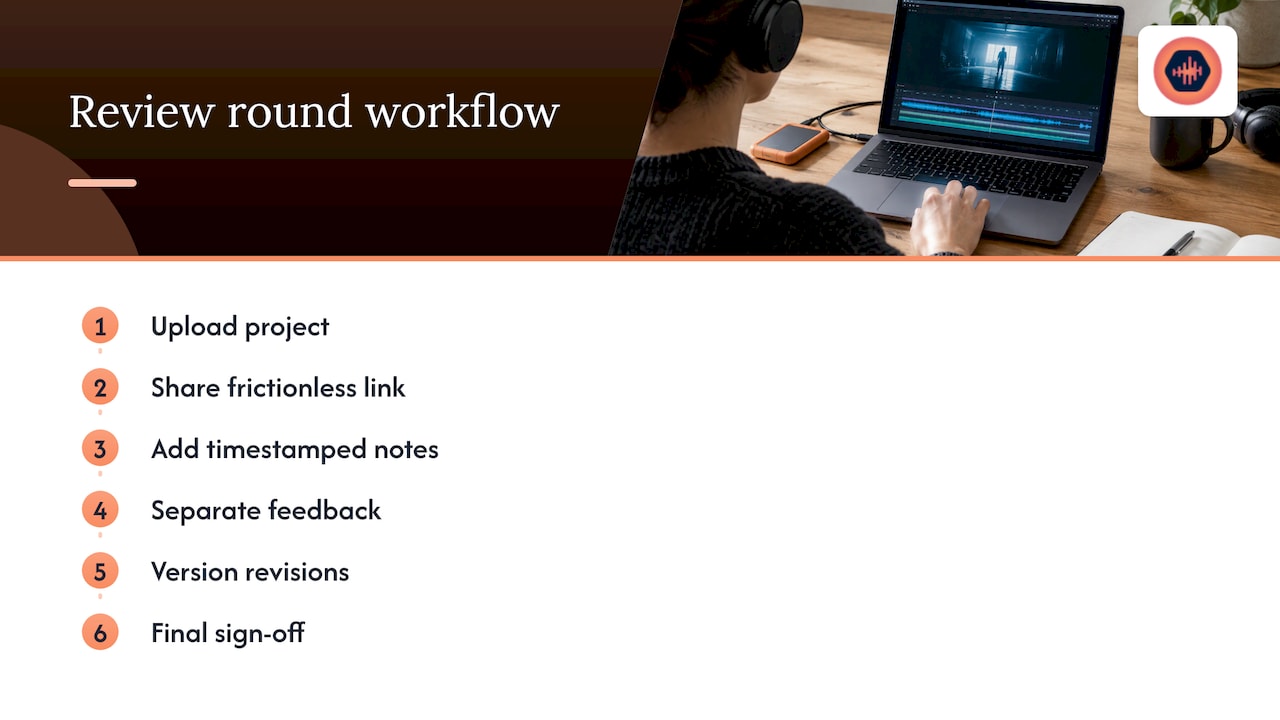
1. Upload the preview to a project, not an email
Put the binaural render, the stereo reference, and any notes in a single project. Email threads scatter versions across inboxes. Audome keeps the files, the revisions, and the comments in one project, and the approval workflow runs from first mix to final sign-off in the same place.
What goes wrong without this: the client replies to a three-day-old attachment, and you spend a round discussing a mix you already replaced.
2. Share a link the client can open without friction
Clients abandon reviews when they hit a signup wall. Audome needs no client login, and you can set a password and use a branded client portal. The client clicks, listens, and comments. That matters for Atmos work in particular, because your clients may be artists, managers, or label A&Rs who review on a phone between meetings.
For wider habits on sending work out, see this step-by-step guide to sending mixes to clients.
3. Ask for timestamped notes
Immersive mixes are dense, and “the chorus feels off” tells you almost nothing. A note on the waveform at 1:42 that reads “guitar jumps to the rear left and distracts from the vocal” tells you exactly what to open in your session.
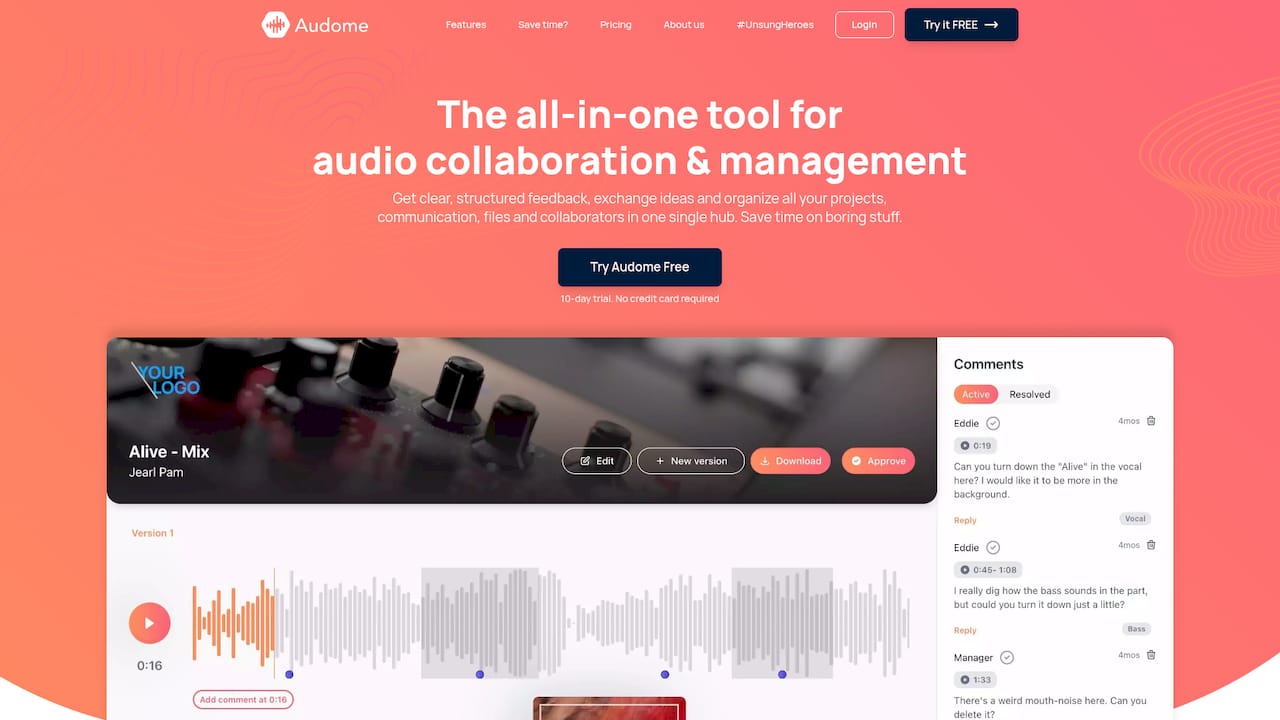
In Audome, collaborators comment with time-stamped remarks directly on the waveform. You see each note at the exact moment it refers to. If you want to tidy up how your clients’ feedback arrives, this walkthrough on centralizing client feedback shows how to set it up.
Give clients a short note format to follow:
- Where: the timestamp (the waveform comment handles this).
- What: the element, such as lead vocal, snare, or pad.
- Observation: what they hear, in their own words. “Too far away” is fine.
- Wish, if any: the result they want, not the technical fix.
When a client writes “make the synth go behind me,” you decide whether that is a bed change, an object move, or a binaural distance setting. They describe the problem, you pick the tool.
4. Separate Atmos notes from stereo notes
A common mess: the artist comments on the stereo master and the Atmos mix in the same thread. Ask them to leave comments on the file they are listening to, and keep the binaural preview and the stereo reference as separate items. Anything that applies to both, such as a lyric level, becomes a note on both files.
5. Turn revisions into versions
Every round gets its own version. Audome’s automated version tracking handles that, so round three never overwrites round two, and the client can jump back to compare. Add a one-line change log with each upload: what moved, what the binaural distance settings are, and what you left alone on purpose.
If a project has a fixed number of rounds, you can set revision limits and bill for extra ones through Stripe. That fits Atmos work well, where a new mix pass can cost real studio time. Our post on locking final files until paid covers how to set this up.
6. Close the loop with a checklist
When the client says it is done, do not take “sounds great” as the end. Walk through a short sign-off list: which version is approved, who approved it, what delivery format comes next. The mix approval checklist gives you a version you can reuse, and the mix approval process guide explains the reasoning behind each step. For handling several tracks at once, approving mixes online in batches is a useful approach.
An example of useful Atmos feedback
Here is what a good round of comments looks like on a three-minute pop track. These are illustrative examples of the format, not a real project:
- 0:48: “Pre-chorus pad feels wide but thin. I lose the warmth from the stereo version.”
- 1:15: “Backing vocals move around a lot here. I’d keep them still so the lead stays in front.”
- 2:10: “Bridge feels amazing. Please don’t change this.”
- 2:55: “Last chorus is the same size as the first. Can it open up more?”
Each note points to a place, an element, and a reaction. You can act on every one in one pass. The note at 2:10 matters as much as the others: asking clients to flag what they love protects it from being changed by accident in the next round.
The final check before you approve
A client sign-off on a binaural preview is a creative approval. Before you release the mix, verify it technically.
Dolby’s Atmos Music Delivery Playbook from June 2024 recommends checking final mixes in both headphones and a 7.1.4 speaker reference environment, and neither is a substitute for the other. The same playbook lists these delivery points:
- Synchronization to the stereo mix.
- 24-fps timecode.
- ADM BWF delivery.
- 24-bit/48 kHz PCM, up to 128 channels.
- An integrated loudness target of -18 LKFS for individual tracks, with tolerance.
- True peak no higher than -1 dBTP, with tolerance.
- A check of binaural render modes on beds and objects.
The playbook also says to confirm requirements with your chosen distributor, since specifications can change. Do that before you export the master.
One more point on codecs. A 2026 Production Expert comparison with 16 listeners found PCM preferred when listeners could solo speakers, and PCM and AC-4 statistically tied with all speakers playing. The authors say the sample was too small to be scientifically useful, so treat it as a listening anecdote and not a rule. It does remind you that what clients hear through a streaming codec is not identical to your master.
Why a purpose-built review link beats a general file share
Atmos work already has a gap between what you hear and what the client hears. A review tool should close every other gap it can:
- Same audio on both ends. Lossless streaming means a note about a thin pad is about the pad, not about compression.
- No setup for the client. No account, no app, no download.
- Feedback that points somewhere. Waveform comments replace “around the second chorus.”
- One project, many versions. You stop explaining which file is which.
- Control over delivery. Download controls and payment-linked revisions keep final files under your terms.
For a broader comparison of tool types, see our guide to project management platforms for mixing engineers and our remote collaboration tips.
Run your next Atmos review in Audome
Upload your binaural render and stereo reference to one project and send a password-protected, branded link. Your client listens at up to 96 kHz/24-bit, leaves timestamped comments on the waveform, and never needs an account. Each revision becomes its own tracked version.
Studio is $12.50 per month or $150 per year. Pro is $48 per month or $576 per year. See the plans on the Audome pricing page or start from the Audome homepage.
Our perspective
Immersive mixing adds a new kind of misunderstanding. A client hears a headphone render, imagines a speaker room, and then writes feedback about something neither of you can point to. We built Audome around the idea that the fix is not more explanation, it is less distance between the listener and the exact moment they are reacting to.
That is why we focus on lossless streaming, timestamped comments on the waveform, and automatic version tracking. Share the binaural render the way you would share any high-resolution file, and let the client react at 1:42 instead of describing it in an email. You see the note where it belongs, in the timeline.
The same goes for the business side. Revision limits, billing for paid revisions, and download controls let you keep a clear structure around immersive work, where an extra pass costs real time. And because clients need no login, the review actually happens.
Kreg
FAQ
Can a client really approve a Dolby Atmos mix on headphones?
They can approve the creative direction: balance, tone, vocal level, and whether the immersive version suits the song. Dolby’s playbook recommends checking the final mix on both headphones and a 7.1.4 speaker system. So the client approves the preview, and you confirm the speaker translation.
What file should I send for a binaural Atmos preview?
Send a stereo binaural render at your full working resolution, named so the client knows it is the Atmos headphone version. Add the stereo mix to the same project for comparison. Audome streams files up to 96 kHz/24-bit, so you can share the render without downsizing it.
Will the client hear the same thing I hear in my studio?
Not exactly. Headphone Atmos relies on virtual speakers and, on some devices, head tracking, and the New York Times R&D team notes this can sound different from the mix in Pro Tools with the Dolby Renderer. Tell clients up front that the preview shows the creative intent, not the full speaker room.
How should clients give feedback on an Atmos mix?
Ask them to comment at the exact moment they hear an issue and name the element, such as vocal, snare, or pad. Audome’s timestamped waveform comments do this automatically. Clients should describe what they hear and what they want, and leave the technical fix to you.
Do I need a different process for podcasts or post-production?
The steps stay the same: lossless preview, timestamped notes, tracked versions. What changes is what clients listen for, mainly dialogue clarity, ambience level, and whether effects distract from the voice.
Sources
- What Qualities Make For A Great Immersive Music Mix? (Immersive Audio Album)
- Q&A with Mert Özcan: Dolby Atmos Mix Engineer (Immersive Audio Album)
- Mixing Spatial Audio in Dolby Atmos (The New York Times R&D)
- Dolby Atmos Audio Best Practices (UMG Content Guide)
- Dolby Atmos Music Delivery Playbook (Dolby, June 2024)
- Do Atmos Codecs Really Matter? (Production Expert)
- Approve Mixes Online Faster