
A cue versioning workflow is a fixed set of habits for naming each cue revision, recording what changed, tying every note to the version it was written about, and locking the file once it is approved. Do those four things and “which one did you mean?” stops being a daily question. This guide walks through each step for music, mixing and post-production work, with file name patterns you can copy today.
TL;DR
- Give every cue a stable number and raise only the version number on each revision, so an old number always points to the same saved state.
- Link the session, the bounce and the stems with the same version identifier, and write a short changelog with every delivery.
- Keep feedback tied to a version and a timestamp (or timecode for picture), never to “the latest file.”
- Freeze the approved file. Any change after approval becomes a new version and a new decision.
- Back up on the 3-2-1 pattern and check the delivery package outside your DAW before you send it.
Table of Contents
- What cue versioning actually covers
- Step 1: Name cues so every file is unique
- Step 2: Organize folders so versions cannot drift
- Step 3: Save incrementally, every time
- Step 4: Write a changelog people will read
- Step 5: Tie every note to a version
- Step 6: Move versions through review, approval and delivery
- Step 7: Back up and hand off without surprises
- Perspective
- Put the workflow in one place with Audome
- FAQ
- Sources
What cue versioning actually covers
A cue is one piece of music or sound that has a job in a project: a film score cue, a podcast intro, a game stinger, a mix of one song. Versioning is how you tell revision three of that cue from revision four, in the session, in the bounce, in the email thread and in the client’s head.
It matters because revisions multiply fast. One cue might get a first pass, a note about the strings, a picture change, a loudness pass and an alternate without the lead line. If all of that lives in files called “final,” “final2” and “final_REAL,” nobody can say what was approved.
The useful mindset: a version records what was sent on a given date. It does not claim the work is done forever. That is why dates, statuses and sequential numbers beat repeated “final” labels. “Final” is a status you earn at approval, not a name you give a file in advance.
Step 1: Name cues so every file is unique
Good naming does one job: any file name tells you which project, which cue, which revision and, for picture work, which cut.
Keep the cue number stable
Film and TV music teams usually number cues by reel and sequence. CueDB’s support documentation recommends keeping cue numbers unique and stable, even when cues change order in the timeline. Its format uses 1m01 (reel 1, score cue 1) for projects under 100 cues. The cue number never changes. The version number does.
Put project, cue, version and picture cut in the file name
The same CueDB page recommends including project ID, cue number, cue version and picture version in every file name, for example TW312 1m01 v3.2 c0917 Main Title. Here v3.2 is the cue version and c0917 is the picture cut. Because each element is in the name, every file is unique and changes line up chronologically.
If you do not work to picture, a simpler pattern still works:
ProjectName_CueName_StemType_Version
For example, MyFilm_M01_FullMix_V3.wav and MyFilm_M01_Strings_V3.wav. The full mix and the stem share the same version, so they obviously belong together.
Match the bounce to the session
Mike Senior of Sound on Sound describes a scheme worth stealing: incremental numeric suffixes on project files, with bounced mixes named after the project file plus a draft suffix. His stated payoff is that he always knows which mix belongs to which project. If a client later prefers an earlier draft in some respect, he can roll back the relevant settings to match that older project. He also separates raw bounces from loudness-processed versions with suffixes, and names saved processor settings the same way.
The rule behind all of this: the session version and the bounce version carry the same identifier. If you change a session after exporting, save it as a new version and export again. Otherwise you end up with a rendered file you cannot trace back to anything.
For a deeper look at studio naming, see our six-step mix version naming guide.

A working example
Say you are scoring a short film, project code SF204, and cue 2m03 is on its fourth revision against picture cut 0312:
| File | Name |
|---|---|
| DAW session | SF204_2m03_v04_c0312.ptx |
| Full mix bounce | SF204_2m03_v04_c0312_Mix.wav |
| Strings stem | SF204_2m03_v04_c0312_Strings.wav |
| Alternate, no lead | SF204_2m03_v04_c0312_Alt-NoLead.wav |
When the editor changes picture to cut 0405 and you re-spot the cue, the cue number stays 2m03. The cut changes to c0405 and the version goes to v05. Nothing gets overwritten.
Step 2: Organize folders so versions cannot drift
Names only help if the files live somewhere predictable. A simple project folder holds the DAW session, audio, bounces, stems, documents and backups. Copy source audio into the project folder so references do not break when you move or archive it.
Keep stems and bounces in separate folders. Sonarworks’ session organization guide notes that separating stems from bounces makes handoff far easier, and that preserving plugin presets and documentation speeds up rebuilding a session later.
A layout that works for most cue-based projects:
- Sessions: one subfolder per cue, one session file per version.
- Bounces: full mixes by cue and version.
- Stems: one folder per cue and version, never mixed together.
- Docs: spotting notes, changelog, delivery sheet.
- Approved: only frozen, signed-off files.
- Backups.
The Approved folder is the clearest line between work in progress and delivered product. Nothing goes in until a client has signed off.
Step 3: Save incrementally, every time
Set one explicit policy: save early, save often, and always incrementally (v001, v002 and so on). Sonarworks’ guide suggests giving major milestones a tag in the file name and an entry in the changelog. Keep autosave for crash recovery, but do not treat it as a substitute for a deliberate version save.
Pick when a new version is born and stick to it. A sensible rule:
- New version when you send anything to anyone.
- New version before any risky edit, such as a re-orchestration or a tempo change.
- New version when picture changes.
Sequential numbers matter. If v03 always means the same saved state, you can trust any old reference to it.
Step 4: Write a changelog people will read
A changelog is the cheapest tool in this whole workflow. Keep one text or markdown file per project and add a line for each version. Useful columns:
| Version | Date | What changed | Notes addressed | Sent to | Export sent |
|---|---|---|---|---|---|
| v03 | Oct 14, 2026 | Brass up 2 dB, new ending | Director note at 0:42 | Director | SF204_2m03_v03_c0312_Mix.wav |
| v04 | Oct 19, 2026 | Tempo 92 to 96, strings re-recorded | Editor note on pacing | Editor, director | SF204_2m03_v04_c0312_Mix.wav |
Also add a short note with every review delivery: what changed since the last version, what deliberately stayed the same, and what you need the reviewer to decide. That last item turns a vague “thoughts?” into a decision.
Picture work needs timecode
For film and TV, record cue in and out timecodes, duration, intent and frame rate in your spotting documentation. Tools for Film points out that timecode is the shared language between composer, editor and post, and recommends timecode-referenced revision notes instead of sending a new cut with no explanation. Declaring the frame rate up front cuts re-sync work when picture changes. Our spotting notes workflow covers how to set that up.
Step 5: Tie every note to a version
The most common cue-versioning failure is not bad naming. It is a comment that lands on the wrong file. When several copies circulate, a note like “make the bass quieter” could refer to any of them.
For each note, capture:
- The file and version reviewed
- The location: timestamp for audio, timecode for picture
- What the reviewer heard
- What change you propose
- A status: pending, needs clarification, accepted, rejected (with a reason), or applied
Sort incoming notes by version before touching the session. If the material changes while a review round is still open, pause, confirm which version each person has, and compare. A note about something you deleted may be moot. A note about something you replaced may need a new decision. Do not assume a response is still valid just because the file name stayed the same. If the material changes substantially, open a new round.
Keeping all feedback in one place beats chasing email, text and voice memos. We cover that in centralizing client feedback and in our guide to the timestamped feedback process.
Step 6: Move versions through review, approval and delivery
Treat each cue version as moving through the same gates:
- Draft: internal only. Name it, log it, do not send it.
- In review: sent to named reviewers with a changelog note. Feedback gets logged against this version.
- Revised: notes applied, version incremented, new bounce exported, new round opened.
- Approved: the client confirms a specific version in writing.
- Frozen and delivered: the file goes to the Approved folder and out to the client.
At approval, freeze the exact file name, duration, the approved reference, the results of your technical checks and a deadline for factual corrections. If anything must change after the freeze, increment the version and reopen a decision point. Quiet edits to an approved file are how the wrong cue ships.
Two companion guides help here: mix revision management for limiting rounds, and the studio approval process for locking final files until payment clears.
Stems deserve their own rules
Stems should normally share the same start and end point, keep their tails, avoid normalization unless someone asks for it, and be documented as with or without master-bus processing. If one stem changes, re-export all of them and bump the version, so the set never mixes revisions. Then import the stems into a fresh session and check that they sum to the full mix. See our stem delivery policy and, for Pro Tools users, how to export stems.
Step 7: Back up and hand off without surprises
Versions only help if you can still open them in a year.
Back up in tiers
Sonarworks outlines a three-tier approach: a fast local working drive, a local NAS with nightly snapshot sync, and an offsite or cloud copy for disaster-level protection. The common shorthand is 3-2-1: three copies, on two kinds of media, one offsite. Keep every version until the project is fully delivered and approved. Once a quarter, restore one random archive to prove the backup works.

Check the package before it leaves
A delivery folder should hold only what the recipient needs. Rejected tests and alternates stay in a separate folder. Before sending, open the chosen file outside your DAW and check the name, duration and contents. For a session handoff, include a README with tempo map, key, tuning and plugin list with versions, and confirm the files load in a fresh session. Afterward, ask the other party to confirm they opened the session or stems without problems.
Pre-delivery checklist
- File name follows the project pattern, with the correct cue, version and cut.
- Session and bounce share one version identifier.
- Changelog has an entry for this version.
- Duration and contents verified outside the DAW.
- Stems sum to the full mix.
- Approved copy stored in the Approved folder and backed up.
Perspective
Most versioning pain is a communication problem wearing a file-naming costume. You can have flawless names and still lose a day because a note was written about v2 and applied to v4.
That is why we built Audome around the version, not the file. Each revision sits inside one project, feedback lands on the waveform as time-stamped comments, and your collaborators can listen and comment without creating a login. Audio plays in lossless quality, up to 96kHz/24-bit, so the cue your client reviews is the cue you made.
Our view is simple: naming conventions and changelogs are the discipline, and a single hub is what keeps the discipline from depending on everybody’s memory. When revisions, notes and approvals live together, “which version?” has one answer.
Kreg
Put the workflow in one place with Audome
Everything above can be done with folders and spreadsheets, but it takes steady discipline from everyone on the project. Audome gives you the central hub: unlimited high-resolution uploads, automated version tracking, time-stamped feedback on waveforms, and branded, password-protected client portals. You can also set revision limits and bill for paid revisions through Stripe.
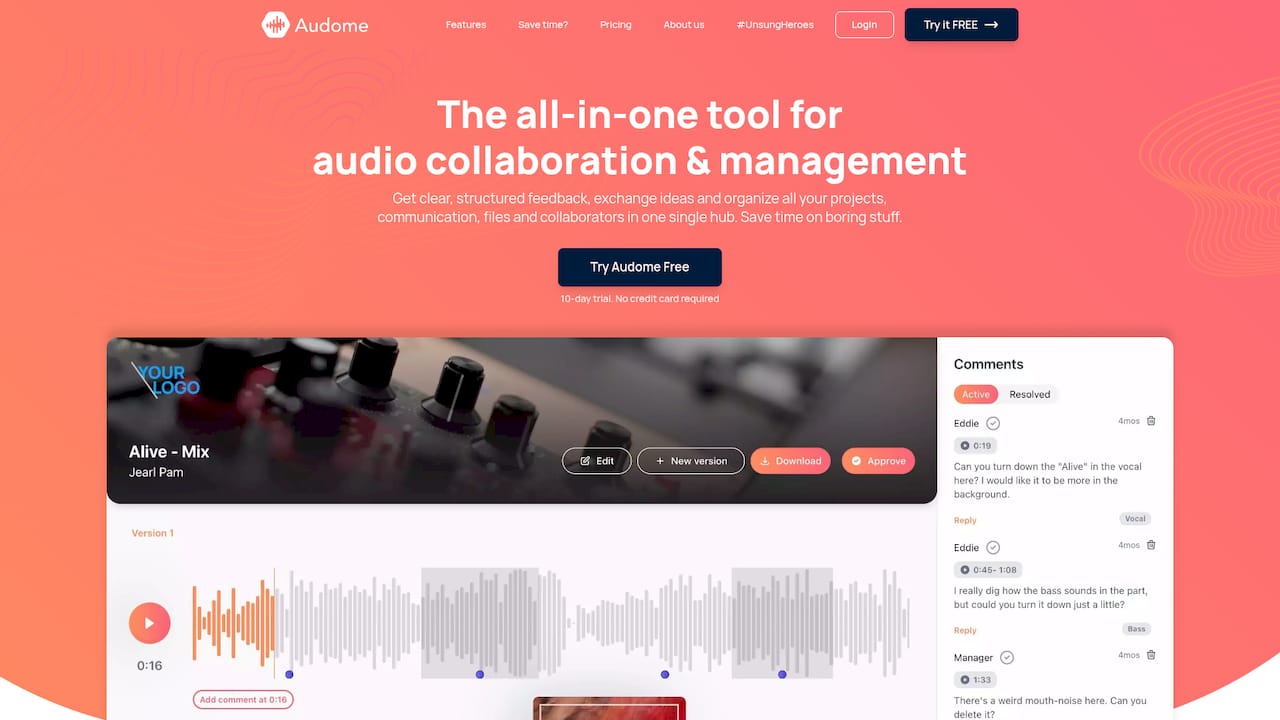
Plans on the Audome pricing page start with Studio at $12.50 per month or $150 per year, and Pro is $48 per month or $576 per year. A free trial comes first. You can see how it all fits together on the Audome homepage.
For a wider look at review habits, read our no-nonsense guide to collaborative audio review.
FAQ
Should I change the cue number when I revise a cue?
No. Keep the cue number stable and change only the version number (and the picture cut identifier if picture changed). A stable number lets everyone refer to the same musical moment across revisions, and a changing version tells them which take they are discussing.
What is the difference between a cue version and a picture version?
The cue version counts revisions of your music. The picture version, or cut, identifies which edit of the film or video the cue was written against. CueDB’s naming format records both in the file name, so you can tell whether a cue needs rework because your music changed or because picture did.
How many versions should I keep?
Keep all of them until the project is fully delivered and approved. After that, archive the frozen, approved files plus the sessions needed to reopen them, and follow a 3-2-1 backup pattern. Disk space is cheap compared with rebuilding a cue from a lost session.
Do I need to re-export every stem if only one changed?
Yes, re-export the full set and bump the version. That way the stems always sum to the matching full mix, and nobody ends up with strings from v3 and drums from v4.
Is a spreadsheet enough for a changelog?
For a solo project, a text file or spreadsheet with version, date, changes, notes addressed and what was sent works well. It gets harder with several reviewers, because notes arrive in different places. At that point a shared review tool that keeps comments attached to each version saves time.
Sources
- Cue Naming Conventions and File Organization, CueDB Support
- Q. What’s In A Name?, Sound on Sound
- Music and Picture Lock: How to Sync Score to Your Edit, Tools for Film
- DAW Session Organization: Pro Workflow & Asset Management, Sonarworks