
Pick the rate by where the audio is going, not by which number is bigger. Use 44.1 kHz for music that ends up on CD or streaming services, and 48 kHz for anything that ends up with picture: film, TV, and most video. If the project has no fixed destination, either rate captures everything a person can hear, so choose one, set it once, and never change it mid-project.
The rest of this guide shows why, what each rate does and does not buy you, how to convert between them without hurting quality, and what to send to clients so nobody has to guess.
TL;DR
- 44.1 kHz is the traditional music and CD rate. 48 kHz is the usual rate for video, film, and broadcast work.
- Both rates cover the full range of human hearing, so the choice is about workflow and delivery, not raw quality.
- Record and mix at the rate of your final destination. Converting 48 kHz to 44.1 kHz (or back) is possible, but it is an extra step you can often skip.
- Spotify asks for 44.1 kHz or higher and wants your native master, not a file you downsampled yourself.
- Pick one rate per project, write it in the session notes, and tell your client before the first upload.
Table of Contents
- What 44.1 kHz and 48 kHz actually mean
- Can you hear the difference?
- Which rate for which job
- The case for matching the destination
- How to convert 48 kHz to 44.1 kHz
- Common mistakes with sample rates
- A simple decision flow
- Sharing different sample rates with clients
- Perspective
- Keep every version at the right rate
- FAQ
- Sources
What 44.1 kHz and 48 kHz actually mean
Sample rate is the number of times per second a converter measures the audio signal. At 44.1 kHz that is 44,100 measurements a second. At 48 kHz it is 48,000.
The rate sets a ceiling on the frequencies you can store. The Nyquist frequency is half the sample rate, so 44.1 kHz can represent content up to 22.05 kHz and 48 kHz up to 24 kHz. Anything above that limit would fold back down as aliasing, which is why converters filter the signal before it is sampled.

Human hearing is usually described as running from 20 Hz to 20 kHz. Focusrite says both 44.1 kHz and 48 kHz are more than sufficient to capture that range. The extra 1.95 kHz of headroom at 48 kHz sits above what anyone hears. Its practical value is that the anti-aliasing filter has a little more room to work.
So why do two rates exist at all? History. 44.1 kHz became tied to CD audio and music distribution. 48 kHz became the standard in video and broadcast. iZotope describes 44.1 kHz as the traditional music-production rate and 48 kHz as the one commonly used for video. The two have coexisted ever since.
Can you hear the difference?
For almost every listener on almost every system, no. The difference between 44.1 kHz and 48 kHz is a matter of a few kilohertz above the range of hearing, and a well-built converter handles both cleanly.
Sweetwater makes the same point from the studio side: 44.1 or 48 kHz recorded through a modern, high-quality interface can give excellent results, and the final destination should guide the choice. Good preamps, good converters, good rooms, and a good mix move the needle far more than 3,900 extra samples per second.
The research on high-resolution audio is worth knowing, because people often stretch it to cover this question. A meta-analysis published by the Audio Engineering Society pooled 18 experiments, more than 400 participants, and over 12,500 trials. It found a small but statistically significant ability to tell standard 16-bit 44.1 or 48 kHz audio from higher-resolution audio, especially after listener training. Two things follow:
- The effect was small, and it was larger for trained listeners.
- The comparison was standard resolution against higher resolution. It did not show that listeners can reliably tell 44.1 kHz from 48 kHz.
In other words, if you are agonizing over 48k vs 44.1k as a sound-quality question, you are probably solving the wrong problem. Treat it as a compatibility question.
Which rate for which job
Here is the short version, followed by the reasoning for each row.
| Destination | Typical rate | Why |
|---|---|---|
| Music for CD or streaming | 44.1 kHz (or higher if you keep a hi-res master) | Matches the long-standing music standard and avoids conversion |
| Film and TV | 48 kHz | Standard for picture workflows |
| Online video, YouTube-style content | 48 kHz | Video editors and players work at 48 kHz |
| Dolby Atmos for Apple | 48 or 96 kHz | Apple’s requirement for Atmos assets |
| Podcasts | Either, set once | Delivery specs focus on format and encoding, so match your editor and host |
| Unknown or mixed use | Your project’s native rate | Avoid conversion until you must |
Music and streaming
If the end product is a song or album, 44.1 kHz is the default for good reason: it is the music standard and most music tools and references assume it. That does not stop you from working higher. Spotify’s current U.S. artist guidance requires 44.1 kHz or higher, prefers FLAC, accepts compliant PCM WAV, and tells you to deliver the highest-quality native stereo master without downsampling or reducing bit depth yourself. Spotify handles its own conversions.
That last point changes how many engineers work. You do not need to make a special “Spotify 44.1” file from a 48 kHz or 96 kHz master. Deliver the master as it is, and let the platform convert.
Apple is similarly flexible. Its asset guide accepts music audio at 44.1, 48, 88.2, 96, 176.4, or 192 kHz with 16- or 24-bit resolution. So a 48 kHz music master is not a problem on that store either.
If you are also deciding bit depth, our piece on keeping 24-bit sessions and delivering 16-bit covers that half of the question.
Film, TV, and video
Here 48 kHz is the safe answer. Sound Devices says audio for film and TV broadcast should be recorded at 48 kHz or the 48.048 and 47.952 kHz variants, following the instructions from pre-production. The same page is clear that the right rate depends on picture format, editorial frame rate, delivery format, sync method, post-production systems, and budget. Its guidelines are not universal rules, so always ask the picture editor or post supervisor before you roll.
Apple’s rule for Dolby Atmos is a good example of a hard requirement: assets must be 24-bit linear PCM at 48 or 96 kHz, and 96 kHz Atmos audio is converted to 48 kHz for output.
For post-production, Sound On Sound’s advice is simple. A video-related project should be created at 48 kHz and stay there. Converting to 44.1 kHz and then back is unnecessary and could theoretically lose a little high end.
Podcasts
Podcasts are the case where people most often ask. Spotify publishes a separate U.S. podcast specification document covering file structure, encoding, and metadata, but it does not name a single required sample rate. That leaves the decision to your workflow.
The practical rule: if the show is audio-only, choose 44.1 kHz or 48 kHz, set it in your DAW template, and keep every host, guest, and editor on the same one. If the episode also goes out as video, 48 kHz saves you a conversion. We wrote a short guide on this, podcast sample rate to set and forget, if you want a template-ready answer.
The case for matching the destination
The most repeated advice among working engineers is also the least glamorous: avoid converting when you do not have to. PS Audio says the quality of a conversion depends on the accuracy of interpolation and filtering, and recommends avoiding sample-rate conversion when possible.
That is not a warning that conversion is bad. Modern converters are very good. It is a reminder that every extra processing step is one more thing to check. Matching your session rate to the final destination removes the step.
A related point: higher is not automatically better. Android’s developer documentation notes that using rates above 48 kHz for playback can typically reduce quality because an additional resampler may be required. It also recommends choosing the playback device’s native rate, typically 44.1 or 48 kHz. A massive file does not help if the player has to resample it anyway.
Two more practical reasons to match:
- Plugin behavior. Some plugins process internally at a fixed rate or oversample on their own. Running a session at the destination rate keeps results predictable between your room and the client’s.
- Sync. Mixing rates inside a single session, especially with video, is a common source of drift and pitch problems. One session, one rate.
How to convert 48 kHz to 44.1 kHz
Sometimes you inherit a 48 kHz file and need 44.1 kHz. Going from a higher rate to a lower one is down-conversion, and it is routine. Here is how to do it cleanly.
- Confirm you need to. If the destination accepts your native rate (Spotify and Apple, as above), do not convert.
- Keep the original. Never overwrite the 48 kHz file. Save the converted version under a new name with the rate in the filename.
- Use real resampling. Open the file in your DAW or editor and use its sample-rate conversion or export setting. Do not just change the declared rate in the file’s properties. Emby explains that merely changing the declared rate changes speed and pitch, while proper resampling calculates a new sample stream and keeps the timeline intact.
- Convert once, at the end. Do it as the last step of the export. The ratio between the two rates is 147:160, which is not a simple division, so a good algorithm matters more here than with even ratios.
- Keep your bit depth. Convert rate and bit depth as separate decisions. If the destination wants 16-bit, apply dither as the final step.
- Check the result. Confirm the length is identical, listen through the start, a loud passage, and the tail, and watch the meters for new peaks. Down-conversion filtering can nudge peaks, so leave a little true-peak headroom before you export.
The same logic applies in reverse. A 44.1 kHz music file dropped into a 48 kHz video project will be converted by the editor. It works, but if you control the delivery, ask for the rate the picture editor wants before you export.
Common mistakes with sample rates
Recording at 48 kHz “to finalize at 44.1 kHz” with no reason. It is not wrong, but if the project is music-only and you gain nothing from the 48 kHz stage, you have added a conversion for no benefit. Pick the rate the project will live at.
Changing rate mid-project. If a session starts at 44.1 kHz and a collaborator opens it at 48 kHz, imported audio can be converted or played at the wrong speed depending on settings. Write the rate into the session name or notes.
Letting the interface default decide. Built-in sound cards often default to 48 kHz, and a DAW can inherit that. Check the project settings every time you start a new session, not just the hardware panel.
Sending clients a file without saying what it is. A client who opens a 48 kHz file in a 44.1 kHz video template, or the reverse, can end up with a problem that looks like your fault. Put the rate and bit depth in the delivery message and the filename. Our guide on exporting audio deliverables lists what to include, and essential audio file formats explains which container goes with which use.
Chasing the highest number. Working at 96 kHz can be useful for some sound design and heavy processing, but it multiplies file sizes and does not change what a listener hears on a standard playback chain. Use it when you have a reason, not as a default.

A simple decision flow
Ask these questions in order and stop at the first answer:
- Does the project have picture? Use 48 kHz, and confirm the post team’s spec first.
- Is it Dolby Atmos for Apple? Use 48 or 96 kHz.
- Is it music for streaming or CD? Use 44.1 kHz, or work higher and deliver the native master as the platform asks.
- Is it a podcast? Use whichever your editor, host, and any video version agree on, and fix it in your template.
- Still unsure? Ask the client or distributor for their delivery spec in writing. A one-line answer saves a re-export.
Sharing different sample rates with clients
The rate you choose only helps if the client hears what you made. Email attachments, compressed previews, and chat apps can all alter or limit what the reviewer hears, and clients rarely know which rate or format they received.
A workflow that holds up: keep the master at its native rate, share a reference the client can play without installing anything, and collect comments tied to exact moments in the audio. That keeps “the vocal sounds off” from turning into a three-email hunt for the timestamp. If you review at full quality, our notes on high-resolution audio streaming and streaming-only audio for 96 kHz/24-bit client reviews explain how to do it without handing over the finished files too early. For teams working apart, remote audio collaboration tips cover the rest of the routine.
Perspective
We built Audome around a simple belief: the sample rate debate matters less than whether your client hears the file you meant them to hear.
In our experience, most sample-rate trouble does not come from choosing 44.1 kHz over 48 kHz. It comes from files that get renamed, re-exported, compressed by a chat app, or sent without a note saying what they are. Pick the right rate for the destination, then protect it.
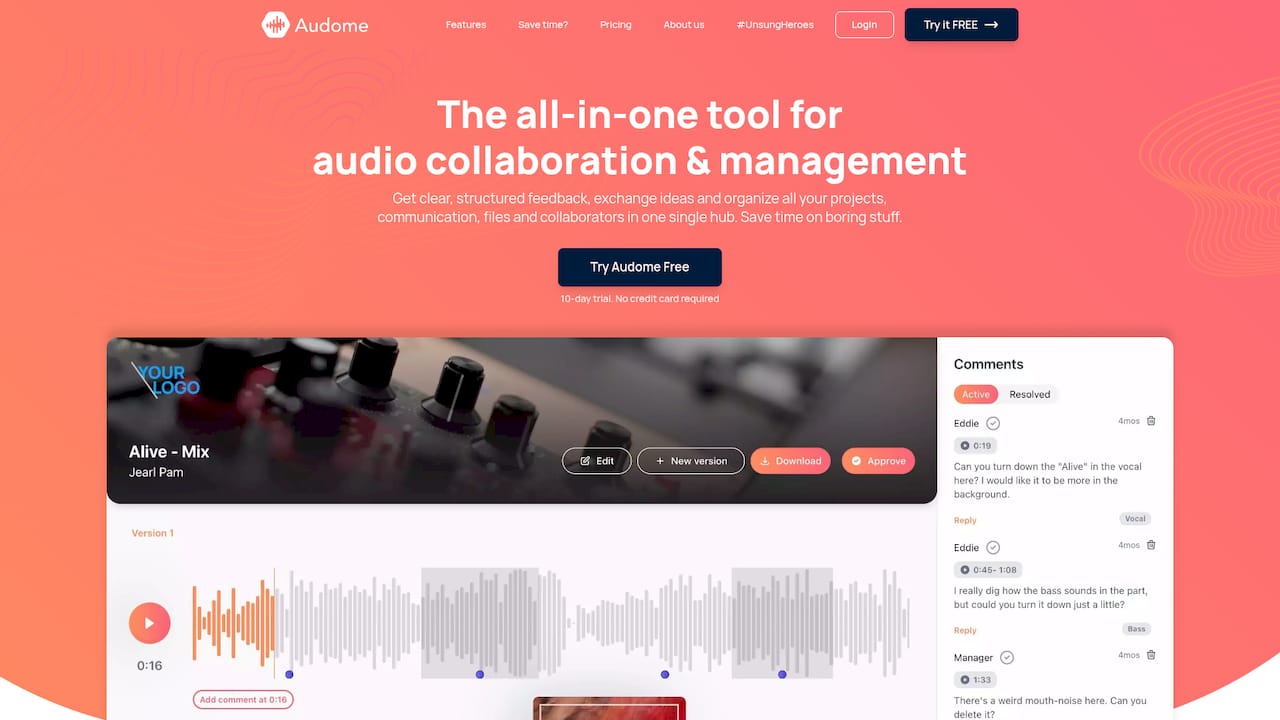
That is why Audome is designed to keep audio lossless, support high-resolution files up to 96 kHz/24-bit, and track versions automatically so the latest revision is always the one in front of the client. Time-stamped comments on the waveform mean feedback points to an exact moment, and clients do not need to log in to leave it. We think that is a calmer way to work than juggling email threads and download links.
Kreg
Keep every version at the right rate
If you move between 44.1 kHz music sessions and 48 kHz video work, the hard part is keeping track of which version is which. Audome gives you unlimited high-resolution uploads up to 96 kHz/24-bit, automatic version tracking, branded client portals, and time-stamped feedback on the waveform, so your masters and your client notes live in one place.
Plans start at $12.50 per month for Studio (or $150 per year), and Pro is $48 per month (or $576 per year). See the details on the Audome pricing page or start from the Audome home page.
FAQ
Is 44.1 kHz good enough for professional work?
Yes. 44.1 kHz captures content up to 22.05 kHz, which is above the 20 kHz limit usually given for human hearing. Focusrite states that both 44.1 and 48 kHz are more than sufficient for that range. Many professional music releases are made at 44.1 kHz.
Is Spotify 44.1 or 48 kHz?
Spotify’s U.S. artist guidance asks for 44.1 kHz or higher. It prefers FLAC and accepts compliant PCM WAV. Deliver your native master, and Spotify performs its own conversions, so you do not need to downsample first.
How do I convert 48000 Hz to 44100 Hz?
Open the file in your DAW or audio editor and export with sample-rate conversion set to 44,100 Hz. Do not just edit the rate in the file properties, because that changes speed and pitch. Keep the original, convert once at the end, and check that the length matches.
What is the 48k sample rate used for?
48 kHz is the common rate for film, TV, and video work. Sound Devices says film and TV broadcast audio should be recorded at 48 kHz or its 48.048 and 47.952 variants, following the production’s instructions. Apple also accepts it for music and requires 48 or 96 kHz for Dolby Atmos assets.
Can anyone hear the difference between 44.1k and 48k?
Not reliably, and the research does not show that they can. The AES meta-analysis found a small ability to tell standard-resolution audio from higher-resolution audio, mostly after training, but it did not test 44.1 against 48 kHz specifically. Choose by destination, not by ear.
Sources
- Sampling Rate, Analog Devices
- Sample Rate, Bit Depth, and Buffer Size Explained, Focusrite
- Digital audio basics: audio sample rate and bit depth, iZotope
- Should I Record at the High Sample Rates? Sweetwater
- A Meta-Analysis of High Resolution Audio, Audio Engineering Society
- Audio file formats for Spotify
- Podcast specification doc, Spotify
- Apple Video and Audio Asset Guide
- Sample Rate and Frame Rate Settings for Production Sound, Sound Devices
- How do I resample my project from 48 to 44.1 kHz? Sound On Sound
- Sample Rate Conversion, PS Audio
- Audio Sample Rate, Emby Learn