
The best way to handle client file upload depends on one thing: how often that client sends you work. For a one-off intake, use a receive link. For recurring clients and ongoing projects, use a branded portal. For custom in-app workflows or very large files, build on presigned uploads.
Every method needs the same floor: encryption in transit, virus scanning on upload, and a record of who sent what and when. Beyond that baseline, your two first moves are simple:
- Pick the approach that matches how often this client sends files, not the fanciest option available.
- Set a maximum file size and submission cap before you send the first link.
Key Takeaways
The right client file upload method depends on frequency and stakes: receive links for one-off intake, portals for recurring clients, and presigned developer flows for custom or oversized transfers.
| Point | Details |
|---|---|
| Match method to frequency | Use receive links for one-off senders, portals for recurring clients, custom flows for large or complex needs. |
| Configure limits before sending | Set submission caps, file size limits, and expiry dates before the first upload link goes out. |
| Itemize every request | List exact formats and examples per file (like “Vocal stems, WAV, 48kHz”) to cut missing-asset follow-ups. |
| Lock down the security baseline | Require TLS, server-side token authentication, malware scanning, and an audit trail on every submission. |
| Audio studios need specialized tools | Audome pairs no-login uploads with password-protected pages, waveform feedback, and Stripe-based payment gating. |
Table of Contents
- What Is a Receive Link and When Should You Use One?
- When Do You Need a Branded Client Upload Portal?
- How Do Presigned and Resumable Uploads Work for Developers?
- What Reduces Friction and Missing Files From Clients?
- What Security Controls Are Non-Negotiable for Client Uploads?
- How Do Audio Professionals Apply These Upload Patterns?
- What Actually Determines Whether an Upload System Works
- Why Audome Fits This Problem Better Than Piecing It Together Yourself
- Sources
- FAQ
What Is a Receive Link and When Should You Use One?
A receive link (sometimes called a file-request link) is a single URL you send a client that opens a plain upload page. No account, no app, no confusion. The client sees a drag-and-drop zone or a basic form, drops their files, and hits submit. Many services, including patterns popularized by WeTransfer’s request-files feature, build the entire experience around this no-install simplicity.
Receive links work best for three situations:
- One-off intake, like a new client sending reference material before a project even starts.
- Non-technical senders who would abandon anything requiring a login or a downloaded app.
- Quick previews of large assets before you commit to a full project setup.
Before you send a link, configure the admin side: a submission cap, a maximum file size, an email alert the moment something lands, and automatic folder mapping so the file doesn’t sit in a generic inbox. Expiring links and optional passwords add a layer of control without adding friction on the client’s end, a trade-off WeTransfer’s own guidance leans on directly.
Pro Tip: If a client sends files more than twice a month, stop using one-off links. The setup time you save per link gets eaten by the folder-hunting you do later.
When Do You Need a Branded Client Upload Portal?
A portal earns its setup cost once a relationship becomes recurring. Instead of a single upload page, you get per-project folders, defined user roles, and a branded upload page that looks like part of your business instead of a generic form.
The real value shows up in the details:
- Per-item checklists cut back-and-forth by telling the client exactly what’s missing, not just that something is missing.
- Concrete examples next to each checklist item (a sample filename, a format spec) raise completion rates for clients who aren’t technical, a pattern Filevine’s research on client portals backs up directly.
- Version history and status notifications mean nobody has to ask “did you get this?” by email.
- E-sign and feedback tools built into the same page keep the project’s paper trail in one place instead of scattered across three apps.
Portals make sense once you’re managing recurring clients, multi-stage projects, or work that has any compliance requirement attached. For a single quick delivery, they’re overkill. For anything ongoing, the account friction pays for itself within a few projects.
How Do Presigned and Resumable Uploads Work for Developers?
If you’re building your own client upload flow instead of buying one, the architecture matters more than the interface. A presigned (or tokenized) upload means your server authorizes the upload and issues a short-lived token before the browser ever touches your storage bucket. The client never sees a storage credential. Documentation from Vercel Blob’s client upload guide walks through generating that token server-side and verifying authentication before it’s issued.
For large media or document sets, resumable uploads matter more than raw speed. Libraries like UploadThing’s client API support pause and resume on multi-gig transfers, so a dropped connection doesn’t force a client to start over.
On upload completion, three things should happen automatically:
- A webhook fires to reconcile the upload with your database record.
- The file moves from a temporary bucket into its permanent project folder.
- A background virus scan runs before anyone downloads it.
Custom flows make sense when you need in-app UX, complex routing logic, or file sizes that off-the-shelf receive links choke on.
What Reduces Friction and Missing Files From Clients?
Most support tickets about uploads trace back to unclear instructions, not bad technology. An itemized request beats a vague one every time: “Vocal stems, WAV, 48kHz” tells a client exactly what to send, while “send your files” invites guesswork and three follow-up emails.
A handful of concrete practices fix most of it:
- List required formats and naming conventions next to each checklist item, not buried in a separate instructions page.
- Design the upload page mobile-first, since a large share of clients will open your link from a phone.
- Show a visible progress bar and a confirmation receipt the moment upload finishes, so the client knows it worked.
- Send automated reminders tied to specific missing checklist items instead of a generic “please upload your files.”
- Use single-use or expiring links for anything shared publicly, but always give the client a clear way to request a new one if the link dies.
Expiring links strike a real balance between low friction and control when they’re paired with size limits and an optional password.
Pro Tip: Break large deliverables into separate checklist items, such as stems, session files, and reference mixes, so each piece can be reviewed and confirmed independently instead of getting buried inside one giant zip file.

What Security Controls Are Non-Negotiable for Client Uploads?
Skip any of these and you’re not running a professional upload system, you’re running a liability.
- Transport and storage encryption. TLS protects files in transit; encryption at rest protects them once they land. You need both, not one or the other. Let’s Encrypt makes automated, free TLS certificate renewal standard practice for any upload page.
- Server-side authentication for tokens. Never expose direct-write storage credentials to a browser. Generate upload tokens server-side and verify the request before issuing one, exactly the pattern Vercel’s client upload documentation recommends.
- Malware scanning on upload. Scanning files as they arrive, not after, keeps infected content from ever touching your systems, a practice detailed in Microsoft’s guidance on upload-time malware scanning.
- An audit trail for every submission. Timestamps, sender identity, and file hashes give you a record if a dispute ever comes up.
- Access control and retention policies. Decide who can see what, and how long files sit in storage before they’re purged or archived, then enforce admin access with two-factor authentication.
The most common upload vulnerabilities come from trusting client-side validation alone, skipping server-side type and size checks, and failing to isolate uploaded content from executable paths. The OWASP File Upload Cheat Sheet treats these as the baseline, not the advanced tier, of upload security.
How Do Audio Professionals Apply These Upload Patterns?
Studios face a sharper version of this problem: huge files, high-stakes revisions, and clients who need to hear exactly what changed. Audome’s approach reflects the patterns above, built for that specific job:
- Itemized upload requests for stems, session files, and reference mixes, paired with timestamped feedback directly on the waveform.
- Password-protected project pages and download controls that keep high-resolution masters locked until a client pays.
- Unlimited high-resolution uploads, version tracking, and Stripe Connect payments built into one workspace instead of five separate tools.
What Actually Determines Whether an Upload System Works
Most friction debates miss the real question: is this client sending files once or repeatedly? Set the bar too high for a one-off sender and they abandon the link. Set it too low for a recurring client and you spend your week chasing missing stems through three different inboxes.
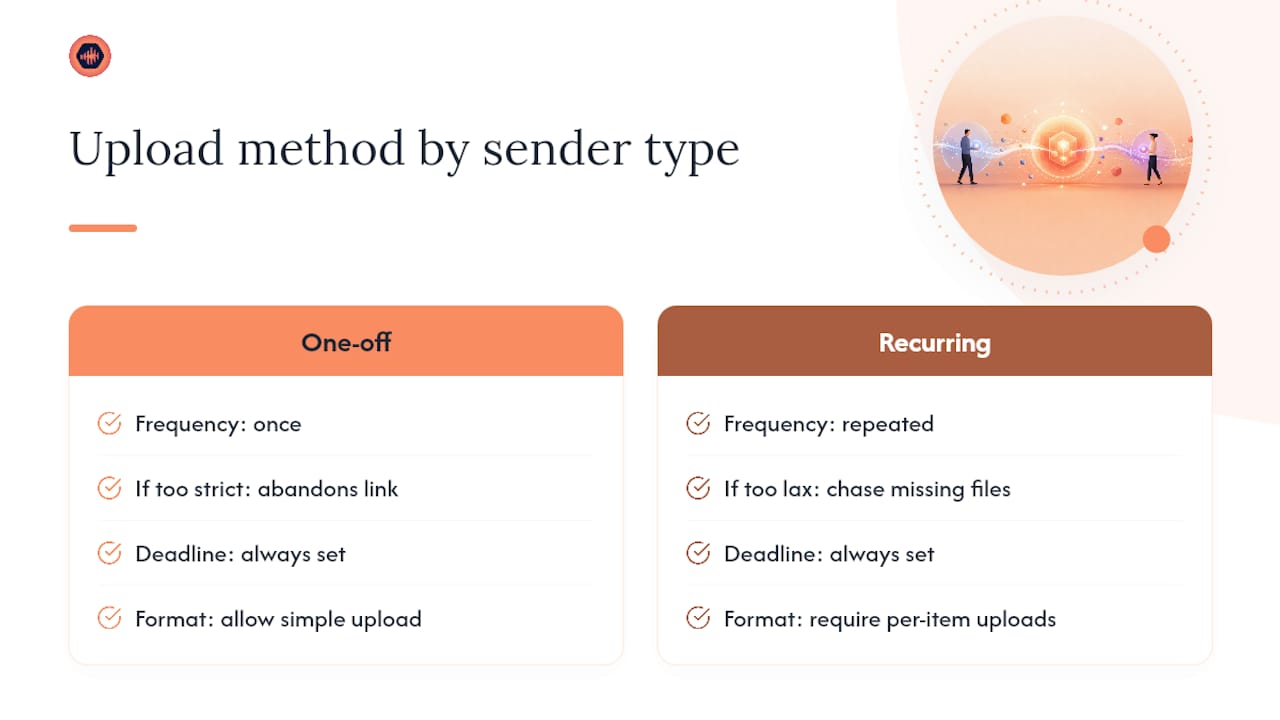
Two rules cut through most of the guesswork. Set a deadline on every request, even an informal one, because open-ended asks get ignored. And require per-item uploads instead of a single bundled zip, because a missing vocal stem buried inside one file is invisible until mix day.
…
— Kreg
Why Audome Fits This Problem Better Than Piecing It Together Yourself
Every method above works, but studios rarely build presigned upload flows from scratch, and generic receive links weren’t made for 96kHz/24-bit session files or revision-stage feedback. Audome combines the no-login simplicity of a receive link with the structure of a full portal: clients drop files without creating an account, you get password-protected project pages, timestamped waveform comments, and automatic version tracking on every revision.
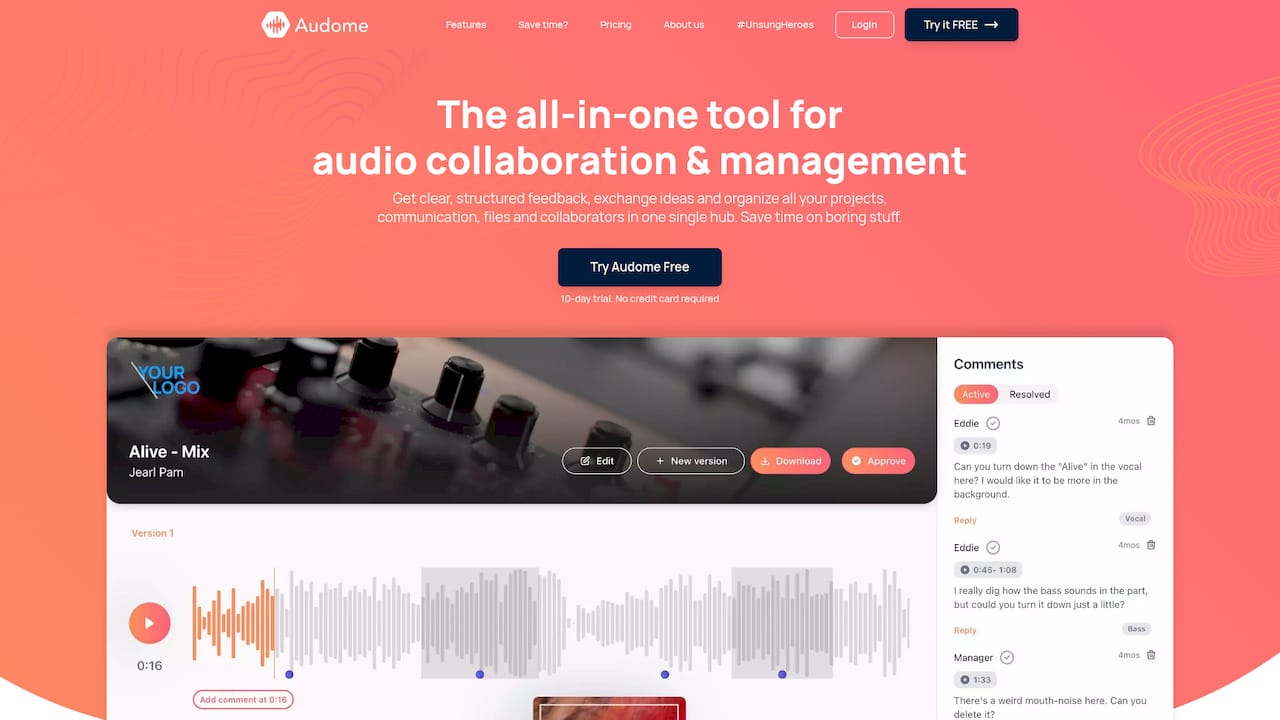
Paid revision limits and Stripe Connect payments mean final masters stay locked until the invoice clears, which solves the unpaid-download problem no generic file-sharing tool addresses. If you’re tired of chasing feedback across email, Discord, and three cloud drives, start a free trial at Audome and see how a single project page replaces all of it.
Sources
Engineers implementing custom flows should start with the OWASP File Upload Cheat Sheet for server-side validation pitfalls, the MDN file input documentation for client-side previews and type checks, UploadThing’s API reference for resumable uploads, and Let’s Encrypt for automated TLS certificates.
- Azure Defender — on-upload malware scanning
- OWASP File Upload Cheat Sheet
- Vercel Blob — Authenticating client uploads
- Let’s Encrypt
FAQ
How Do I Share a File With a Client?
Send a receive link for a quick, one-off transfer, or invite the client to a branded portal for ongoing project work. Both let the client upload without creating an account if you configure the link that way.
How Do You Do a File Upload?
The client opens the link or portal page, drags files into the upload zone or selects them through a form, and submits. A confirmation receipt and progress bar should confirm the upload succeeded.
How Do I Upload Documents to My Client Portal?
Log into the portal, open the relevant project folder, and drag files directly onto the upload area or use the file picker. Password-protected project pages, like those Audome offers, keep the folder private to just you and the client.
What Software Can I Use to Upload Documents to My Clients?
For audio and creative deliverables specifically, a platform like Audome combines no-login client uploads with version tracking and payment gating in one workspace, replacing the mix of email, Dropbox, and messaging apps most studios patch together.